WooCommerce store broken after WordPress 7.1 update? Here’s how to find and fix what failed
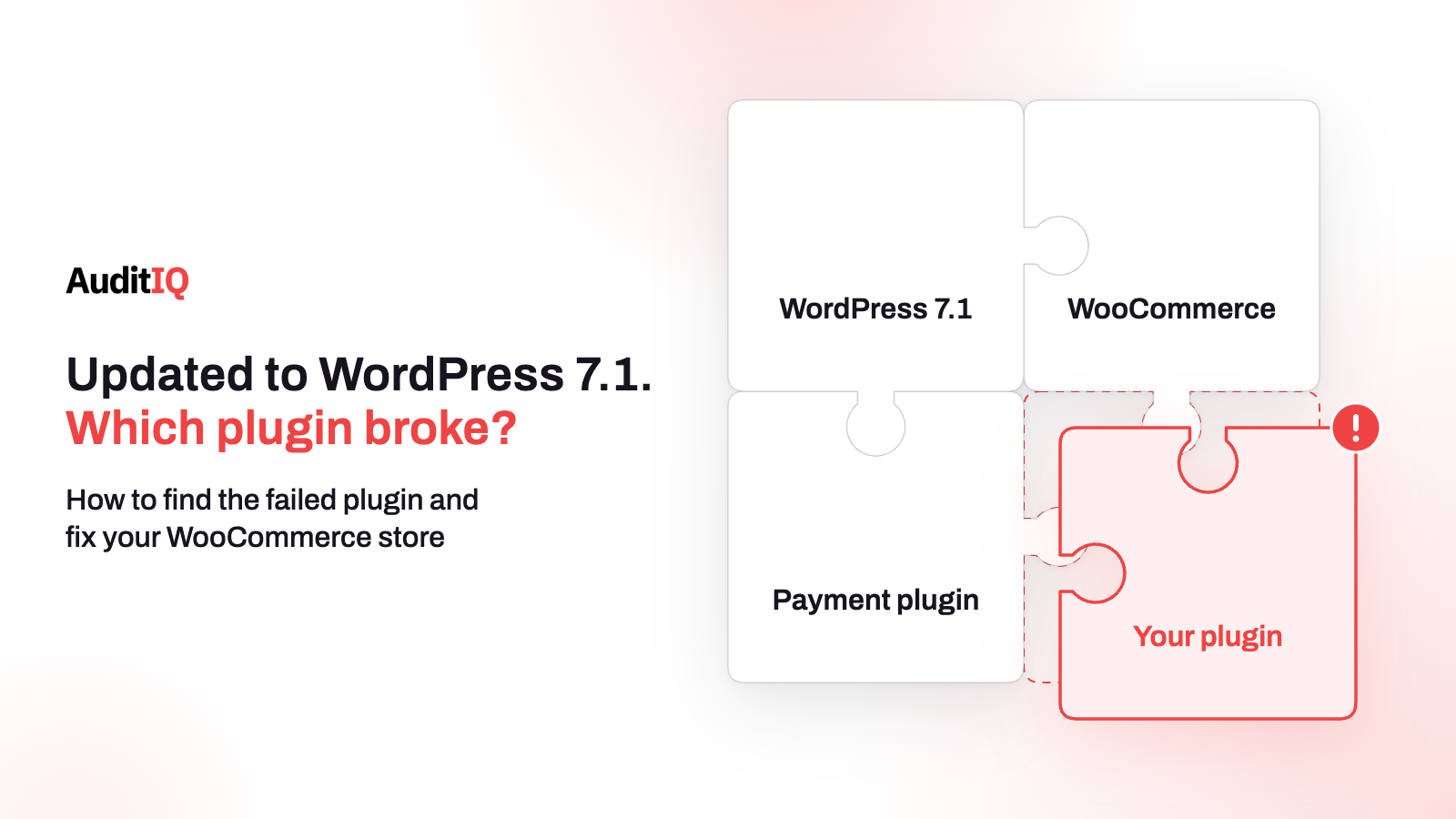
A WooCommerce store usually breaks after the WordPress 7.1 update because of a plugin or theme incompatibility, not WordPress itself: a plugin throws a fatal error, the product editor or an admin screen breaks after the always-iframed editor and list-table changes, or a caching or checkout plugin conflicts. Find the plugin named in the error log, update or deactivate it, then test a full purchase before you consider the store recovered.
WordPress 7.1, released on August 19, 2026, made the post editor fully iframed for all themes and changed the markup of admin list tables. Those changes can expose old assumptions in plugins, themes, and custom code, and a single incompatible plugin can leave a WooCommerce store with a fatal error, a crashing product editor, or a broken Orders screen. If auto-updates are on, the first sign may be a customer telling you checkout does not work, or a quiet drop in orders.
This guide separates what actually broke in the admin from what broke on the storefront, because mixing them up is the most common diagnostic mistake. It then shows how to find the failing plugin, get the store back online without switching off more than you need to, test checkout properly, decide whether to roll back, and prepare for the next release. WordPress 7.2 is scheduled for 8 December, in the middle of peak trading, so the same checks will matter again soon.
What changed in WordPress 7.1 that can affect WooCommerce?
Two changes in 7.1 matter most for WooCommerce stores, and both are mainly about the admin, not the customer-facing store:
The post editor is now always iframed
In 7.1 the post editor is always iframed regardless of theme type, the block API versions of registered blocks, or the block API versions of blocks in the content, and sites that register legacy meta boxes are included. In 7.0 the choice was made per post. Most blocks work without changes. The problems that do appear almost always have one cause: the iframe has its own document and window, separate from the admin page where editor scripts run, so code that reaches for the global document or window to touch the editing canvas is looking at the wrong document. That affects product editing screens, custom blocks, and editor extensions, not the shopper’s cart or checkout.
Admin list tables use new markup
The primary row header in post list tables moved from the checkbox column to the title column. The checkbox cell became a regular cell, the title cell now carries an accessible label, and collapsed cells in the responsive view use a flex layout. This markup had been stable for years, so plugins that select the old structure, for example CSS or JavaScript targeting th.check-column, can render incorrectly. Any extension that adds columns or row actions to the Orders, Products, or Coupons screens is a candidate.
What WooCommerce has already fixed
WooCommerce 11.0.1, released on August 10, 2026, increased compatibility with WordPress 7.1 and made the Orders list work with the new list-table markup, including checkbox interactions and responsive layouts. It is also a security release, so it is worth installing for that reason alone. It does not make every third-party extension, payment gateway, or page builder compatible, and those vendors have to ship their own updates.
| WordPress 7.1 change | Main impact | Direct impact on the storefront |
|---|---|---|
| Always-iframed post editor | Product and post editing, custom blocks, meta boxes | Usually none |
| Block API version 3 | Blocks inside the editor | Only if the same block is used on the storefront and has its own incompatibility |
| New list-table markup | Orders, Products, and Coupons admin screens | Usually none |
| Browser-based image processing for uploads | Uploading product images in the admin | None directly |
| A plugin or theme that is not compatible | Can break the admin, the storefront, or both | Can break checkout, cart, AJAX, and styling |
| A bug in a caching or optimisation plugin | Can take the whole site down | Can break checkout or serve stale pages |
Is it an admin problem or a storefront problem?
Start with what you see, because it tells you where to look first:
| What you see | Likely layer | First check |
|---|---|---|
| The product editor shows a blank canvas or “the editor has encountered an unexpected error” | Admin editor (iframe) | Update or deactivate the plugin that adds blocks, meta boxes, or editor extensions |
| The Orders screen shows odd columns, overlapping rows, or missing checkboxes | Admin list tables | Update WooCommerce to 11.0.1 or later, then check extensions that add columns |
| A white screen or “critical error” on the front end | A fatal PHP error in a plugin | Read the error log for the file path |
| The checkout page is blank, or Place Order does nothing | Storefront: plugin conflict, JavaScript, cache, or Blocks compatibility | Check the browser console and the error log, then test with caching off |
| The cart does not update or Add to cart fails silently | Storefront: JavaScript, AJAX, or cache | Check the console and cache rules, then deactivate recent plugins one at a time |
| Page builder layouts are broken on product or category pages | Builder or theme compatibility | Update the builder and theme, then clear caches |
One caution keeps the diagnosis honest: do not assume the iframed editor explains a broken checkout. That change affects the editing canvas in the admin. A checkout or cart that fails after an update is far more likely to be a plugin or theme conflict, a JavaScript error, a caching problem, or an incompatible WooCommerce extension.
What does the failure look like? Symptoms and error messages
If your store updated to WordPress 7.1, you may see one or more of these:
- A fatal error on the front end that names a plugin file in the error log
- A product editor that will not load, or shows a blank canvas
- An Orders screen with broken layout or missing columns
- A blank or unresponsive checkout, or a spinner that never finishes
- Cart or add-to-cart actions that stop working
- Page builder content that renders with missing sections or unstyled blocks
A real example from this release: WP Rocket documented a fatal error between its Cloudflare integration and WordPress 7.1. The log entry looks like this, with a path on your own server:
PHP Fatal error: Uncaught TypeError: substr(): Argument #1 ($string) must be of type string, int given in .../wp-content/plugins/wp-rocket/inc/ThirdParty/Plugins/CDN/Cloudflare.php:562
The point of the example is the pattern, not the plugin: a plugin-specific incompatibility can take down the whole site, and the log names the exact file to look at.
How do you get your store back online right now?
Work through these in order, and stop as soon as the store is stable:
Step 1: Back up and confirm the version
Take a copy of the files and the database before you change anything. Then confirm the WordPress version over SFTP or WP-CLI with wp core version, or by checking wp-includes/version.php. If you received a recovery mode email from WordPress about a technical issue, use its link to reach the admin in a safe mode.
Step 2: Read the error log
Turn on WP_DEBUG and WP_DEBUG_LOG temporarily, reproduce the failure, and read wp-content/debug.log. The file path in a fatal error names the plugin or theme. Also check your hosting’s PHP error log and the browser console for JavaScript errors.
Step 3: Deactivate only the plugin the log names
Rename that plugin’s folder, for example from /wp-content/plugins/wp-rocket/ to /wp-content/plugins/wp-rocket-off/, then reload. This is the same approach WP Rocket’s own guidance gives when you have lost access to the admin. It keeps your payment, security, and shipping plugins running, which is safer than switching everything off.
Step 4: If no plugin is named, deactivate them all
Rename the whole /wp-content/plugins/ directory to /wp-content/plugins-disabled/. If the store comes back, the cause is a plugin. Be careful: this also disables payment gateways, security tools, and other integrations, so do it in a low-traffic window, keep it brief, and restore the original name afterwards.
Step 5: Reactivate in order of business risk
Reactivate one at a time, and test after each, in this order: WooCommerce itself, payment gateways, shipping and tax, checkout and block plugins, caching and optimisation, SEO, security, and analytics, then the rest. The plugin that brings the error back is your culprit.
Step 6: Update the culprit and everything else that is behind
Check the vendor’s changelog for a WordPress 7.1 fix. In the WP Rocket case the fix shipped in version 3.23.2.2 on August 20, 2026, and the vendor’s guidance includes a recovery helper plugin for sites that cannot see the update. Update WooCommerce to 11.0.1 or later, then check every active plugin for an update released after August 19. A plugin that has not been updated for months, or whose “Tested up to” version predates 7.1, is a higher risk.
Step 7: Test a full purchase
Do not stop when the homepage loads. Place a test order, as the next section explains, because the cart, checkout, and payment steps each use different plugin hooks that can break independently.
When should you roll back WordPress, and when should you not?
A rollback can be a sensible temporary step if the store is down and you cannot find the cause quickly, ideally by restoring a hosting snapshot or backup taken before the update. It does not solve the underlying incompatibility, and it leaves you on an older WordPress branch that you will have to update anyway. WordPress shipped security releases for 7.0 in July and August and several more for 7.1 in September, so staying behind has its own cost.
- Prefer updating or replacing the incompatible plugin over rolling back.
- If you do roll back, treat it as containment: record the exact versions, turn off automatic major updates, and check that the older branch still receives the security fixes you need.
- Plan a staged upgrade once the incompatible plugins have fixes, and test it on staging first.
How do you test checkout after recovery?
| Flow | What to test |
|---|---|
| Cart | Add, change the quantity, remove, and apply a coupon, on desktop and on a phone |
| Checkout | Guest and logged-in checkout, and a refresh in the middle of the page |
| Shipping | Address validation, shipping rates, and shipping method selection |
| Payment | Every active gateway, including a successful payment, a declined card, and a 3D Secure challenge |
| Order | The order appears in WooCommerce admin, and the confirmation email arrives |
| Tracking | GA4 purchase, Meta Pixel, and Google Ads conversion events fire on the confirmation page |
| Cache | Logged-in customers see the right cart and prices, and checkout is not cached |
| Admin | Open a product, edit fields, upload an image, and save. Open the Orders screen and use its checkboxes and filters |
Image uploads are worth a specific check, because WordPress 7.1 moved image compression, resizing, and thumbnail generation into the browser. It is meant to reduce server load, but a plugin that hooks into the old server-side process can behave differently.
How do you know the store has fully recovered?
- Test orders complete on every payment method.
- The WooCommerce Status page shows no critical errors.
- No new PHP errors appear in
debug.logduring a complete purchase. - GA4 real-time reporting confirms purchase events fire.
- In the days after, Search Console shows no new crawl errors on product or checkout URLs, and orders return to their usual pace.
How do you stop the next WordPress update from breaking your store?
- Test on staging first. Apply the update to a copy of the store with the same plugins, theme, and PHP version, and run the full purchase test before touching production.
- Stop automatic major updates, keep the minor ones. Setting
define( 'WP_AUTO_UPDATE_CORE', 'minor' );inwp-config.phpapplies security and maintenance releases automatically but waits for you on major releases. - Check compatibility before you update. Read each active plugin’s changelog and its “Tested up to” version on wordpress.org. Any plugin not tested against the new release is a risk.
- Update in a safe order and keep backups. WooCommerce and payment plugins first, with a restorable backup and a written rollback path.
- Plan around WordPress 7.2. The WordPress Developer Blog lists the final release on December 8, with the first release candidate on November 17. That puts the release in peak trading, so test the release candidate on staging in November and schedule the production update after the holiday rush unless you have a pressing reason to go earlier.
Catching a post-update regression before it costs orders with AuditIQ
A staging test cannot reproduce every device, payment method, and plugin combination, so the first customers to meet a regression are often real ones. AuditIQ helps you see it sooner:
- Uptime Monitoring: checks your store continuously from multiple locations, records HTTP error codes such as 500, and alerts you by portal, email, or Slack when a fatal error takes the front end down.
- Log Monitoring: surfaces PHP errors and exceptions as they occur, with the full stack trace including file, line number, and call stack, which points straight at the plugin file. It also flags error spikes and new error types after an update.
- Module Monitoring: keeps an inventory of the modules and extensions installed on your store, alerts you to available updates, and checks daily code hashes, so you can see which extension changed around the time the problem started.
- User Experience Monitoring: shows where customers drop off in checkout, with frustration signals and device, browser, and session context, so a step that stopped working for real shoppers stands out.
AuditIQ does not test plugin compatibility before an update, roll back a release, or show what happens inside the WordPress editor. Keep staging tests and backups in place, and use monitoring to learn about a regression within minutes instead of from a customer.
Beyond WooCommerce updates, AuditIQ is a 360° eCommerce monitoring platform purpose-built for Magento, Adobe Commerce, and Shopify stores. It continuously monitors every critical layer of a store — performance, infrastructure, SEO, security, user experience, configuration, and code quality — from a single, unified dashboard, so an update that goes wrong does not quietly turn into lost orders.
Start monitoring your store for free today and catch the next post-update regression before your customers do.
Others also read
- Three platforms, three critical patches, one week: eCommerce's patch velocity problem is now a revenue problem
- Payment plugin gets patched, your checkout doesn't verify itself: The revenue gap between security updates and storefront integrity
- Why did my eCommerce organic traffic drop after a theme or app update?
Frequently asked questions
1. Will rolling back to WordPress 7.0 fix the problem?
It may restore the store temporarily, but it does not fix the plugin or theme that is incompatible, and you will still have to update later. Treat a rollback as containment, update the incompatible component, and check that the older branch still receives security fixes.
2. Is WooCommerce compatible with WordPress 7.1?
WooCommerce 11.0.1, released on August 10, 2026, increased compatibility with WordPress 7.1 and made the Orders list work with the new list-table markup. Third-party extensions, payment gateways, and page builders are separate, so check each one before updating.
3. My site loads fine but checkout is broken. Why?
The iframed editor change affects the admin editing canvas, not the storefront. A broken checkout after an update is usually a plugin or theme conflict, a JavaScript error, a caching problem, or an incompatible WooCommerce extension. Test the full purchase flow, not only the homepage.
4. How do I know which plugin caused the error?
Enable WP_DEBUG_LOG and read wp-content/debug.log. A fatal error includes the file path and line number, and the plugin folder in that path is the source. Also check the browser console for JavaScript errors.
5. Is it safe to rename the plugins folder on a live store?
It works, but it switches off everything, including payment and security plugins. Back up first, do it in a low-traffic window, restore the name afterwards, and when the log names a single plugin, rename only that plugin’s folder.
6. Should I turn off all automatic updates?
No. Turn off automatic major updates, which carry the biggest compatibility risk, but keep minor updates on so security fixes still apply. WordPress shipped several security releases after 7.1, so staying current on minor releases matters.
7. What should I do about WordPress 7.2?
It is scheduled for December 8, with a release candidate on November 17. Test the release candidate on a staging copy of your store, run the full purchase test, and schedule the production update after the holiday trading peak unless a security reason forces you to go earlier.
About the author
Ginny Ngo writes from AuditIQ's experience monitoring eCommerce performance, SEO, security, and reliability issues across Magento, Shopify, WooCommerce, and Adobe Commerce stores.