Why is my eCommerce store showing the wrong price? How to find and fix pricing errors before they cost you revenue and trust
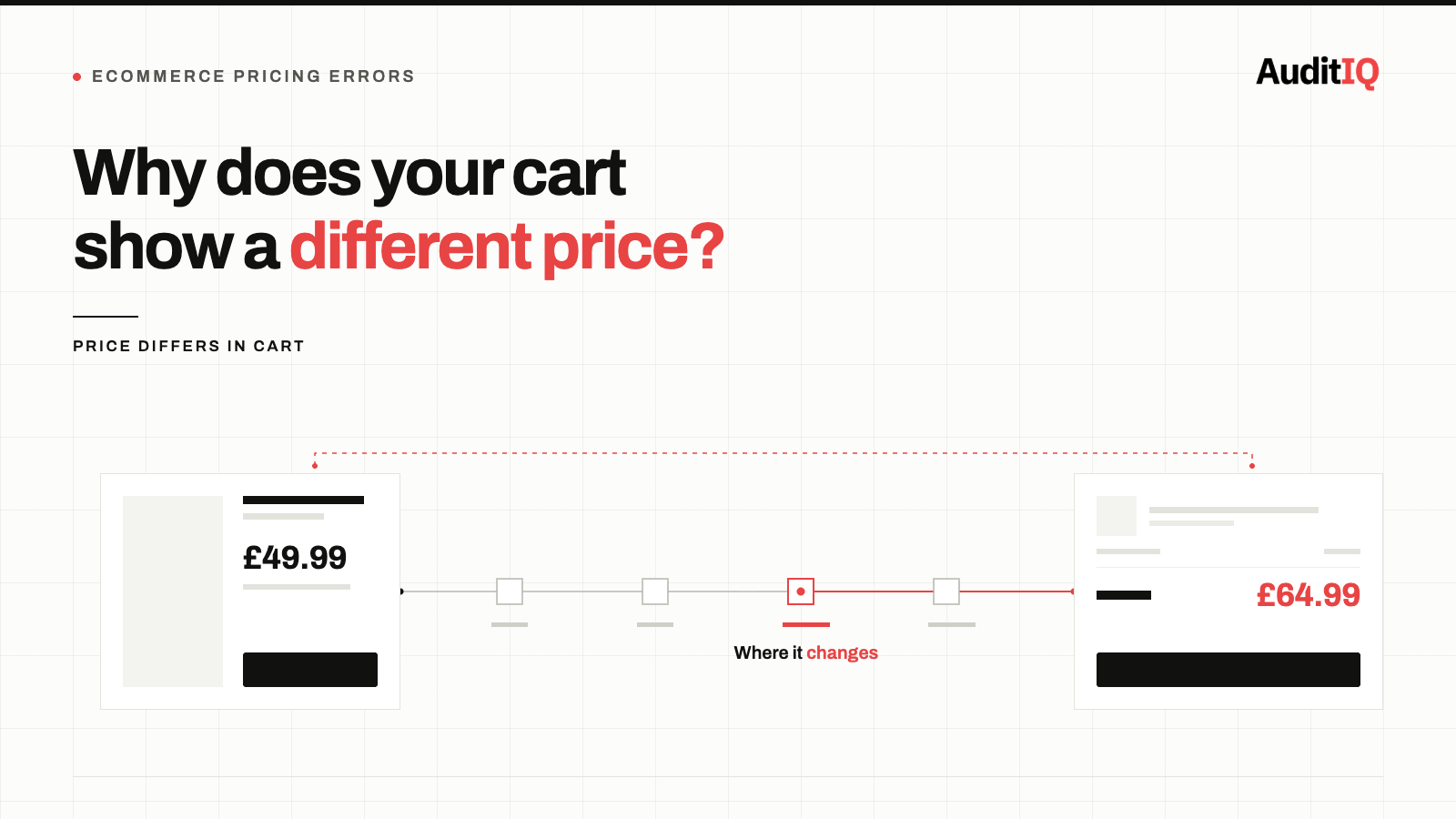
An eCommerce store shows the wrong price when one layer of its pricing stack disagrees with another: a scheduled sale that never activated because cron or the timezone failed, stale cache, cart rules that differ from the product page, a promotion conflict, an app or theme that changes the displayed price, a failed ERP sync, or currency rounding. Fix it by comparing the price in the admin, product page, structured data, cart, checkout, and feed to find where it diverges, then correct that layer.
When your eCommerce store displays a wrong price, whether a sale price that never activated, a product page showing one figure while the cart shows another, or a promotion that applies to the wrong products, the impact is immediate: customers abandon checkout because of unexpected totals, your margin erodes on underpriced items, and trust damage compounds with every mismatch a shopper notices. The fix requires identifying which layer of your pricing stack has failed, but prevention requires continuous monitoring because pricing errors are almost always silent.
What wrong prices cost an eCommerce store
Pricing errors sit at the intersection of revenue loss, customer trust erosion, and compliance risk, yet most eCommerce teams have no systematic process for detecting them, because the symptoms, cart abandonment, margin erosion, feed disapprovals, are silent.
The damage can be sudden. In 2010, a pricing-engine rule error on Zappos’ sister site 6pm.com capped every item exclusive to that site at $49.95 for roughly six hours overnight. Zappos chose to honour the orders and reported a loss of more than $1.6 million.
Checkout usability research from Baymard Institute estimates that the average large eCommerce site could gain about a 35 percent increase in conversion rate through better checkout UX alone. That research covers checkout usability broadly rather than pricing specifically, but a cart or checkout total that differs from the price a shopper saw earlier is exactly the kind of surprise that sends people away.
The damage extends beyond the immediate transaction:
- Revenue leakage: Products sold at an erroneously low price drain margin invisibly. A scheduled sale that activates on the wrong product set, or a tiered pricing rule that applies too broadly, can run for days before anyone notices.
- Cart abandonment: When a product page shows a sale price of £49.99 but the cart calculates £64.99, the customer does not investigate, they leave. This abandonment generates no error, no alert, and often no analytics event that identifies pricing as the cause.
- Feed and ad compliance failures: A price mismatch between your storefront and your Google Merchant Center feed triggers product disapprovals, removing products from Shopping ads and free listings with no storefront notification.
- Legal and regulatory risk: In many jurisdictions, displaying a price and then charging a different amount at checkout violates consumer protection regulations, regardless of whether the error was intentional. Reference prices are regulated too: in the EU, for example, announcing a price reduction requires showing the lowest price applied in the previous 30 days, so a compare-at price with no real sale behind it can create a compliance problem of its own.
Signs your store is showing the wrong price
You may not immediately connect these symptoms to a pricing error:
- Customers contacting support about a “different price at checkout” or “sale price not applying”
- Cart abandonment rate spiking without a clear cause
- Google Merchant Center showing price mismatch disapprovals
- A promotion running longer than intended, or not starting when scheduled
- Product pages showing strikethrough pricing (compare-at price) when no sale is active
- Tax-inclusive and tax-exclusive price confusion for international visitors
- Products in the wrong customer group or currency showing unexpected prices
Why is my store showing the wrong price? Most likely causes, ordered by probability
1. Scheduled pricing changes that failed to activate or deactivate
Most eCommerce platforms support scheduled sale prices, but the mechanism that activates them depends on a background process. On Adobe Commerce, scheduled pricing changes rely on cron jobs, if cron is not running or jobs are stuck, the sale never starts or never ends. On WooCommerce, scheduled sale prices depend on the store’s timezone settings and caching configuration, and an expired sale date will show the regular price. On Shopify, compare-at pricing requires both fields to be set correctly, and bulk updates via CSV or API can overwrite sale pricing without warning. The same applies to your feed: if you use a sale price, the effective dates and their time zone must be set correctly too.
Check first: Verify your sale start and end dates are in the correct timezone, and that the background process responsible for activating them is running.
2. Caching showing stale prices
Full-page cache, CDN cache, and browser cache can all serve outdated price information to customers. When you change a price in the admin, the product page may continue showing the old price until the cache expires or is manually purged. This is the most common cause of “the price changed but the page still shows the old one” reports.
Check first: Open the product page in an incognito window, or add a cache-busting parameter to the URL. If the correct price appears, your cache invalidation is not triggering on price changes.
3. Cart and checkout price calculation using different rules
The price displayed on a product page and the price calculated in the cart can diverge when:
- Tax display settings differ between product pages (tax-exclusive) and checkout (tax-inclusive), or vice versa
- A customer group or currency assignment is applied at cart level but not at browse level
- Tiered or volume pricing activates at a different quantity than the customer expected
- A coupon or promotion interacts with another discount rule in an unexpected way
Check first: Compare the product page price, cart line item price, and order total for the same product as both a guest and a logged-in customer in each customer group and currency you support.
4. Promotion and discount rule conflicts
Complex promotion stacks, buy-one-get-one, percentage discounts, free shipping thresholds, coupon codes, and loyalty rewards can interact in ways that produce unexpected totals. A “20% off everything” promotion combined with a category-level “£10 off” rule might not stack as intended, or might apply to products that should be excluded.
Check first: Test every active promotion in isolation and in combination. Verify exclusion rules are set correctly for sale items, specific categories, and specific products.
5. Apps, plugins, themes, and variant data that change the displayed price
Anything that modifies how a price is calculated or rendered can make two parts of the store disagree. Two plugins that both adjust the product price can conflict, a bundle or discount app can show a price on the product page that the cart never receives, and a cart drawer and a cart page can read their prices from different sources, so shoppers see different totals depending on where they look. Discount codes are also usually applied at checkout, not on the product page or in the cart, which shoppers can read as a wrong price. On variable products, a parent product with a price but variations missing theirs is another common source of unexpected figures.
Check first: Switch off recently installed pricing, bundle, or discount extensions one at a time, and compare the price on the product page, in the cart drawer, and on the full cart page, including for each variant.
6. Multi-channel and ERP synchronisation failures
When prices are managed in an ERP, PIM, or separate pricing engine and synchronised to the storefront, any failure in the sync pipeline, expired API tokens, rate limits, field mapping errors, or queue backlogs can leave the storefront showing stale prices while the source system has already moved on.
Check first: Compare a sample of product prices between your source system and the storefront. If they diverge, check the last successful sync timestamp and the error log of your integration middleware.
7. Currency conversion and rounding errors
International stores that calculate prices from a base currency using live exchange rates can show slightly different prices each time the rate updates, and rounding behaviour can create one-penny discrepancies that appear inconsistent. When conversion happens at different points in the shopping journey (browse vs. cart vs. checkout), the numbers may not match.
Check first: Test the full shopping journey in each currency, paying attention to whether the price changes between product page and checkout.
How to diagnose and contain wrong prices
Step 1: Identify the scope
Determine whether the pricing error affects a single product, a category, a customer group, a currency, or the entire catalogue. Check whether the error appears on the product page, in the cart, or only at checkout.
Step 2: Compare prices across layers
For the affected product(s), compare:
- The price in your admin/back office
- The price rendered on the product page (view source to check structured data too)
- The price in the cart
- The price at checkout
- The price in your product feed (Google Merchant Center, Meta catalogue)
- The price in your ERP or PIM if applicable
Step 3: Check cache and CDN
Purge full-page cache and CDN cache for the affected pages. If the correct price appears after purging, your cache invalidation is not firing on price updates.
Step 4: Verify background processes
On Adobe Commerce, run bin/magento cron:run and check that indexers are not stuck. On WooCommerce, verify that scheduled tasks (WP-Cron) are executing. On Shopify, check that any pricing apps or scripts are active and not erroring.
Step 5: Audit active promotions and extensions
List every active promotion, discount rule, and coupon code. Test each one against the affected products to determine whether an interaction is causing the unexpected price. Then repeat the comparison with recently installed pricing or bundle extensions disabled.
Step 6: Check structured data
View the page source or use Google’s Rich Results Test to verify that the structured data price matches the visible price, and that the price is present in the HTML your server returns rather than added by JavaScript after the page loads. A mismatch here will trigger Merchant Center disapprovals even if the visible price is correct.
What Google sees vs what the shopper sees
Merchant Center price mismatch disapprovals happen because Googlebot routinely crawls your landing pages and compares the price in your product data with the price on the page and in your structured data. It reads the HTML your server returns, so a price that is passed in with JavaScript after the page loads can trigger a mismatch even when shoppers see the right number. Google lists several common reasons:
- Timing gaps: prices change on your site before the updated feed reaches Merchant Center. Scheduled feed uploads or the Merchant API keep them in sync.
- Incorrect structured data: Google uses markup to understand prices on product pages, so wrong or missing markup leads to wrong prices being read.
- Different prices for users and bots: crawlers can retrieve a different price or currency from the one shown to shoppers.
- Sale dates and time zones: a wrong start date or time zone on a sale price shows the wrong current price.
- Minimum order quantities: for items sold in bulk, the total price for the minimum quantity is what must appear in your product data.
Once the feed and the landing page agree, Googlebot re-crawls disapproved products over the next few hours or days and reapproves them if the prices match.
How to verify the fix
After fixing the pricing error:
- Verify the corrected price appears on the product page in an incognito browser session for each customer group and currency
- Add the product to cart and proceed to checkout, confirm the price is consistent throughout
- Check the structured data on the page matches the visible price
- Verify the product feed reflects the corrected price (allow time for feed processing and Google re-crawl)
- If the error was cache-related, change another product’s price and verify the new price appears without manual cache purging
- Monitor Merchant Center for disapproval resolution if the pricing error had triggered feed issues
Preventing wrong prices with continuous monitoring
Pricing errors are not one-time events, they recur after every catalogue update, promotion change, platform upgrade, caching configuration adjustment, and integration maintenance window. The most dangerous pricing errors are the ones that affect a subset of customers (one currency, one customer group, one geographic region) because they are invisible to the merchant’s own testing.
A systematic prevention approach should include:
- Automated price consistency checks across product pages, cart, checkout, structured data, and product feeds
- Post-deployment price verification after every platform update, theme change, or extension installation
- Promotion start/end monitoring to verify that scheduled sales activate and deactivate on time
- Feed-to-storefront price matching to catch Merchant Center mismatches before Google’s crawler does
- Multi-currency and multi-customer-group testing to verify that pricing logic works correctly for every audience segment
A manual price comparison only proves the price was right on the day you checked, and the errors that cost the most tend to hit one currency, customer group, or region. AuditIQ helps you catch what shoppers experience and what Google reads:
- User Experience Monitoring: tracks drop-off at each step of the checkout flow, plus frustration signals such as rage clicks and dead clicks, with device, browser, and session context. A price mismatch that sends shoppers away at the cart or checkout step shows up as a drop-off at that step, instead of staying invisible in your admin.
- SEO Audit: a weekly crawl of up to 20,000 pages with 100+ checks per page, including structured data and canonicals, so broken or missing product markup, which Google uses to understand your prices, is flagged along with the exact pages affected.
- Analytics: unsampled Google Analytics data in the same platform as your technical monitoring, with conversion funnel analysis, so you can line up a conversion or cart-abandonment drop with a promotion launch, a deployment, or another change on the store.
None of this replaces comparing prices across your admin, storefront, structured data, and feed, so keep that check in your post-deployment routine and use monitoring to tell you when it is time to run it.
Beyond pricing, AuditIQ is a 360° eCommerce monitoring platform purpose-built for Magento, Adobe Commerce, and Shopify stores. It continuously monitors every critical layer of a store — performance, infrastructure, SEO, security, user experience, configuration, and code quality — from a single, unified dashboard, so the silent errors that erode revenue and trust are caught before they compound.
Start monitoring your storefront for free today to catch the next pricing error before your customers or Google do.
Others also read
- eCommerce configuration changes: The silent cause of storefront failures
- Product rich results not showing in Google? How to fix structured data errors costing you eCommerce clicks
- Google Merchant Center’s September 2026 overhaul: Three changes that could silently break your shopping campaigns
Frequently asked questions
1. Why does my product page show a different price than my cart?
The most common causes are tax display settings (tax-inclusive on the page but tax-exclusive in the cart, or vice versa), a promotion that applies at cart level but is not reflected in the browse price, an app or theme that calculates the cart price from a different source, or a customer group assignment that changes at login.
2. Why did my scheduled sale price not activate?
On Adobe Commerce, scheduled pricing depends on cron jobs, verify cron is running. On WooCommerce, check your store’s timezone setting and that WP-Cron is executing. On all platforms, verify the sale start date and timezone match your expectation.
3. How do I find all the products with wrong prices on my store?
Manually checking every product is impractical for stores with hundreds or thousands of SKUs. Automated monitoring that compares admin prices, storefront prices, structured data, and feed data is the only scalable approach.
4. Can a pricing error on my storefront get my products disapproved from Google Shopping?
Yes. Google Merchant Center crawls your product landing pages and compares the price it finds with the price in your feed. Any mismatch can trigger a price mismatch disapproval, removing the product from Shopping ads and free listings until the discrepancy is resolved.
5. Why does Merchant Center say my price doesn’t match when my page shows the right price?
Googlebot reads the HTML your server returns, not what JavaScript adds afterwards, so a price injected after load can be missed. Other common reasons are incorrect structured data, a different price or currency served to bots than to shoppers, a feed that hasn’t caught up with a recent price change, and a wrong time zone on a sale price.
6. How do caching problems cause pricing errors?
When you update a product price, the change is written to the database immediately, but the cached version of the page may continue serving the old price until the cache expires or is explicitly purged. If your cache invalidation is not configured to trigger on price changes, customers see stale prices until the cache naturally refreshes.
About the author
Ginny Ngo writes from AuditIQ's experience monitoring eCommerce performance, SEO, security, and reliability issues across Magento, Shopify, WooCommerce, and Adobe Commerce stores.