Shopify store slow after installing apps? Full guide to find the scripts that are silently killing your conversions
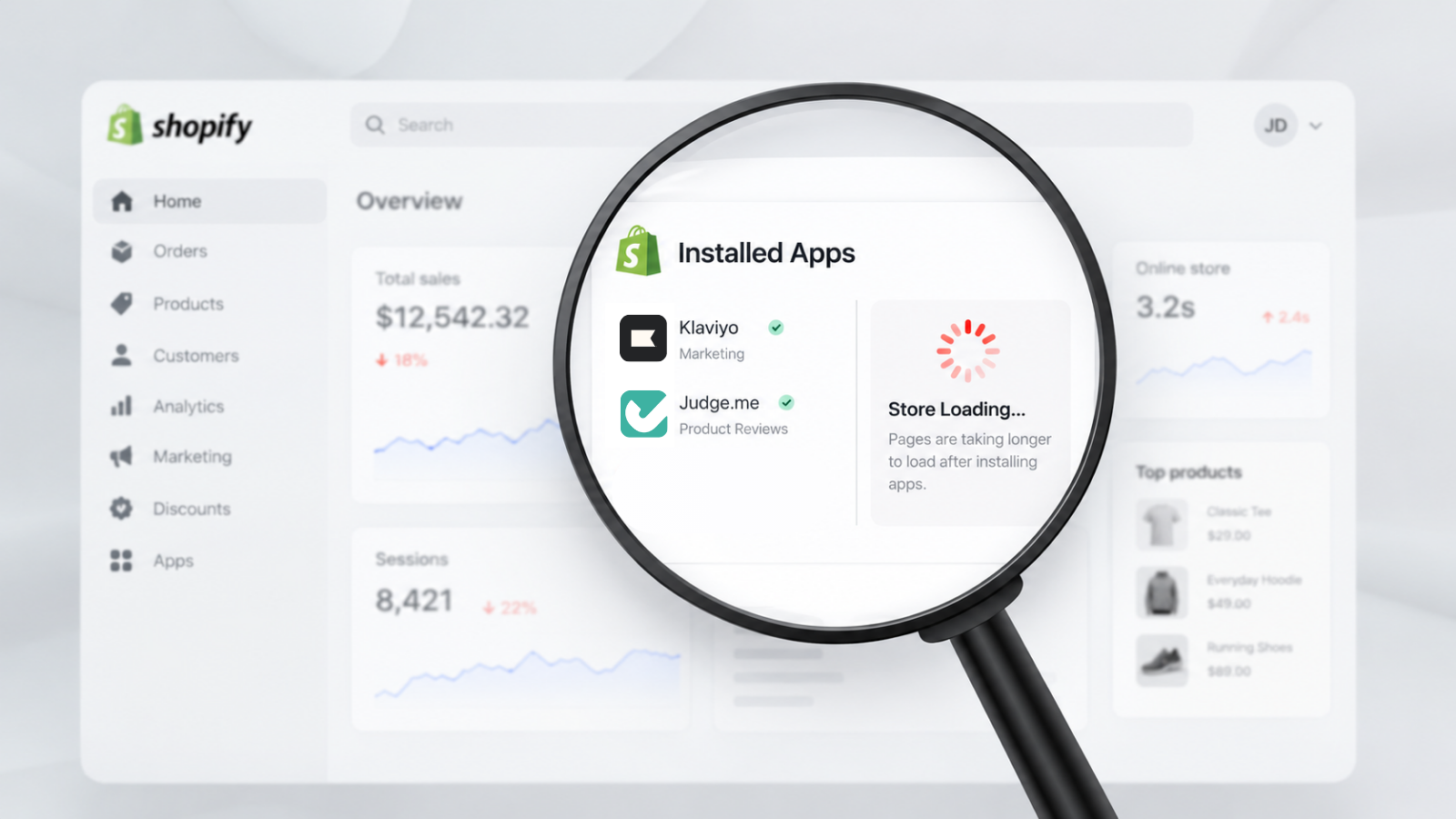
Shopify stores slow down after installing apps because third-party plugins inject extra JavaScript, CSS files, and external server requests into every page load, which blocks the browser from rendering content quickly, even where the app is not used. Synthetic speed tests miss the cumulative impact across a real multi-page shopping journey and real mobile devices. The practical fix is to inventory storefront scripts, measure main-thread blocking time, disable app embeds one by one on a duplicate theme, remove leftover code from uninstalled apps, and monitor real-user performance so new apps cannot silently erode conversions.
If your Shopify store has slowed down after installing apps, the cause is almost certainly cumulative JavaScript overhead. Each app injects 50–200KB of scripts on every page, even pages where the app isn't used. With the average store running 6+ apps, this adds up to hundreds of kilobytes of render-blocking code that synthetic speed tests won't catch, because they test one page in isolation rather than the multi-page journey your real customers navigate.
6 signs your Shopify apps are costing you speed
You may notice one or more of these signs that app scripts are degrading your store's performance:
- Shopify speed score dropped after installing a new app, or has been gradually declining over months
- Mobile pages feel sluggish, buttons are slow to respond, images load late, or the page shifts layout after appearing to load
- PageSpeed Insights shows a good desktop score but a poor mobile score, with "Reduce unused JavaScript" as a top recommendation
- Conversion rates have declined gradually with no obvious explanation, no design changes, no traffic source shifts, just a slow erosion
- Chrome DevTools shows 15+ third-party script requests on pages that should be simple product or collection views
- Customers report slow loading, but your internal testing shows acceptable speed
The gap between lab scores and real shopper experience
The invisible JavaScript tax
Every Shopify app that runs on your storefront injects JavaScript into the page. According to performance analysis by Thunder PageSpeed, the heaviest offenders include:
- Live chat widgets: 200–400KB of JavaScript
- Review apps with photo galleries: 150–500KB
- Popup and email capture tools: 100–300KB
- Analytics and tracking pixels: 50–150KB each
- Upsell and cross-sell apps: 100–250KB
The critical problem: most of these scripts load on every page, not just the pages where the app's functionality is needed. A live chat widget loads its full SDK on your homepage, every product page, every collection page, and your cart, even if customers rarely use it.
Why synthetic tests miss the real impact
Shopify's speed score and tools like PageSpeed Insights test a single page load in an idealised environment. They don't measure:
- The cumulative effect across a multi-page shopping journey where scripts re-initialise on each navigation
- Real device performance on the mid-range Android phones that represent the majority of mobile shoppers
- Script interaction conflicts where two apps compete for main thread execution time
- The second and third page loads where cached scripts still require parsing and execution
This is why your speed score might look acceptable while real customers experience a noticeably slower store. Shopify itself identifies installed apps and third-party scripts among the biggest storefront performance variables, and its Web Performance reports now surface real-user Core Web Vitals so you can see the impact beyond lab scores.
How to audit your app performance impact
Step 1: Inventory your storefront scripts
Open your live storefront (not the admin preview) in Chrome. Navigate to a product page. Open DevTools (F12) → Network tab → filter by JS. Count the third-party script requests and note their sizes. Then do the same on your homepage, a collection page, and the cart page.
You're looking for: scripts that appear on every page even when the app's functionality isn't visible on that page.
Step 2: Measure real JavaScript execution time
In Chrome DevTools → Performance tab, record a page load on mobile simulation (Slow 4G + 4x CPU throttle). Look at the Main thread flame chart. Third-party scripts that block the main thread for 50ms+ are directly hurting Interaction to Next Paint (INP) and user responsiveness.
Step 3: Test with apps disabled
In your Shopify admin, go to Online Store → Themes → Customise → App embeds. Disable all app embed blocks temporarily (on a development or duplicate theme, not your live theme). Run the same speed test. The difference represents your total app overhead.
Step 4: Re-enable apps one at a time
Enable each app embed individually and measure the incremental impact. This gives you a performance cost per app. Document: app name, JavaScript size, load time impact, and which pages it loads on. This gives you a performance cost per app.
Step 5: Calculate the revenue cost
Estimate the conversion impact of your total app overhead using your own analytics data. Compare conversion rates during periods of higher and lower page speed. If your apps collectively add 400–600ms of load time on mobile, and your store converts at 2%, even a modest percentage-point decline represents significant monthly revenue loss. Run this calculation before deciding which apps to keep.
4 immediate steps to recover lost speed
Remove unused apps completely
Uninstalling a Shopify app doesn't always remove its code. Check your theme's theme.liquid file for leftover script tags from uninstalled apps. Also check Online Store → Themes → Customise → Theme Settings → App embeds for orphaned entries that continue loading scripts.
Defer non-critical scripts
For apps where you control the script loading (custom integrations, manually added pixels), use defer or async attributes. Move scripts to the bottom of the page where possible.
Replace heavy apps with lighter alternatives
If a chat widget adds 400KB of JavaScript, look for alternatives that load asynchronously or use a lighter SDK. The functionality difference is often minimal while the performance difference is substantial.
Consolidate overlapping functionality
Many merchants run separate apps for popups, email capture, exit intent, and welcome messages that could be handled by a single tool. Each removed app eliminates another script injection point across your entire storefront.
How to verify recovery
After making changes:
- Re-run the DevTools audit on the same pages and compare total JavaScript size and main thread blocking time
- Check your Shopify speed score over the following 48 hours (it updates on a rolling basis)
- Monitor real Core Web Vitals in Google Search Console → Core Web Vitals report (this uses real user data, not lab data)
- Track conversion rate by device in your analytics for the two weeks following the change; look specifically at mobile conversion trends
Prevention: How to stay ahead of script bloat over time
The fundamental problem is that merchants make app installation decisions with no visibility into the performance cost. Speed tests before and after installation only capture the immediate, single-page impact; they don't measure the long-term cumulative degradation or the real-user experience on actual devices and networks.
Because new apps and app updates can silently add JavaScript that loads on every page, continuous real-user monitoring is the practical way to protect conversions.
AuditIQ's Script Inventory maintains a complete, continuously updated ledger of every JavaScript file executing on your storefront. It records the script URL, the page it was found on, and first/last seen timestamps, so you can instantly see which third-party scripts from apps, tag managers, or leftover code are loading site-wide. When a new script appears after an app install or update, you receive an alert before it compounds into slower load times.
Alongside Script Inventory, AuditIQ's Real User Monitoring tracks Core Web Vitals (LCP, CLS, INP) from Google CrUX field data and Lighthouse scores on your key pages. You see how real customers on real devices experience the store after each app change, not just a single synthetic test. When performance degrades, you get context on what changed and actionable guidance before rankings or conversions suffer.
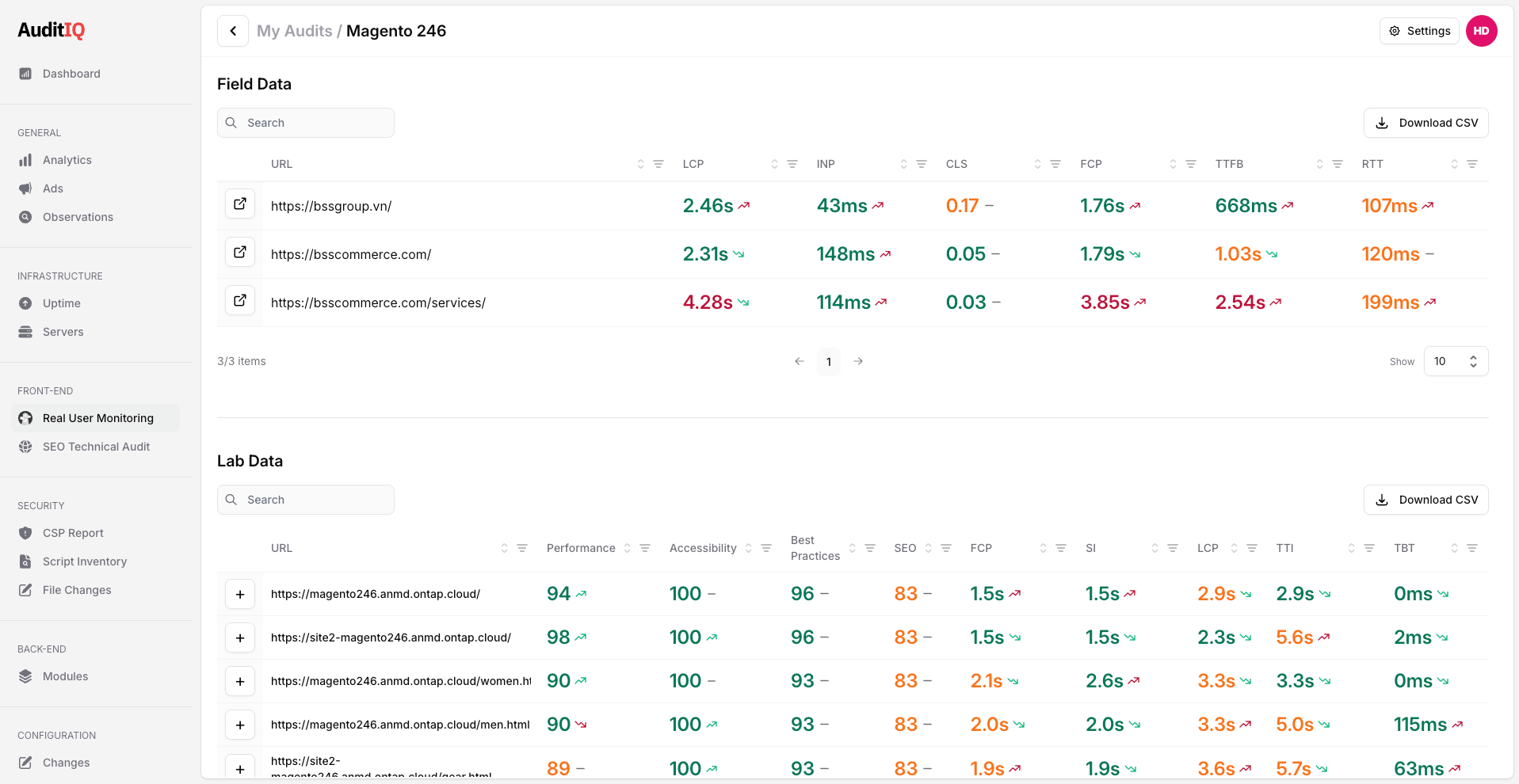
Beyond these checks, AuditIQ is an eCommerce monitoring platform purpose-built for Magento, Adobe Commerce, and Shopify stores. It also covers uptime, technical SEO, GEO readiness, security, analytics, and Google Ads performance from a single unified dashboard.
Start a full storefront audit with AuditIQ free trial to identify every script and performance gap before the next app install costs you more conversions.
Others also read:
- The hidden revenue leak behind slow pages and site errors
- Third-party JavaScript on checkout: Security, performance & compliance risks
- Ecommerce site is slow on mobile but fast on desktop?
Frequently asked questions
1. How many Shopify apps is too many?
There's no universal number. The performance impact depends on what each app loads, not the count. One poorly coded app can be worse than five well-optimised ones. Measure the actual JavaScript overhead per app rather than setting an arbitrary limit.
2. Does uninstalling a Shopify app remove all its code?
Not always. Some apps leave behind script tags, liquid code snippets, or theme modifications that continue loading after uninstallation. Audit your theme.liquid file and app embed settings after removing apps.
3. Why is my Shopify speed score different from PageSpeed Insights?
Shopify's speed score uses Lighthouse data from a specific set of pages. PageSpeed Insights tests individual URLs. Neither captures the real-user experience across a complete shopping journey. Real-user monitoring (field data) provides the most accurate picture of how customers actually experience your store.
4. Can Shopify apps slow down pages they don't appear on?
Yes. Many apps inject their JavaScript into every storefront page through script tags or app embed blocks, even when their visible UI only appears on certain pages. This is the most common source of unnecessary performance overhead.
5. Will the Shopify script tag deprecation (October 1, 2026) fix this?
Partially. After October 1, new script tags can no longer be created, and by March 1, 2027, existing script tags will stop injecting. Apps migrating to app embed blocks give merchants more control over which themes load which apps, but the JavaScript payload of each app remains the same, and merchants still need to actively manage and monitor the cumulative impact.
About the author
Dan Garner writes from AuditIQ's experience monitoring eCommerce performance, SEO, security, and reliability issues across Magento, Shopify, WooCommerce, and Adobe Commerce stores.