How to recover organic traffic after migrating to Shopify: A redirect mapping and monitoring guide
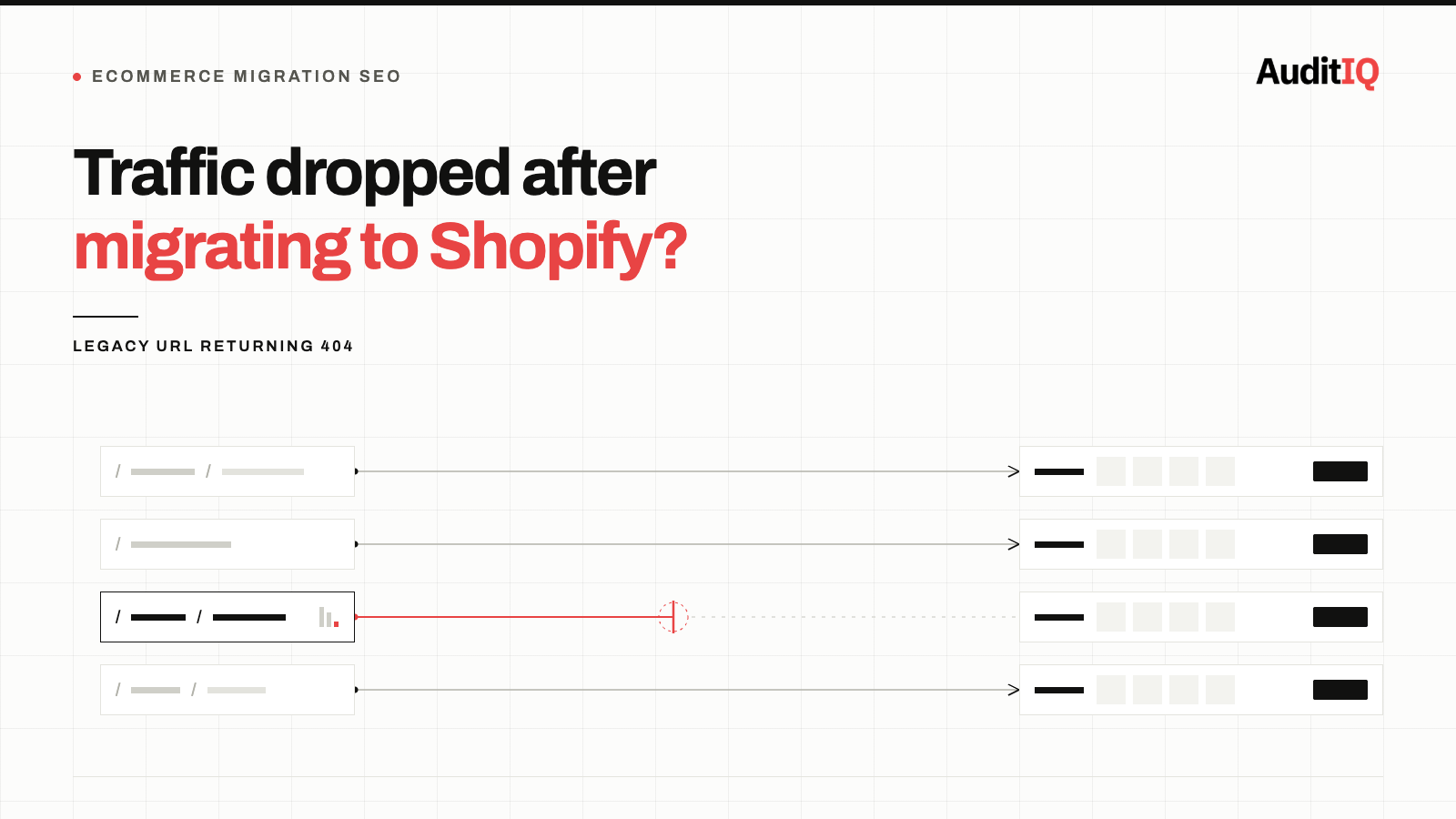
Organic traffic usually drops after migrating to Shopify because legacy product, collection, and content URLs from the old platform return 404s, pass through redirect chains, or conflict with Shopify’s canonical tags. To recover it, first rule out a leftover store password or noindex tag, then map every legacy URL that earned traffic to its correct Shopify page with a single 301 redirect, and verify redirects and canonicals in Search Console.
When organic traffic drops after migrating to Shopify, the cause is almost always incomplete redirect mapping: legacy product, category, and content URLs from the previous platform are returning 404 errors, redirecting through multi-hop chains, or conflicting with Shopify’s auto-generated canonical tags. Recovery requires a systematic audit of every legacy URL that previously drove organic traffic, mapping each one to its correct Shopify destination.
Some temporary movement is normal. Google expects rankings to fluctuate while it recrawls a moved site, and Shopify’s own SEO team estimates that most migrations see a revenue decline of 10% or less. A drop that is deep, concentrated on product and category pages, or still widening is a sign of a fixable URL problem.
Signs your organic traffic drop is migration-related
You may be experiencing a post-migration traffic drop if you notice any of these patterns:
- Organic sessions dropped noticeably after the migration date, visible in Google Analytics or Shopify Analytics, concentrated on product and category pages rather than the homepage.
- Google Search Console shows a spike in “Not found (404)” entries, the Pages report surfaces URLs from the old platform that Google is still trying to crawl.
- Specific product or category pages lost rankings, pages that previously ranked well now appear much lower in search results, or have disappeared entirely.
- “Page not found” entries in Search Console reference old URL patterns, for example,
/products/category/item-namefrom a WooCommerce or Magento structure that doesn’t match Shopify’s/products/item-nameformat. - Backlinks from external sites lead to pages that no longer resolve, link equity from years of content marketing is being lost because the destination URLs no longer exist on the new platform.
These issues generate no Shopify admin alert. The store works perfectly for direct visitors and paid traffic, only organic search is affected, so the loss can go unnoticed while the rest of your traffic keeps the store looking healthy.
Why does organic traffic drop after migrating to Shopify?
Every eCommerce platform generates URLs differently. When you migrate to Shopify, every product, collection, page, and blog post receives a new URL structure:
- WooCommerce typically uses
/product/item-name/or/product-category/category-name/ - Magento / Adobe Commerce uses
/catalog/product/view/id/123or/category-name/item-name.html - BigCommerce uses
/item-name/at the root level - Shopify uses
/products/item-name,/collections/collection-name, and/pages/page-name
Any time URLs change, some SEO impact is expected. The migration itself is not the problem, the URL structure change is. The most common gaps are predictable:
1. Indexing blocks left over from staging
If a store password, a noindex tag, or a robots.txt rule used while the new store was being tested is never removed at launch, search engines can be told to ignore the new site entirely. Both Shopify and Google list this among the common post-launch mistakes, and it is one of the fastest to fix, so check it first.
2. Unmapped legacy URLs
Legacy URLs that drove organic traffic were never mapped to their Shopify equivalents. Google crawls the old URL, receives a 404, and over time drops it from the index, wasting any existing ranking authority and backlink equity built over years.
3. Redirect chains
The old URL redirects to an intermediate URL, which then redirects to the Shopify URL. Googlebot can follow up to 10 hops, but Google’s guidance on redirect chains is to point the old URL straight at its final destination, and where that isn’t possible to keep chains short, ideally no more than three hops. Chains add latency for users, and not every browser or user agent supports long ones. Google also states that permanent redirects don’t cause a loss of PageRank, so the cost of a chain is speed and reliability, not a ranking penalty on every hop.
4. Canonical tag misalignment
Shopify auto-generates canonical tags on every page. If a redirect lands on a page whose canonical points to a different URL than the one Google expects, Google may ignore the redirect and continue treating the old URL as authoritative, or drop both from the index entirely.
5. Collection-filtered URL duplicates
Shopify creates filtered URLs like /collections/shoes/products/sneaker-model alongside the canonical /products/sneaker-model. If legacy redirects point to the filtered version rather than the canonical product URL, ranking signals split between duplicate pages.
6. Reset title tags and orphaned pages
Shopify’s own SEO lead warns that title tags you haven’t deliberately set on the new store can reset to a fallback that is less relevant than the one you had, and that a simplified navigation can leave pages orphaned or further from the homepage, which can weaken their rankings even where the redirects are perfect.
How to diagnose a post-migration traffic drop
Step 1: Rule out indexing blocks and tracking problems
Confirm the store password is removed, no page carries an accidental noindex tag, robots.txt isn’t blocking key pages, and your analytics tracking code is present on every page. Use the URL Inspection tool on a few product and collection URLs. A drop caused by a blocked site or a tracking gap needs a different fix from a redirect gap, and it is worth knowing which one you have before you start mapping.
Step 2: Quantify the traffic change in Search Console
Open Google Search Console → Performance → Compare the 28 days before migration to the 28 days after. Filter by Pages to identify which specific URLs lost clicks and impressions. Export this list; these are the URLs that need redirect verification.
Step 3: Review the Pages report for crawl issues
Navigate to Pages (Indexing) → look for the “Not found (404)” category. Click into it to see which URLs Google is flagging. Cross-reference these with your pre-migration URL map.
Step 4: Audit legacy URLs against Shopify redirects
Export your current redirect list from the URL redirects page in your Shopify admin (Content → Menus → URL redirects, or Online Store → Navigation → View URL redirects in older admin versions). Compare it against a list of legacy URLs built from several sources, not just the old sitemap: the old XML sitemap, analytics or server logs for the URLs that actually earned traffic, and Search Console’s performance and links data, which surface orphan pages and externally linked URLs that a crawler can miss.
Every legacy URL that drove organic traffic and is not in the Shopify redirect list is a gap that needs mapping.
Step 5: Test for redirect chains
Use a tool like httpstatus.io or Screaming Frog to test a sample of your redirects. Any redirect that passes through more than one hop before reaching the final Shopify URL is a chain that should be simplified to a single 301 redirect.
Step 6: Verify canonical tags on destination pages
For each redirected URL, check that the destination page’s canonical tag matches the URL you want Google to index. In Shopify, view page source and search for <link rel="canonical". If the canonical points to a collection-filtered URL instead of the clean /products/ URL, the redirect target needs correcting.
Step 7: Compare titles, headings, and internal links against your pre-migration crawl
If you saved a crawl before migrating, compare title tags, H1s, and the number of internal links per page against the new store. Titles that reset to a fallback and pages that lost internal links are common reasons for ranking loss, even when every redirect is correct.
How to fix post-migration redirect and indexing problems
- For unmapped redirects: Create them in Shopify’s URL redirects tool. For bulk mapping, import a CSV file with two columns, “Redirect from” (the old path, e.g.,
/product-category/shoes/sneaker-model) and “Redirect to” (the new path, e.g.,/products/sneaker-model). Standard Shopify plans support up to 100,000 URL redirects per store, and Shopify Plus supports far more. If you are close to the limit, prioritise URLs by the organic revenue they drive. - For redirect chains: Replace the multi-hop redirect with a single 301 from the original legacy URL directly to the final Shopify URL. Remove the intermediate redirect.
- For canonical tag misalignment: Ensure redirects point to the canonical version of the Shopify product URL (
/products/item-name), not the collection-filtered version (/collections/collection-name/products/item-name). Shopify’s default canonical tags handle this correctly as long as the redirect destination is the canonical URL. - For legacy pages with no equivalent: If a legacy URL drove significant traffic but has no equivalent Shopify page (e.g., a discontinued product), redirect it to the most relevant collection page rather than the homepage. Google warns that sending many old URLs to one irrelevant destination, such as the homepage, can be treated as a soft 404, while a relevant collection page preserves the topical authority the original page earned. If nothing relevant exists, let the URL return a 404 or 410.
- For leftover blocks and reset titles: Remove the store password and any noindex or robots.txt rules left over from testing, and restore title tags and H1s from your pre-migration crawl.
How to verify recovery and what to expect
After implementing fixes:
- Resubmit your sitemap in Google Search Console to prompt Google to recrawl the redirected URLs.
- Use the URL Inspection tool to test 10–15 of your highest-traffic legacy URLs. Confirm each one returns a 301 redirect to the correct Shopify page with a matching canonical tag.
- Monitor the “Not found (404)” count in Search Console weekly. The count should decline as Google processes your redirects.
- If you changed domain as part of the migration, submit a Change of Address in Search Console for the old domain.
How long recovery takes depends on how many pages you have and how much of your organic traffic is non-branded. Small sites can recover within a few weeks, large catalogues can take several months, and Shopify’s own SEO team puts the typical range at one to six months. Branded traffic is far more stable and usually recovers first, which can mask a continuing problem in non-branded traffic, so track the two separately. A drop that keeps deepening rather than levelling off is a signal to re-check redirects and indexing blocks, not to wait.
Preventing redirect gaps with continuous monitoring
A platform migration is not a one-time event; it’s the beginning of an ongoing redirect maintenance requirement. Every new product added, every URL changed, and every collection restructured can reintroduce gaps. Improper redirects and URL structure changes remain the most common cause of post-migration organic traffic loss. Keep your migration redirects live for at least a year, and ideally indefinitely: Google recommends at least a year so it can transfer signals to the new URLs, including links from other sites.
The problem is that Search Console only shows the damage after rankings have already moved, and a redirect map that was complete at launch quietly goes stale as the catalogue changes.
AuditIQ’s SEO Audit is built to catch exactly that:
- Weekly crawl of up to 20,000 pages: covers your whole redirected catalogue, so a product or collection URL that starts returning a 404 is caught within a week of appearing, not weeks later in Search Console.
- 100+ checks per page: broken links and 404s, canonicals, internal links, titles, headings, and structured data, so a canonical pointing at the wrong URL or a title that reset to a fallback surfaces alongside every other technical SEO issue.
- Critical/Medium/Minor categorisation: prioritised findings, so a redirect gap on a high-traffic collection gets fixed before a cosmetic issue.
- Affected pages list: every issue links directly to the pages it affects, with no manual crawl-and-compare.
Beyond SEO monitoring, AuditIQ is a 360° eCommerce monitoring platform purpose-built for Magento, Adobe Commerce, and Shopify stores. It continuously monitors every critical layer of a store — performance, infrastructure, SEO, security, user experience, configuration, and code quality — from a single, unified dashboard, so the silent ranking erosion that periodic SEO audits miss is caught while it is still easy to fix.
Start monitoring your Shopify storefront for free today to catch the next redirect gap before it costs you rankings.
Others also read
- eCommerce product pages returning 404? How to find and fix broken URLs silently losing you traffic and revenue
- Why did my eCommerce organic traffic drop after a theme or app update?
- eCommerce rankings dropped after Google’s August 2026 spam update? Here’s how to diagnose and recover
Frequently asked questions
1. How long does it take to recover organic traffic after a Shopify migration?
It depends on how many pages you have and how much of your organic traffic is non-branded. Small sites can recover within a few weeks, large catalogues can take several months, and Shopify’s own SEO team puts the typical range at one to six months. Without redirects, the loss compounds as Google progressively drops the unfound URLs.
2. Is it normal to lose organic traffic after migrating to Shopify?
Some temporary loss is normal, because Google needs time to recrawl and reprocess the new URLs, and Shopify’s own SEO team estimates that most migrations see a revenue decline of 10% or less. A drop that is deep, concentrated on product and category pages, or still widening is not normal settling and usually points to missing redirects or blocked pages.
3. Does Shopify automatically create redirects during migration?
Shopify does not automatically create redirects from your previous platform’s URL structure. You map them yourself and load them through the URL redirects tool. Shopify does create a redirect when you change a product or page handle inside Shopify, but that doesn’t cover legacy URLs from another platform. Some migration apps create redirects as part of the import, but these should always be verified.
4. How many redirects can Shopify handle?
Standard Shopify plans support up to 100,000 redirects, and Shopify Plus supports up to 20 million. For stores migrating from large catalogues, retired product URLs should redirect to relevant collection pages, and if you approach the limit, prioritise your highest-traffic URLs by organic revenue.
5. How long should I keep my migration redirects?
Google recommends keeping redirects for as long as possible, generally at least a year, and Shopify suggests keeping them live indefinitely. Removing them too early cuts off the signals and backlinks that still point to your old URLs.
6. Will a redirect chain resolve itself over time?
No. Google follows redirect chains but does not collapse them automatically, and it advises redirecting directly to the final destination. Replace chains with direct 301 redirects from the original URL to the final destination.
About the author
Ginny Ngo writes from AuditIQ's experience monitoring eCommerce performance, SEO, security, and reliability issues across Magento, Shopify, WooCommerce, and Adobe Commerce stores.