Your BFCM sale ended but your store hasn’t returned to normal: The post-sale cleanup that prevents December revenue leaks
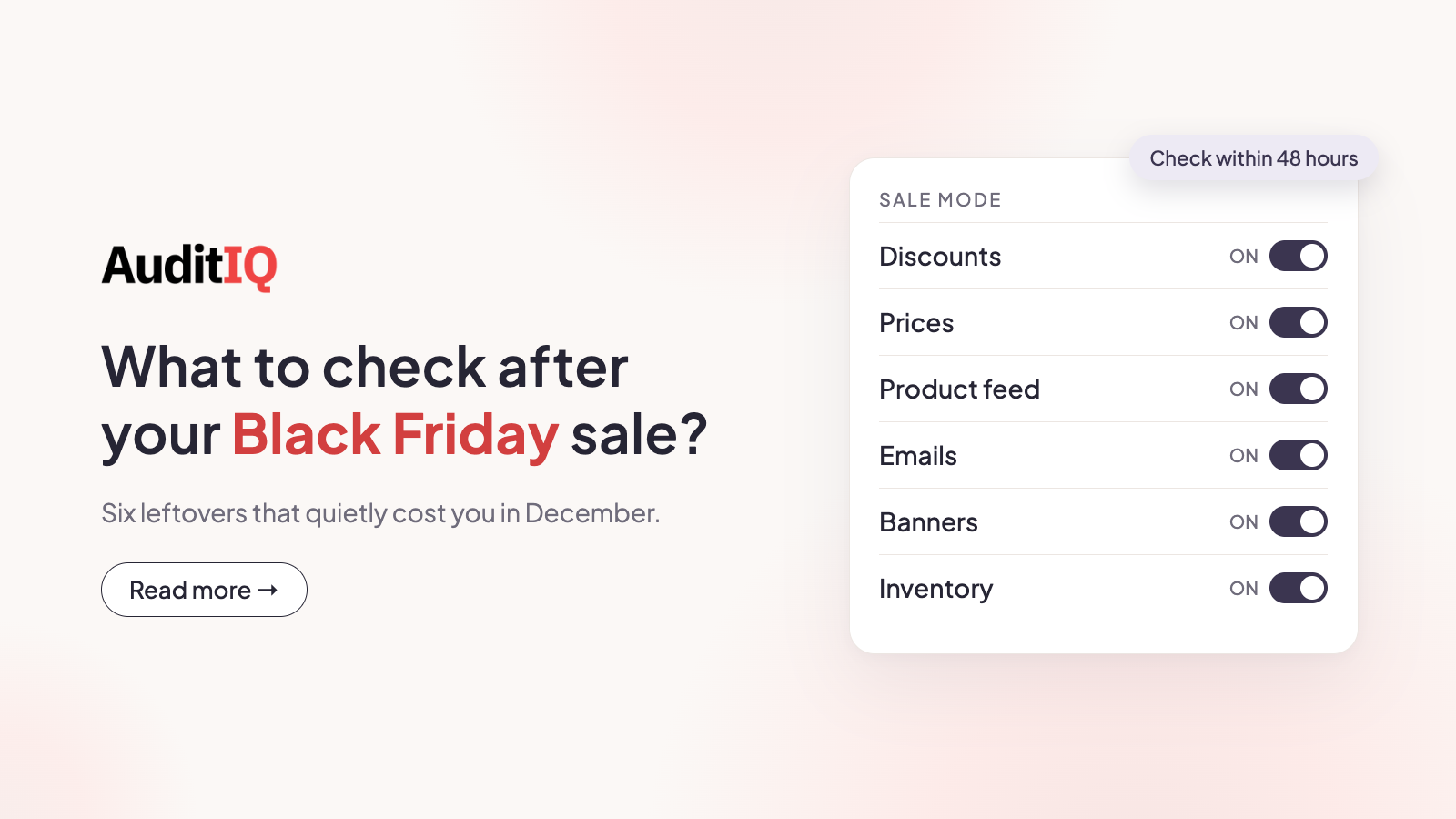
After a Black Friday or Cyber Monday sale, many stores keep trading in sale mode: discounts that were never given an end date, compare-at prices that did not revert, product feeds still sending sale prices, email flows that were paused and never restarted, banners that are still live, and inventory that was restocked before the goods came back. Check them in this order: discounts, manual prices, product feed, email and SMS flows, storefront content, then inventory. Write down every fix, and finish within the first week to protect December margin and trust.
It is Tuesday morning and the sale ended at midnight. Yet the homepage banner still says 40% off, one product still shows a crossed-out price, Merchant Center is flagging a price mismatch, and nobody can remember whether the abandoned cart emails were switched back on. Nothing is down and no alert has fired, which is exactly why these leftovers survive: each one looks like a small oversight, and together they quietly cost margin, ad approvals, recovery revenue, and customer trust through the busiest weeks of the year.
This guide explains why a sale does not clean itself up, which leftovers cost the most, and then gives a step-by-step cleanup that you can finish in a morning, with the checks to run and the fix for each. It includes a closer look at the most common feed problem, Merchant Center price mismatches, and a short section for agencies that have to do this across many client stores. Merchants can use it as a checklist, and agencies as a handover runbook.
Why doesn’t a sale clean itself up?
Because “scheduled” describes when something starts and stops, not whether every place that carries the sale was updated.
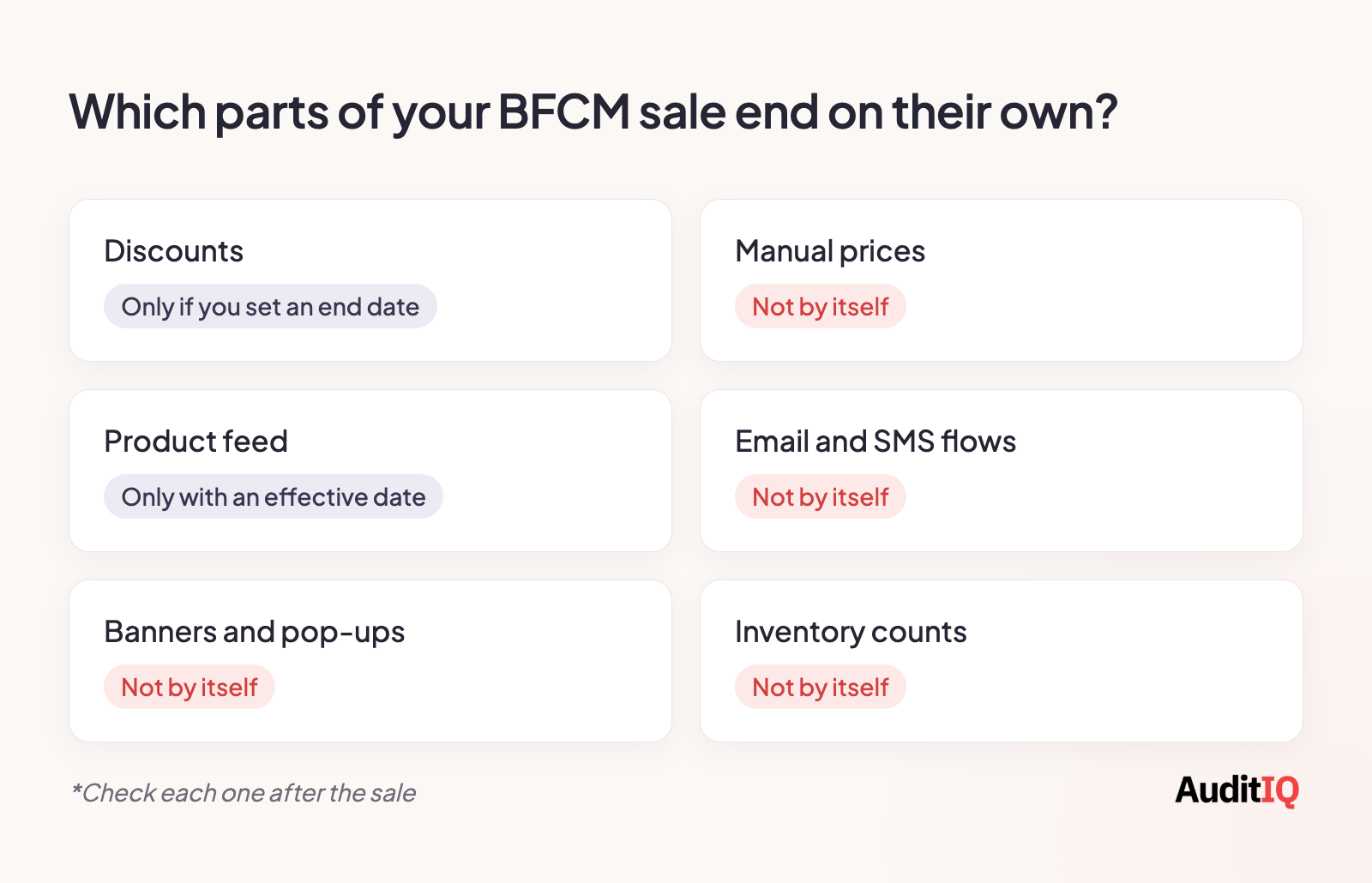
A sale lives in several systems at once: the discount engine, the product prices, the feed that goes to Google, the email platform, and the storefront content. Only some of them have an end date, and the rest depend on someone remembering. These are the usual ways it goes wrong:
- A discount ends at a different moment than you expected. On Shopify, discount start and end times follow the time zone selected in the admin, and a discount with no end date never expires. A sale that ran an hour late, or never stopped, is usually one of these two.
- Manual price edits do not revert themselves. If the team changed prices and set compare-at values by hand instead of using a discount, every product has to be changed back by hand, and across hundreds of products some will be missed.
- The feed keeps sending the sale price. Google’s specification says that if a product has a
sale_pricebut nosale_price_effective_date, the sale price always applies, so it stays live until you remove it from the data. - Email and SMS flows stay paused or stuck. Teams often pause recovery flows during a sale so old codes do not go out, and the restart is nobody’s task.
- Promotional content stays up because banners, timers, and landing pages were added by hand with no removal date.
- Inventory is restocked early. On Shopify, Restock items is selected by default when you refund an order for which you track inventory, which can put returned items back into available stock before they arrive.
None of these raises an error, so the only protection is a deliberate check.
Which leftovers cost the most in December?
They do not cost the same, so it helps to fix them in order of damage.
| Leftover | What it can cost you | How fast it shows |
|---|---|---|
| Discount still active | Margin on every order while it runs | Immediately, in order values, but easy to miss in a busy week |
| Compare-at prices not reverted | Products look permanently on sale, and trust in your “was” prices drops | On every product page |
| Stale sale price in the feed | Price mismatch warnings or disapprovals in Merchant Center, and ads showing the wrong price | After the next crawl, often days later |
| Recovery emails not sending | Revenue you would have recovered, with no error to warn you | Only if someone checks the last send date |
| Expired banners and timers | A store that looks unmanaged just as gift buying starts | Instantly, to every visitor |
| Inventory drift | Overselling, or hiding products that are in stock | Gradually, as stock runs low |
This is also why the work belongs on a calendar, not in someone’s memory. The person who edited the prices knows which ones today, and may not by next week. Do the cleanup in the first 24 to 48 hours, write down what you change, and repeat a shorter check weekly through December.
How to run a post-sale store cleanup
Work through the steps below in order. Each one says what goes wrong, how to check it, and what to do next, and Step 7 turns the cleanup into a record you can reuse after the next sale.
Step 1: Switch off discounts and promotions
Start with the discounts, because they cost margin on every order. On Shopify, discount start and end times are based on the time zone selected in your Shopify admin, and a discount without an end date does not expire. Other platforms differ in the details, but the same two risks apply.
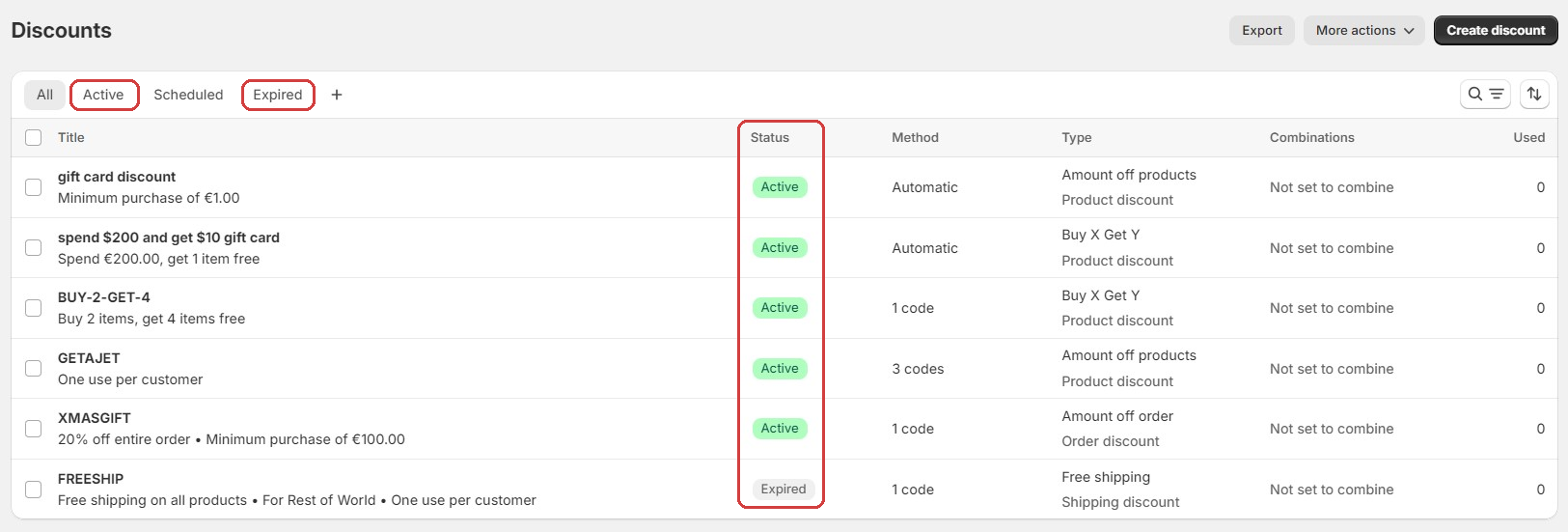
- Open the Discounts list and look at the Active tab. Every sale discount should have moved to Expired.
- The list shows status but not end dates, so open each discount that is still active and read its Active dates. Look especially for any created during the rush with no end date, including ones created by apps.
- Check the store time zone under your general settings. If it is not the time zone you planned the sale in, the discount ended at a different moment than you intended.
- Check usage after the planned end time. Shopify’s Sales by discount report shows how often each code was used, so a code with orders after midnight is still working.
Deactivate anything that should be off, then place a test order to confirm the price at checkout is the regular one.
Step 2: Revert manual price changes
If the team changed prices directly and set a compare-at value, the prices will stay that way until someone changes them back. This is the step where missed products are almost guaranteed on a large catalogue, so use data rather than memory.
- Export your product catalogue, with prices and compare-at prices.
- Filter for products where the compare-at price is still filled in. Those are still displaying as on sale.
- Compare current prices with your pre-sale price list, and revert any that differ.
If you do not have a pre-sale list, that is your lesson for the next sale: export the catalogue before you change anything, and keep it. It is the previous value you will want when you need to put things back.
Step 3: Refresh your product feed
Your feed feeds Google Shopping, Performance Max, and free listings, and Google checks it against your site. Googlebot routinely compares the price in your data source with the price on your landing page or in your structured data, and a mismatch can lead to the product being disapproved, as Google’s mismatched price guidance explains. After a sale, that check is easy to fail, because prices change on the site faster than data sources refresh.
- Check that
sale_priceis cleared for every product whose promotion has ended. If you usedsale_price_effective_date, spot-check a sample of products to confirm it ended correctly, including the time zone. - Compare the regular price in the feed with the landing page and the structured data. A structured data mismatch keeps causing disapprovals until it is fixed, even if the visible page is right.
- Confirm the feed has refreshed since the sale ended. If it updates once a day and the sale ended at midnight, it may still be carrying yesterday’s prices.
- If a manual fetch or resync is available for your data source or app, run one now. The menu names in Merchant Center change, so look for the data source and its fetch or refresh option. On Shopify, Google’s own troubleshooting advice is to toggle the sync off and back on to force a re-sync.
- Look for manual price edits made inside Merchant Center. Google says they override the data source until you undo them.
A closer look at mismatches follows in its own section below.
Step 4: Restart email and SMS automations
This is the check most teams skip, and often the most expensive gap, because a stopped flow produces no error. The usual causes are a flow paused on purpose during the sale, a trigger or integration that failed under load, or a connection that was never reconnected. Whatever the cause, the test is the same, and you can run it in any email or SMS platform:
- Status: is each flow live, or paused, in draft, or set to manual?
- Last send: when did each flow last send an email? If the abandoned cart flow’s last send was during the sale, it may be stuck.
- Volume: do recent days show recipients entering the flow, or is the count at zero?
- Content: does any flow still contain a sale code, banner, or price that has now expired? Swap it for the regular version before it reaches customers.
- Coverage: are sale-period orders entering the post-purchase flow, and are new subscribers from the sale receiving the welcome series?
Place a test abandoned cart yourself and see whether the email arrives. It takes ten minutes, and it is the only check that proves the whole chain works.
Step 5: Remove promotional content
Visit your store as a first-time visitor would, on desktop and on a phone, and look at every place a sale can hide:
- the homepage hero and any countdown timer, which may be frozen at zero
- collection pages with sale badges or promotional labels
- product pages with crossed-out prices
- checkout messages that still mention the sale
- the main navigation, such as a “Black Friday Deals” menu item
- exit-intent and welcome pop-ups that still offer a sale code
Then search your admin for the words you used in the campaign, such as “Black Friday”, “BFCM”, and “Cyber”, across pages, menus, page titles, and descriptions. Do the same for your social profiles and email footers. An expired offer on the first page a customer sees tells them the store is not being looked after, which matters most when gift buyers are deciding whom to trust.
Step 6: Reconcile inventory after returns
Peak selling and the returns that follow can leave your stock counts out of line with the shelves. The common causes are cancelled orders that restock or not depending on settings, partial fulfilments that leave available counts wrong, and returns that restock before the item is back.
On Shopify, the refund process offers a Restock items option that is selected by default and available when you track inventory for the items in the order. Shopify’s guidance for goods that have shipped but not come back is to uncheck it. For returns, Shopify describes receiving and inspecting the items first, then issuing the refund and restocking, and the return flow lets you choose the location they go back to.
- Pick your top selling sale products and compare the system count with a physical count.
- Review orders cancelled or refunded since the sale started and check how each was restocked.
- Decide your own tolerance for a difference, and treat any gap you cannot explain as a reason for a wider count before December demand arrives.
- Move restocking to the point where goods are received and inspected, not when the refund is issued.
Step 7: Record what you changed
Finish by writing down what you found: what was still live, what you changed, the previous value, who did it, and when. Keep it as a one-page note. Next sale, it becomes the checklist, and if something odd shows up in December you will know which of your changes to look at first.
How to fix Merchant Center price mismatches
A price mismatch means your data and your page disagree, so the fix is to make them agree and then keep them in step. Google lists a few common causes, and each one points to a different fix:
- Time differences between site updates and data updates. Schedule uploads, or an API update, immediately after the products change on your site.
- A sale without a clear window. Use
sale_pricetogether withsale_price_effective_date, and make sure the time zone is correct. Without the date range, the sale price always applies. - Manual edits made in Merchant Center. They override the data source, so use Undo edits to sync with it again.
- Structured data that disagrees with the data source. The page can look right and still fail if its markup shows a different price.
Google also offers automatic item updates, which can correct minor price differences by reading your landing page. Treat it as a safety net, because it does not replace keeping your data current. Fixed products can take time to be reviewed again, so check the Needs attention tab in Merchant Center over the following days and download the list of affected products if you have many.
What should agencies check across client stores?
The hard part for an agency is not knowing the checklist, it is that nobody owns “turn the sale off”.
When you run many stores, the same leftovers appear in each, often for the same reasons. Three habits keep it manageable:
- Agree an owner and a sign-off for each sale, in writing: who ends the discounts, who reverts prices, who checks the feed, who restarts the flows, and who confirms. Include the client’s time zone and the exact end time.
- Use one runbook for every store, with the seven steps above as the template, and a shared sheet that shows each store’s status.
- Take a pre-sale snapshot for each store, covering prices, active discounts, and flow status, so that cleanup is a comparison, not a guess.
The aim is to find the leftovers before the client does. A call that begins with “we have already checked, and here is what we fixed” is a very different conversation from one that begins with a screenshot of an expired banner.
What can AuditIQ help you spot after a sale?
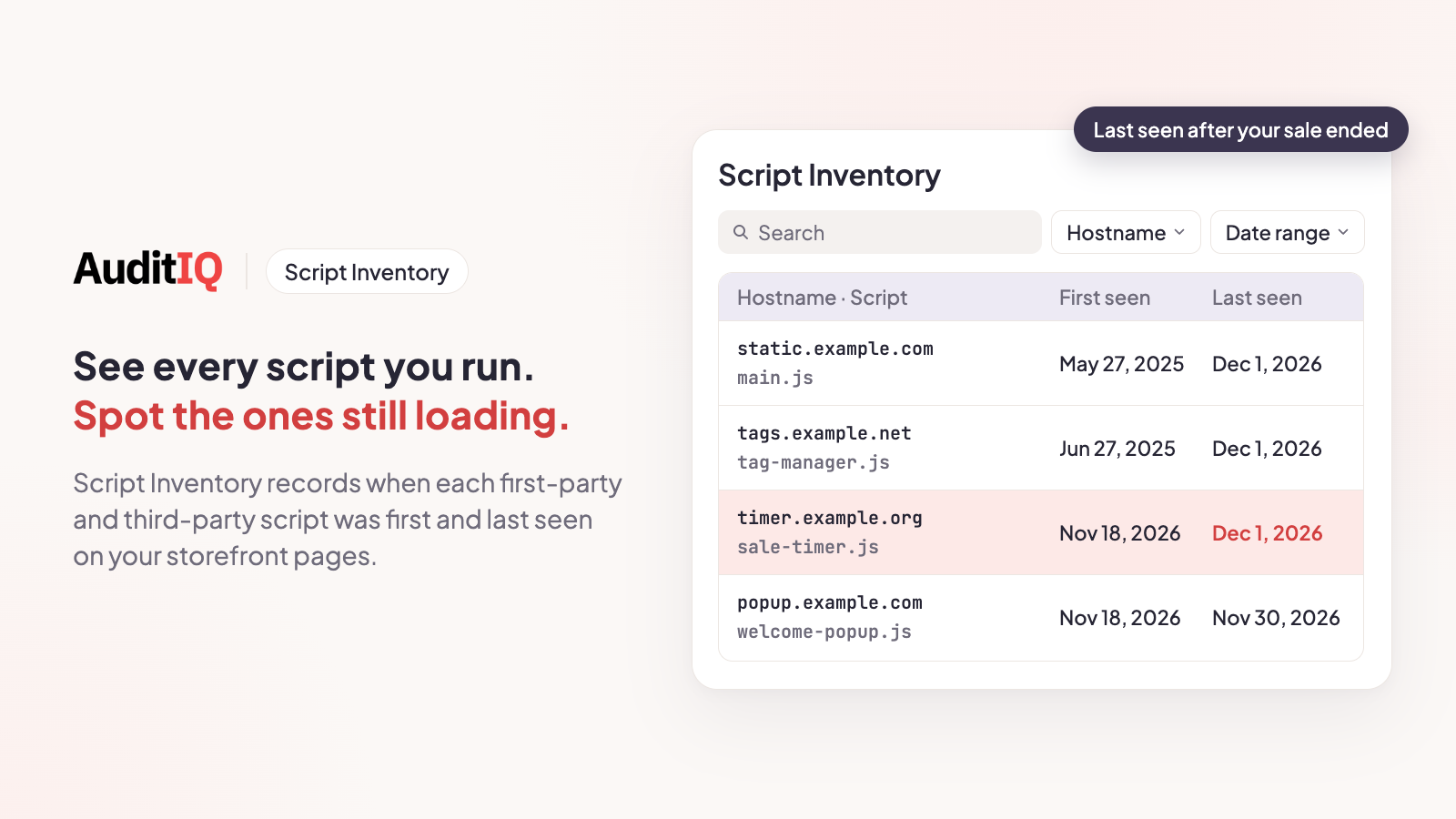
AuditIQ does not read your discount rules, product feeds, email flows, or stock counts, so Steps 1 to 4 and 6 stay in your admin tools. It helps with the parts you can see from outside the store, and with the effect on customers:
- Leftover scripts: Script Inventory keeps a ledger of every JavaScript file on the pages it crawls, with when each was first and last seen, so a countdown timer or pop-up script that is still loading after the sale ends can stand out.
- Leftover pages and titles: SEO Audit crawls your store weekly, up to 20,000 pages, with 100+ checks per page, including titles and descriptions, and links each issue to the pages it affects. A forgotten sale page can be easier to find in a list like that than by clicking around.
- The checkout effect: User Experience Monitoring shows where customers drop off in checkout, with device, browser, and session context, which helps if a leftover banner, price, or code is making them leave.
- The revenue picture: Analytics brings unsampled Google Analytics data and funnel analysis into one place, so you can see whether conversion and revenue return to normal after the sale.
A sale is only one of many moments when a store drifts. AuditIQ is a 360° eCommerce monitoring platform purpose-built for Magento, Adobe Commerce, and Shopify stores, covering performance, infrastructure, SEO, security, user experience, configuration, and code quality from a single, unified dashboard.
Heading into December with the sale behind you? Start a free AuditIQ trial and see how your storefront looks to customers now.
Others also read
- Why is my eCommerce store showing the wrong price? How to find and fix pricing errors before they cost you revenue and trust
- Your eCommerce revenue dropped, but traffic stayed the same: Here’s what’s happening in between
- eCommerce configuration changes: The silent cause of storefront failures
Frequently asked questions
1. How do I know if my sale discounts are still active?
Open your discount list and check each sale discount’s status and end date. On Shopify, a discount with no end date never expires, and start and end times follow the time zone in your admin. A discount that still shows as active after the sale either had no end date or had it set in the wrong time zone, so deactivate it and place a test order.
2. Will Merchant Center disapprove products that still show an expired sale price?
It can. Google compares the price in your data source with the price on your landing page and in your structured data, and a mismatch can lead to disapproval. Clear the sale price, update the data source, and check the Needs attention tab over the following days.
3. How do I check whether my abandoned cart emails stopped sending?
In your email platform, check each flow’s status, its last send date, and the number of recipients entering it. If the last send was during the sale, or the count is at zero, the flow may be paused or stuck. Then place a test abandoned cart yourself to confirm the email arrives.
4. What if I changed prices by hand for the sale?
Export the catalogue and filter for products where the compare-at price is still filled in, because those still show as on sale. Revert each to its pre-sale price, using your pre-sale export if you took one, and clear the compare-at value.
5. Should I restock returned items before they arrive?
Usually not. On Shopify, the Restock items option is selected by default when you refund an order for which you track inventory, and Shopify advises unchecking it when items have shipped but not yet come back. Restocking when the goods are received and inspected keeps the count accurate.
6. How soon after the sale should I run this cleanup?
As soon as the sale ends, ideally within the first day or two, while the team still remembers what was changed. Then repeat a shorter check weekly through December, because the leftovers that are not fixed keep costing margin, ad approvals, and trust.
About the author
Ginny Ngo writes from AuditIQ's experience monitoring eCommerce performance, SEO, security, and reliability issues across Magento, Shopify, WooCommerce, and Adobe Commerce stores.