Merchant Center “product page unavailable”? How to find the cause and get your products back before Black Friday
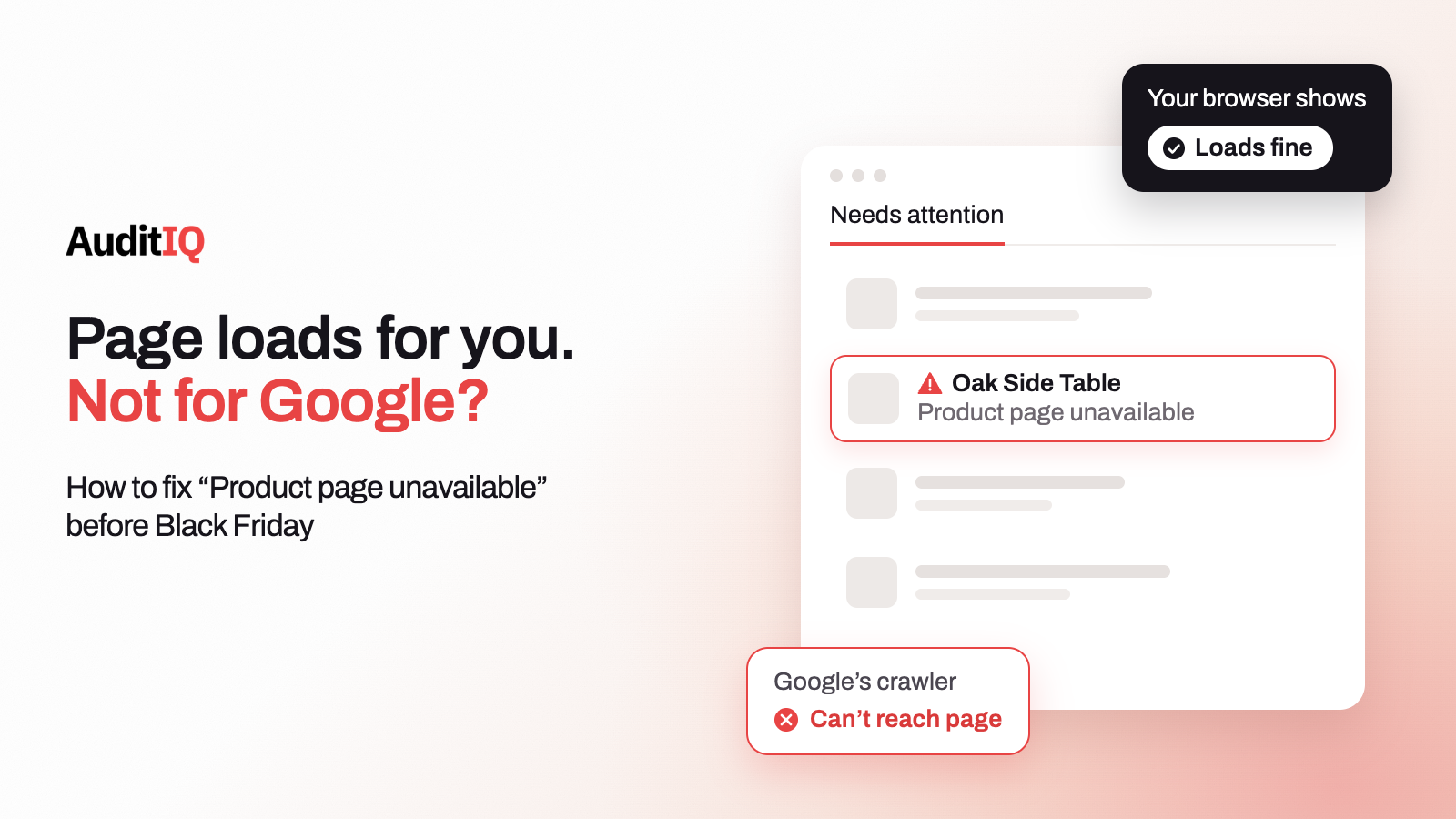
Merchant Center disapproves products for “Product page unavailable” when Google cannot access the landing page. The usual causes are a 404, too many redirects, a server error or timeout, a robots.txt, firewall, or DNS problem, or a wrong link in your product data. Find which one with the URL Inspection Tool, fix the site or the link, then request a website check. Google says that review can take up to 12 hours.
When Google Merchant Center flags products as Product page unavailable, those products stop showing in Shopping ads and free listings until Google can access the landing page again. Nothing else in your account has to be wrong: the feed is approved, the campaign is running, and your storefront may load perfectly for you. Meanwhile the products that Shopping and Performance Max depend on quietly disappear.
This guide explains what the issue means in Google’s own terms, lists the crawl errors that cause it, and shows how to tell whether the problem sits in your site, in the rules that decide who can reach it, or in the links you submitted. It then walks through the fix, the website check, realistic recovery times, why the issue sometimes returns, and what to put in place before Black Friday on 27 November and Cyber Monday on 30 November.
What does “product page unavailable” mean in Merchant Center?
For each product, you give Google a landing page in the link, link_template, or mobile_link attribute. Google routinely crawls those pages. If it hits an error on either the mobile or the desktop landing page, it disapproves the product for both until it can reach the page. Under Google’s issue types, disapproved products stop showing across Google, and the problem has to be fixed before the product can be re-approved.
Two details help you size the problem. It is a product-level issue, so it affects the individual products whose pages failed, not your whole account or the products whose pages work. And it describes what Google could reach when it checked, which is not always what you see in your own browser.
What causes “product page unavailable”? Google’s list of crawl errors
Google’s product crawl issues guide and the fix page for this issue between them name the following causes:
| Crawl error | What Google says | What to check |
|---|---|---|
| Page not found (404) | The URL is incorrect or broken, or the page is gone | The link value against the live URL, and whether the page was deleted or its URL changed |
| Too many redirects | The landing page redirects too many times, and Google asks for no more than 2 | The redirect chain from the submitted URL to the final page |
| Couldn’t connect or HTTP 5xx | The server could not process the request | Server logs, hosting errors, and capacity during busy periods |
| Timeout or network error | The server did not respond in time, or a connection problem occurred during the crawl | Response times for the affected URLs |
| robots.txt disallows or is unreachable | Google uses AdsBot-Google for ads and Googlebot for organic search, and one can be blocked while the other is allowed | Your robots.txt rules for both user agents, and whether the file itself loads |
| Firewall, geo-restriction, or private IP | Your site may block Google’s crawlers. If you restrict regions, you must allow crawling from the US | WAF, CDN, and server rules that challenge or block crawlers |
| Hostname not resolvable | Google could not resolve your hostname | DNS configuration and any recent domain or hosting change |
| Invalid URL or protocol | The URL must start with http:// or https://, use your verified domain, and encode special characters | Malformed links, wrong domain, or unencoded characters |
| Authentication required | A login or similar protection blocks access | Staging protection or password rules applied to the live site by mistake |
| Regional landing pages | If you use regional availability and pricing, URLs with a region_id must also be crawlable |
Regional URL variants |
Three root-cause types worth separating
The list is long, but the fixes fall into three groups, and telling them apart saves hours:
| Root-cause type | Examples | Primary fix |
|---|---|---|
| Availability failure | 5xx errors, timeouts, slow responses, hosting or DNS outages | Restore availability, then request a website check |
| Access failure | robots.txt rules, firewall or WAF blocks, geo-restrictions, authentication, rate limits | Allow Google’s crawlers, then verify with URL Inspection |
| Data failure | A wrong link or mobile_link, an unverified domain, a malformed or unencoded URL, a deleted page |
Correct the product data and re-upload it |
Is the problem your site, your access rules, or your links?
Start with what you see, because the pattern points to the likely group before you open a single log:
| What you see | Likely type | First check |
|---|---|---|
| Many or all products flagged at once, soon after a deployment, hosting event, DNS change, or CDN or WAF change | Availability or access | Status codes, DNS, and firewall or CDN rules for product URLs |
| A handful of products, often ones whose URLs were recently edited, redirected, or removed | Data | Compare each product’s link with its live URL, and look for 404s and long redirect chains |
| Pages load fine for you, but Google reports them as unavailable | Access or intermittent availability | URL Inspection with desktop and smartphone fetches, then server logs for failed requests from Google’s crawlers |
| The issue clears and returns | Intermittent availability or access | Response time trends, rate limits, and CDN or WAF logs around the times it returns |
Two caveats keep the diagnosis honest. Google says only that it crawls routinely and does not publish how often, so a short incident may or may not be caught. And a page that loads for you can still fail for Google, because Google’s own guidance is that a landing page must be accessible from any device, location, or browser.
How do you fix “product page unavailable” step by step?
Step 1: Find the affected products
In Merchant Center, go to Products & store, then Products, then the Needs attention tab. Use the filter icon to find the “Product page unavailable” issue, and download the list as a CSV so you have the exact URLs. If you cannot see the issue, turn off the Prioritized fixes toggle and select Show all fixes, because the default view hides low-impact issues. The Issue Details Page also shows the business impact, such as lost click potential, and example products.
Step 2: Test the exact URLs the way Google would
Open the affected URLs and test them with the URL Inspection Tool in Search Console, choosing desktop or smartphone as the type of fetch. Test both if you submit a mobile_link. Check the HTTP status, the number of redirects, whether a login or challenge appears, and how fast the page responds.
Step 3: Check robots.txt and access rules
Confirm your robots.txt file loads and does not block AdsBot-Google or Googlebot, since Google notes that one can be allowed while the other is blocked. Then review your firewall, CDN, bot protection, and any geo-restrictions. If you restrict regions, allow crawling from the US, and make sure the AdsBot-Google user agent is not challenged or blocked.
Step 4: Check the links in your product data
Check the link, link_template, and mobile_link values: each must be a working URL on your verified domain that starts with http:// or https:// and has special characters encoded. To fix one product, open it from Needs attention, select Edit product, update the link, and save. To fix many, download the CSV, cross-reference it with your uploaded product data, correct the URLs, and re-upload the corrected data through your usual upload method.
Step 5: Fix the site-side cause
- 404: restore the page, or redirect the old URL to the right product and update the link in your data
- Redirects: shorten the chain to two redirects or fewer
- 5xx errors and timeouts: find the cause in hosting and application logs, and make sure the site stays available
- DNS: correct the configuration if the hostname does not resolve
- Access rules: change the rule that blocks Google, and keep the evidence of what it was
Step 6: Request a website check, then verify
Once the cause is fixed, ask Google to check. The next section shows how, and the section after it explains how long to wait.
How do you request a website check in Merchant Center?
A website check tells Google to verify your landing pages sooner than its automatic review. There are two routes:
| From a product | From the issue list |
|---|---|
| 1. Go to Products and open an affected product. | 1. Go to Products & store, then Products, then Needs attention. |
| 2. Under Product details, select Needs attention. | 2. Find the “Product page unavailable” issue and select View fix. |
| 3. Select Request website check. | 3. On the page that loads, select Request website check. |
If Google still finds the issue during the check, it tells you on the product’s Needs attention tab, so you can fix it and submit another request. After a successful check, the issue disappears from the list.
How long does recovery take?
Google gives several timings, and they apply to different steps, so it helps to keep them apart:
| Step | What Google says | What it means for you |
|---|---|---|
| Website check review | Can take up to 12 hours, and you cannot submit a new request while it runs | Fix everything first, because a premature request locks you out for that period |
| Errors clearing | Errors should disappear within a couple of days | Products return to ads and free listings after Google verifies the pages |
| Reappearing in listings | May take up to 48 hours after the crawl issue is resolved | Check Needs attention rather than assuming a product is live |
| Automatic review | Still happens later if you do not request a check | A website check speeds things up but is not the only route back |
Do not confuse this with a policy review, which is a different process. Google says a review can take up to 7 business days, and that products which are approved become eligible to show across Google within 24 hours. A website check is the route for this crawl issue, and Google publishes no single guaranteed turnaround across all of these steps, so monitor the products until they return to Active.
How is “product page unavailable” different from other Merchant Center issues?
| Issue | What it means | Where to start |
|---|---|---|
| Product page unavailable | Google could not access or verify the landing page | Crawl errors, access rules, and links, then a website check |
| Preemptive item disapproval | Price or availability in your product data does not match the product page, and a review is needed to resolve it | Compare data and page, then request a review |
| Unable to check product pages | Your robots.txt forbids Google’s crawler, or the page returned an HTTP error when crawled | robots.txt, then a website check |
| Account-level suspension | A problem with your account that affects all products | Account issues, which product-level fixes do not clear |
Why does “product page unavailable” keep coming back?
Google crawls on its own schedule, so a problem that exists only some of the time can reappear whenever a crawl happens to meet it. The usual suspects are intermittent timeouts when the server is busy, rate limits or WAF rules that occasionally challenge a crawler, CDN edge problems that affect some locations, hosting limits during traffic spikes, and DNS problems that come and go. Your own checks can look clean because you tested at a different moment, from a different place.
To break the cycle, compare the times products were flagged with your server, CDN, and WAF logs, and look at the response times for the affected URLs. If the logs show no errors for the affected URLs, keep the evidence: the URL Inspection results, the log excerpts, and the timestamps. Then contact Merchant Center support with them, since a repeated flag on pages that are working is something Google needs to see.
Why is the issue costlier before Black Friday?
Disapproved products stop showing across Google until the problem is fixed and they are re-approved, so any campaign that relies on them, including Shopping and Performance Max, has fewer products to serve. With Black Friday on 27 November and Cyber Monday on 30 November, a flag that takes a couple of days to clear can overlap the days you most want those products visible. A quiet change freeze on URLs, redirects, and bot or firewall rules in the weeks before the peak removes a common source of surprises.
How do you prevent “product page unavailable” before Black Friday?
Prevent availability incidents
- Check product page availability and response time from outside your own network
- Alert on 5xx errors and timeouts, not only on complete outages
- Plan hosting capacity for promotion peaks, and check for rate limits that could affect crawlers
Prevent crawler access failures
- Review firewall, CDN, and bot rules before campaigns start, and confirm AdsBot-Google and Googlebot are not blocked
- Watch SSL, DNS, and domain verification, since a lapse in any of them can make every page unreachable
- Test a sample of important product URLs after any infrastructure change
Prevent data-quality issues
- Validate
linkandmobile_linkbefore every feed submission - Redirect old URLs when you restructure, and update the links in your product data to match
- Review Needs attention weekly, and turn on Merchant Center notifications so a spike in disapprovals reaches you quickly
Catching availability, access, and link problems with AuditIQ
Merchant Center tells you a product was flagged. AuditIQ helps you spot the causes behind it, matched to the three groups above:
- Availability: Uptime Monitoring checks your store continuously from multiple locations, logs HTTP error codes such as 500 and 522, tracks response time trends, and alerts you by portal, email, or Slack the moment something goes wrong.
- Links and pages: SEO Audit crawls up to 20,000 pages each week with 100+ checks per page, including broken links, and lists the exact pages affected, so product URLs that return errors do not wait for a Google crawl to show up.
- Server and logs: Server Monitoring tracks CPU and disk every 5 minutes with daily SSL certificate checks, and Log Monitoring surfaces errors in your logs. Both are part of the Magento, Adobe Commerce, and WooCommerce plans.
AuditIQ does not act as Google’s crawler, does not read your Merchant Center statuses, and cannot submit a website check for you. The weekly crawl will not catch a short incident either, which is the job of the uptime checks. Keep Merchant Center notifications and the website check in your routine, and use monitoring to learn about the cause sooner.
Beyond Shopping visibility, AuditIQ is a 360° eCommerce monitoring platform purpose-built for Magento, Adobe Commerce, and Shopify stores. It continuously monitors every critical layer of a store — performance, infrastructure, SEO, security, user experience, configuration, and code quality — from a single, unified dashboard, so the quiet failures behind lost Shopping visibility are caught early.
Start monitoring your store for free today so availability, access, and link problems show up before they reach your product feed.
Others also read
- eCommerce product pages returning 404? How to find and fix broken URLs silently losing you traffic and revenue
- Google Merchant Center goes down: Your revenue doesn't come back automatically
- Google Shopping says in stock but your site says out of stock: How to find the layer serving stale availability
Frequently asked questions
1. Will Google reapprove my products automatically when my store is back online?
Not instantly. Your store coming back online does not guarantee immediate reapproval. Google still performs an automatic review later, and a website check can speed that up. Google says the check review can take up to 12 hours, and products may take up to 48 hours to reappear in listings once the crawl issue is resolved.
2. Can a short outage cause this issue?
It can, if Google’s crawl meets the error. Google does not publish a minimum outage length, and the impact depends on which product URLs it tried to reach during the incident.
3. Does this issue affect my whole Merchant Center account?
No. It is a product-level issue, so it affects the products whose landing pages failed and does not change the status of your other products. An account-level suspension is a separate matter.
4. Should I resubmit my product feed?
Only if the cause was in the product data. If a URL in the link, link_template, or mobile_link attribute was wrong, correct it and re-upload the corrected data. Then request a website check. If the product data was already correct, fix the site and request the check.
5. Which Google crawlers should I allow?
Allow AdsBot-Google and Googlebot to reach your landing pages, since Google notes that allowing one does not allow the other. Google’s guidance for the related “Unable to check product pages” issue also asks you to allow Googlebot-Image so product images can be fetched.
6. Will Performance Max recover once the products are approved?
Disapproved products stop showing across Google until they are re-approved, so campaigns that use them have fewer products to serve in the meantime. Once the products return to Active, they can serve again.
7. Why do my products keep getting disapproved and then reapproved?
A repeating pattern usually means an intermittent problem that your own tests miss, such as timeouts, rate limiting, a firewall or CDN rule, or an occasional DNS failure. Compare the times of the flags with your server logs, keep the evidence, and contact Merchant Center support if the logs show no errors.
About the author
Ginny Ngo writes from AuditIQ's experience monitoring eCommerce performance, SEO, security, and reliability issues across Magento, Shopify, WooCommerce, and Adobe Commerce stores.