Google Shopping ad shows wrong variant on landing page? How to fix the mismatch costing you clicks and revenue
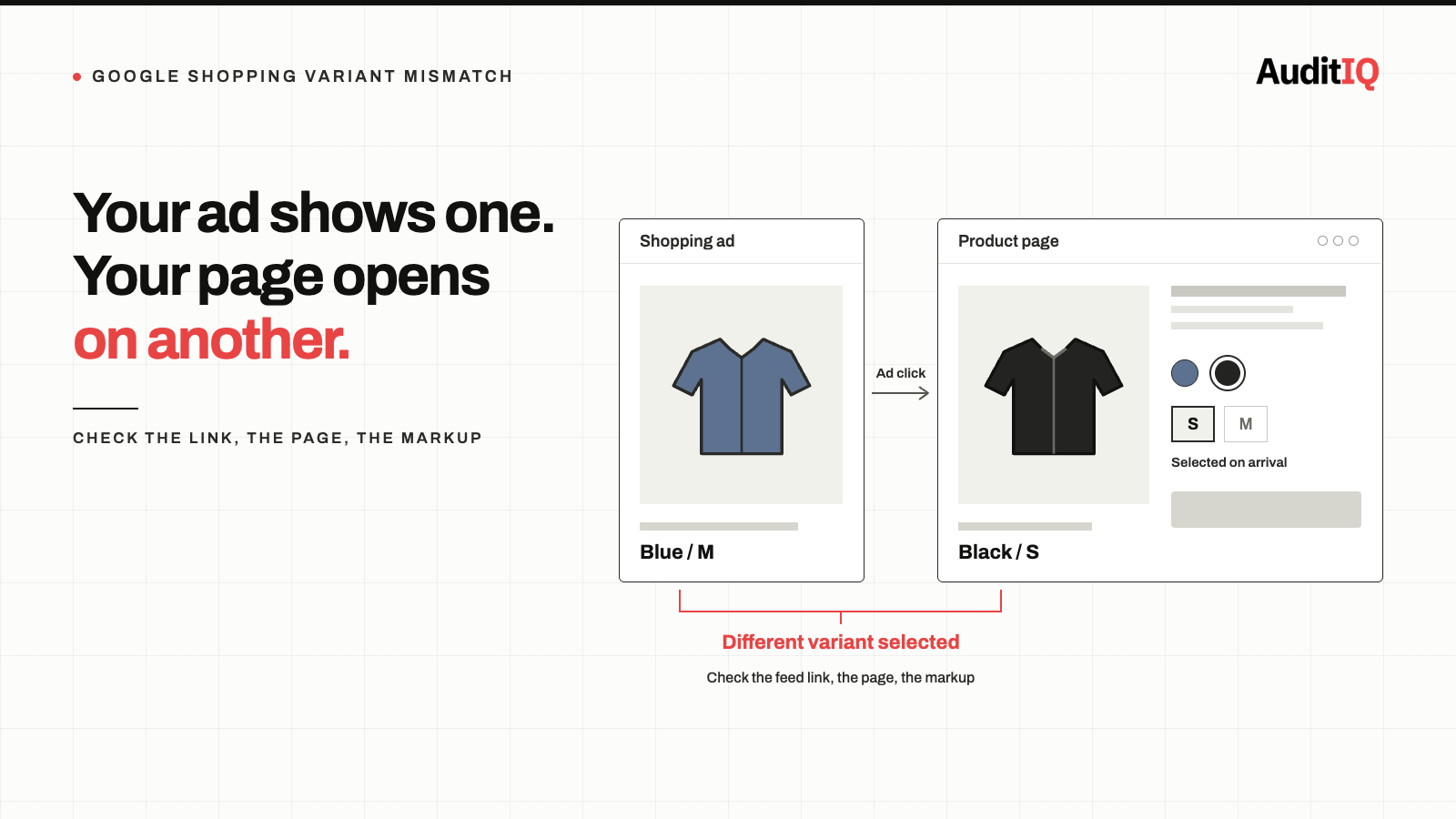
A Google Shopping ad shows the wrong variant on the landing page when the feed’s link opens the product’s default variant instead of the variant in the ad. Usually the feed submits a product-level URL, the theme or headless storefront ignores the variant parameter, or the page only selects the variant after JavaScript runs. Give every variant its own URL, make sure the server renders that variant, align structured data with it, and test each variant, not only the default.
When a customer clicks a Google Shopping ad for a blue medium shirt and lands on a page showing a black small shirt, the sale is often already lost. The fix has two sides. In the feed, every variant needs its own link, plus an item_group_id that ties the variants together. On the page, that link has to open the matching variant, with the right price, image, and availability already showing when the page first loads. This guide shows how to check both sides, and how to catch the failure again when a theme or app update breaks it.
Why a Shopping ad can send shoppers to the wrong variant without any error
This problem is invisible from the merchant’s perspective. Your Google Merchant Center feed shows approved products. Your Shopping campaigns run normally. Your landing pages load without errors. But every time a shopper clicks on a specific variant, a particular colour, size, or style, they may arrive at the product page and see the default variant instead.
The shopper sees a different price, a different colour, or a different image than what appeared in the ad. Many leave immediately, because the ad promised one product and the page shows another.
Likely symptoms include:
- High bounce rates on product pages reached from Shopping ads, despite good ad relevance
- Merchant Center Mismatched value (page crawl): price issues on variants whose prices differ from the default
- Customer complaints about “wrong product” or “misleading ad” despite correct feed data
- Low Shopping campaign conversion rates that don’t improve with bid or budget changes
What Google expects the variant landing page to show
Google’s landing page requirements say to pre-select the correct product variant in your landing page URL: if a product has variants such as colour, size, or material, the variant that matches your product data must be the one that appears on the landing page by default. That has several practical consequences:
- Each variant in your feed needs its own
linkthat loads a page with that variant already selected, and its own product ID. - Variants of one product should share the same
item_group_id, so Google knows they belong together. Without it, each variant is treated as an unrelated product. - The price, image, colour or size, and availability on the page must match the variant in the feed.
- Structured data must match the displayed variant, and the price must show up straight away: Google advises you to load the price on the landing page immediately, which is why selecting the variant only after JavaScript runs is risky.
Why your landing page opens on the default variant
Most eCommerce platforms serve every variant of a product from a single page. When a variant-specific URL is needed for Google Shopping, the platform appends a parameter (such as ?variant=12345 on Shopify) that the page has to honour on load. That chain breaks in several predictable ways:
- The feed generates product-level URLs. Some feed apps, especially older ones, submit the base product URL without a variant parameter, so every variant links to the same default view. Shopify’s own Google channel submits variant links, so check any additional feed app or custom export you use.
- The variant is chosen only in client-side JavaScript. If the server returns the default variant and a script switches it afterwards, shoppers see a flash of the wrong variant and Google’s crawler may only see the default. On Shopify Liquid themes, the server can resolve the variant from the URL (the
selected_or_first_available_variantproperty), so check that your theme uses it rather than always showing the first variant. - The theme, page builder, or an app ignores the parameter. Custom and older themes, and page builders that override default product templates, may not read the variant parameter at all.
- A headless storefront drops the variant. Shopify’s September 2, 2026 Hydrogen developer preview update states that “links that name a variant, like the ones Shopify submits to a Google Shopping feed, now open on that variant instead of the product’s default.” The release notes explain that Hydrogen used to ignore the parameter and show the default variant at the default price, and that the new behaviour is switched on by passing
routeTemplatestohandleShopifyRoutes. The developer preview is an early, framework-agnostic version of Hydrogen that can’t currently be deployed to Oxygen, so a store on current Hydrogen should test its own handling of variant links instead of assuming the fix applies. - Structured data points at the wrong variant. Googlebot compares the price in your feed with the price on the landing page or in its structured data. If the page shows variant A but the first
Offerin the markup is variant B, or the markup lists only the default variant, the crawler flags a price mismatch even though the feed was correct. - Variant data in the feed is incomplete. A missing
item_group_id, no image assigned to the variant (so the featured image is used for every variant), or availability that isn’t synced per variant can all make an ad look wrong even when the link is right.
How to check what shoppers and Google actually see
Step 1: Audit your feed’s variant URLs and grouping
Export your Google Shopping product feed and examine the link attribute for each variant. If every variant of a product shares the same URL with no differentiating parameter, the problem starts here. Also confirm that variants share an item_group_id. In Merchant Center, open a product and view its final attributes to see what Google holds.
- Shopify: variant links should include
?variant=[ID](for examplehttps://store.com/products/shirt?variant=44012345678) - WooCommerce: variable products can use attribute parameters such as
?attribute_pa_color=blue&attribute_pa_size=medium - BigCommerce and other platforms: check your platform’s documentation for the parameter that pre-selects a variant, and confirm your feed uses it
Step 2: Test each variant URL in a private browser, and check the server response
Open each variant URL in an incognito window. Does the correct colour, size, or style appear immediately on page load? Then view the page source, or disable JavaScript, and check whether the selected variant is already in the HTML. If the page only shows the correct variant after a script runs, Google’s crawler may not see it.
Step 3: Check structured data per variant
Use Google’s Rich Results Test with each variant URL. Confirm that the Offer price in the structured data matches the variant displayed on the page, not the default variant’s price, and that the SKU matches the product ID in your feed.
Step 4: Cross-reference Merchant Center diagnostics
In Merchant Center, check Diagnostics for “Mismatched value (page crawl)” issues. If they appear only on variants whose prices differ from the default, either the page shows the default variant to Google or the structured data lists the wrong variant. Check the feed link first, then the page, then the markup.
Step 5: Check variant images and availability
For a few variants, compare the image, colour, size, and availability Google holds with what the landing page shows. A variant with no assigned image will use the product’s featured image in the ad.
Step 6: Re-test after theme or app updates
Theme updates, app installations, and JavaScript changes can silently break variant parameter handling. A variant URL that worked last week may stop pre-selecting the correct variant after a deployment.
What to change in your feed, theme, or storefront
1. For Shopify Liquid stores: Ensure your theme’s product template renders the variant selected in the URL on the server, then updates the selected option, image, price, and availability. Most modern themes do this, but custom and older themes may not.
2. For Shopify Hydrogen stores: If you build on the developer preview, turn on variant links with routeTemplates as described above. If you run current Hydrogen, test that your storefront reads variant identifiers from the URL and renders the selected variant on first load.
3. For WooCommerce stores: Verify that your theme’s variable product script parses the attribute parameters on load. Some themes and page builders override WooCommerce’s default variant selection behaviour.
4. For all platforms: Update your feed plugin or management tool so it generates a unique, variant-specific URL for every variant, with a shared item_group_id and a per-variant image and availability.
How to confirm the fix worked
After implementing fixes:
- Resubmit or refresh your feed in Merchant Center
- Re-run the Rich Results Test on a sample of variant URLs and confirm the price and SKU match each variant
- Allow a few days for Google to re-crawl the updated landing pages
- Monitor Merchant Center diagnostics for the mismatch issues to clear
- Compare bounce rate and conversion rate for Shopping traffic before and after the fix, and expect the change to take a couple of weeks to show clearly
How to catch this again after the next theme or app update
Variant routing is fragile. A theme update, an app installation, a JavaScript error, or a platform migration can silently break the link between a URL parameter and the variant shown on the page. The failure produces no error, only the wrong product displayed to the customer. A simple routine catches most of it: after every theme or app change, open three variant URLs from your feed and check they select the right variant. Between those checks, AuditIQ watches the signals around it:
- Google Ads — tracks spend, CPC, conversions, CPA, and ROAS across campaigns and alerts you when performance deviates from normal patterns, alongside your site health data, so a drop after a theme or app change doesn’t sit unnoticed in a campaign report.
- SEO Audit — a weekly crawl of up to 20,000 pages with 100+ checks per page, including structured data, so product pages whose markup breaks after an update are flagged along with the exact pages affected.
- Analytics — unsampled Google Analytics data, including bounce rate, conversion funnel analysis, and channel performance, in the same platform as your technical monitoring, so you can see whether paid traffic to product pages starts bouncing after a change.
AuditIQ does not test your variant URLs against your feed or check which variant a page selects, so keep the manual variant tests above in your routine and use monitoring to tell you when it is time to run them.
Beyond ad landing pages, AuditIQ is a 360° eCommerce monitoring platform purpose-built for Magento, Adobe Commerce, and Shopify stores. It continuously monitors every critical layer of a store — performance, infrastructure, SEO, security, user experience, configuration, and code quality — from a single, unified dashboard, so the quiet breakages that waste ad spend are caught before they compound.
Start monitoring your storefront for free today to catch the next silent landing page break before your campaigns pay for it.
Others also read
- Why is my eCommerce store showing the wrong price? How to find and fix pricing errors before they cost you revenue and trust
- Google AI Max is sending your paid traffic to the wrong pages: Guide to finding and fixing broken landing pages
- Product rich results not showing in Google? How to fix structured data errors costing you eCommerce clicks
FAQ
1. Why does my Google Shopping ad show a different price than my landing page?
This typically happens when the feed submits one variant’s price but the landing page opens a different variant, or when the structured data lists another variant’s price. Make sure the variant link selects the right variant on page load, and that the first offer in the markup matches it.
2. How do I check if my Shopify theme handles variant URL parameters?
Open a product page with a ?variant= parameter in an incognito browser. If the correct variant is pre-selected and the correct price, image, and options are displayed, your theme handles it. Then view the page source or disable JavaScript to check the server also returns that variant.
3. Can this cause Google Merchant Center disapprovals?
Yes. Googlebot compares the price in your feed with the price on the landing page or in its structured data, and a mismatch can lead to a “Mismatched value (page crawl)” issue and a disapproved product.
4. Do I need an item_group_id for variants?
It is recommended whenever you submit variants. Google uses it to understand that the products are variants of one item, while each variant keeps its own ID. Check the final attributes in Merchant Center to confirm your variants share one.
5. Does the Shopify Hydrogen variant link fix apply to Liquid stores?
No. The September 2, 2026 change is in the Hydrogen developer preview for headless storefronts. Liquid-based Shopify stores handle variant URL parameters through the theme, which should be verified separately.
About the author
Ginny Ngo writes from AuditIQ's experience monitoring eCommerce performance, SEO, security, and reliability issues across Magento, Shopify, WooCommerce, and Adobe Commerce stores.