Is your Google Ads search budget funding display placements? How to check before the February 2027 deadline
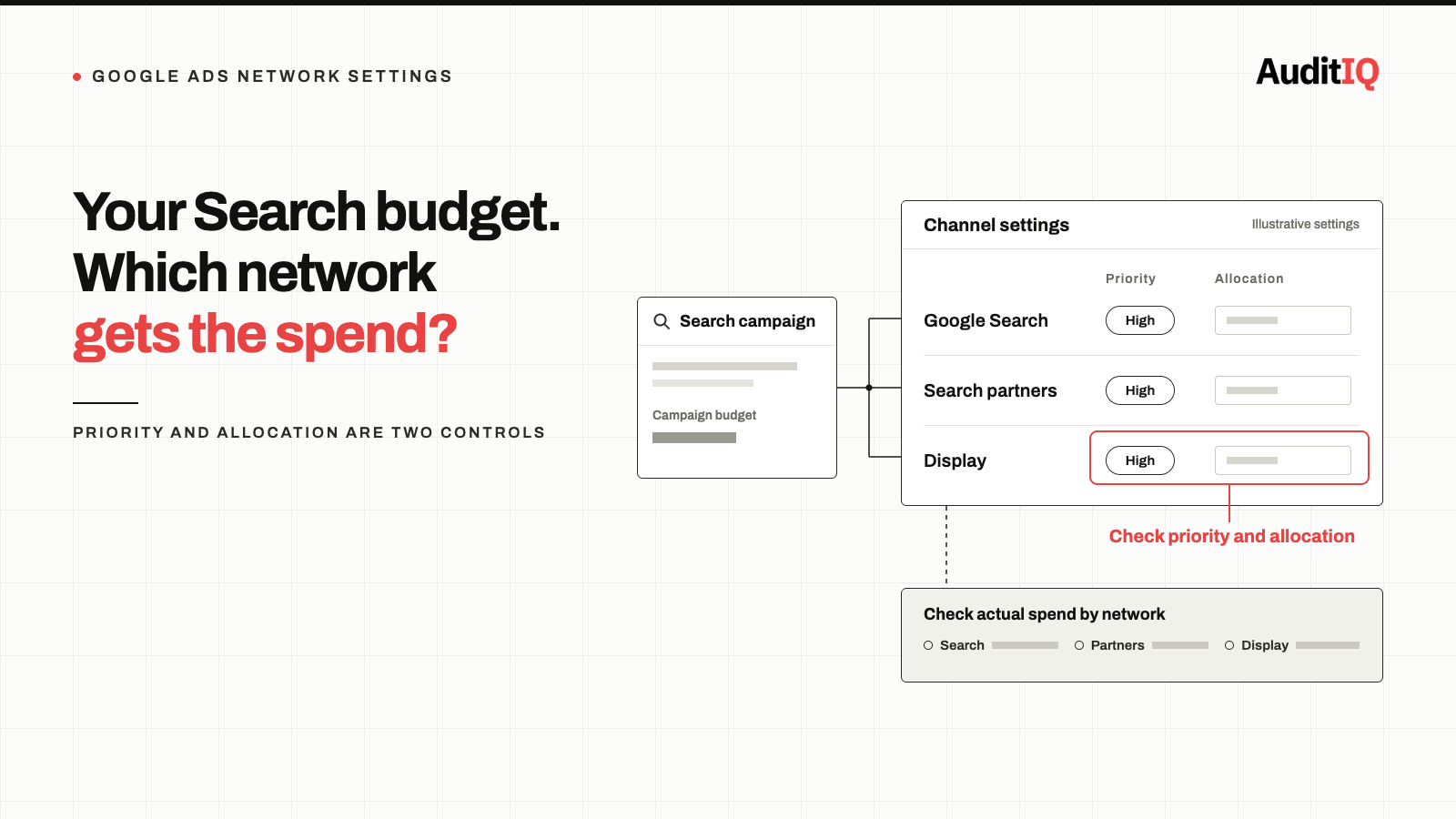
Google Ads Search campaigns that include the Google Display Network can spend part of their budget on websites and apps instead of search results. From February 2027, Google automatically moves these campaigns to its new channel prioritisation controls, and spend may shift. To keep today’s behaviour, set the Display Network to Low priority with a 50% daily budget allocation. Check your split by network first, then decide whether to keep, cap, or remove Display.
If your Google Ads Search campaigns include the Google Display Network, part of your Search budget may be spent on websites, apps, and other non-search placements. That is not always wrong, but it becomes a problem when it happens by default rather than by deliberate strategy. On October 14, 2026, Google announced new channel prioritization and budget allocation controls, available progressively from October 15, and with them came a deadline: in February 2027, Search campaigns with Display Expansion will move to the new system automatically.
This is not a bug or a billing error. It is a setting working as designed, which is why it is easy to forget. The article matters most if you run Search campaigns for direct revenue, rely on ROAS or CPA targets, and have never deliberately built a Display strategy. It is less urgent if Display is already a planned part of your acquisition mix.
What is display expansion on Search campaigns?
Display Expansion lets a Search campaign show ads on the Google Display Network, using your Search campaign settings. Google describes the current setup as delivering ads on the Display Network using unspent budget, at a similar cost per conversion to Search, with a 50% budget allocation applied in the backend. Google says Search campaigns with spare budget that opt in can deliver up to 15% more conversions at similar CPA, and that the network spans more than 3 million websites, videos, and apps.
Those are Google’s own figures, and they describe potential, not a guarantee. Search and Display serve different purposes. A shopper searching for “buy running shoes size 10” has immediate purchase intent, while a shopper seeing a banner on a recipe blog does not. Both can be valid, but they call for different budgets, bids, creative, and conversion expectations, and the part that deserves a decision is how much of one budget each channel is allowed to use.
What changed on October 15, 2026?
Google’s help documentation on channel prioritization and budget allocation describes two optional controls that are rolling out progressively to Search, Shopping, Performance Max, and Demand Gen campaigns. Availability in your account may vary by campaign type and rollout timing.
- Channel priority: mark each channel (for Search campaigns: Google Search, search partners, and the Google Display Network) as High or Low priority, at account, shared budget, or campaign level. High priority channels are funded first, within your target if you use Target CPA or Target ROAS. By default, every channel is High priority.
- Budget allocation: for a Low priority channel, set a daily percentage of the campaign’s average daily budget as a best-effort limit. A 5% allocation on a $1,000 average daily budget aims to keep that channel at or below $50 a day. Setting 0% means Google won’t spend on the channel.
One point is easy to miss. When a Target CPA or Target ROAS campaign is not limited by budget, priority levels generally don’t change how spend is distributed, although any allocation you set still applies. In that situation the allocation percentage is the control that actually moves money between channels.
What happens in February 2027?
Starting in February 2027, all Search campaigns with Display Expansion enabled will automatically migrate to channel prioritisation and budget allocation. The current spend allocation setup goes away, and you may see a shift in spending between Google Search, search partners, and the Google Display Network.
Two practical points follow from Google’s documentation:
- To keep your current configuration, set the Display Network to Low priority with a 50% daily budget allocation. That allocation works on a best-effort basis.
- If you set channel priorities on a Search campaign before February 2027, the new settings apply immediately and replace the current Display Expansion budget behaviour, so a change made today is live today.
- As part of the change, the Display Network will no longer serve on Search campaigns that use the Target Impression Share bid strategy.
Because every channel defaults to High priority in the new system, Display can compete for budget on more equal terms with Google Search unless you explicitly set it to Low priority.
Signs display is taking part of your search budget
These patterns can point to Display spend inside a Search campaign, though each can have other causes, which is why the check below matters more than any single symptom:
- Click-through rate on a Search campaign is lower than its keywords would suggest, because aggregate metrics include Display impressions
- Conversion rate or cost per acquisition drifts away from what your search intent targeting would predict
- Campaign settings show the Display Network ticked and you cannot recall choosing it
- Spend by network, when you segment, includes meaningful Display spend
The setting runs quietly in the background. Many Search campaigns were created with the Display Network ticked, and no alert tells you that part of the budget is being shared with Display placements.
How to check whether display is spending your search budget
Step 1: Find the Search campaigns with the Display Network enabled
In Google Ads, open Campaigns and then each Search campaign’s Settings. Under Networks, choose View network settings and check whether Include Google Display Network is ticked. Filter your campaign list to Search campaigns first so the review stays manageable.
Step 2: Segment spend by network
In the campaigns table, use Segment and choose Network (with search partners). This splits cost, clicks, and conversions between Google Search, search partners, and the Display Network. Use at least 30 days of data.
Step 3: Compare results by network
Compare spend, conversions, conversion rate, cost per conversion, and ROAS for Search against Display. Google says the cost per conversion on Display should on average be similar to Search, so test it against your own data. Display often plays a supporting role, so look at assisted conversions as well as last-click results before drawing conclusions.
Step 4: Look for the new controls in your account
Open Account settings and look for the Channel Prioritization card, then check the same card in each campaign’s settings. If the card has not appeared yet, the rollout hasn’t reached your account. You cannot set channel prioritization from a manager account, so set it in each client account or at campaign level.
Step 5: Record a baseline
Write down the date, the Display share of spend, and the CPA and ROAS by network before you change anything. That gives you a clean before-and-after comparison.
Search vs. display: Which metrics should you compare?
| Google Search | Google Display Network | |
|---|---|---|
| Typical intent | Active research or purchase intent | Discovery, awareness, remarketing |
| Best used for | Conversion-focused eCommerce demand | Reach, demand generation, retargeting |
| Measure with | Conversion rate, CPA, ROAS | Assisted conversions, view-through impact, reach, plus CPA and ROAS |
| Budget approach | Protect first | Cap it, or run it as a separate campaign |
| Risk when mixed | Blended CPA and ROAS hide channel differences | Spend that nobody chose sits inside a Search budget |
Should you keep, cap, or remove display?
Option 1: Keep today’s behaviour
Set the Display Network to Low priority with a 50% daily budget allocation. This is the setting Google gives for keeping your current configuration, and it suits you if Display already delivers results you are happy with.
Option 2: Cap display lower
If your goal is mainly Search performance, a lower cap protects more of the budget. For a pure Search account, AuditIQ suggests starting with a cap of 10–20% and adjusting after you review Display results. That figure is our practical suggestion, not Google’s default or recommendation, and because allocation is best-effort, check actual spend by network afterwards.
Option 3: Turn display off
If you want no Display spend inside Search campaigns, set the Display Network to 0% allocation, or untick Include Google Display Network in the campaign’s network settings. Run Display as a separate campaign with its own budget, targeting, and creative if you still want it.
Common mistakes when setting channel priorities
- Assuming priority alone moves the budget. For campaigns not limited by budget, the allocation percentage is the control that changes the channel mix.
- Judging Display only by last-click ROAS. Display often supports awareness and remarketing, so review assisted conversions and the customer journey too.
- Switching Display off everywhere without checking. Some campaigns use it deliberately, for example for remarketing or demand generation.
- Setting a cap and not checking delivery. Google calls allocation best-effort, so daily spend on a channel may occasionally exceed it.
- Waiting until February 2027. Changing priorities now applies immediately, so make the change deliberately and record the date, rather than letting the migration decide for you.
How to verify the impact
- Check the segmented spend by network for the two weeks after the change and compare it with your baseline
- Compare cost per acquisition and conversion rate for Search before and after
- Confirm that Display spend sits within the allocation you set, allowing for the best-effort behaviour
- Check that total campaign spend and impression volume match what you expect
How AuditIQ helps protect paid traffic performance
Channel settings decide where paid clicks come from, but what happens after the click decides whether they pay off. When spend shifts between channels, AuditIQ helps you see the effect around the change:
- Before you change anything: Google Ads tracks spend, CPC, conversions, CPA, and ROAS across your campaigns, so you have a baseline to compare against.
- In the weeks after: the same feature alerts you when performance deviates from normal patterns and shows it next to your site health data, so a shift after the February migration does not sit unnoticed in a campaign report.
- On the pages clicks land on: User Experience Monitoring tracks drop-off at each step of the checkout flow, and Uptime Monitoring gives instant downtime alerts, so paid traffic arriving at a broken page or a failing checkout step is caught before it keeps consuming budget.
AuditIQ does not read your channel priority settings or show the Search and Display split of your spend, so keep the network segmentation above in your routine and use monitoring to tell you when something has changed.
Beyond ad landing pages, AuditIQ is a 360° eCommerce monitoring platform purpose-built for Magento, Adobe Commerce, and Shopify stores. It continuously monitors every critical layer of a store — performance, infrastructure, SEO, security, user experience, configuration, and code quality — from a single, unified dashboard, so quiet failures that waste ad spend are caught before they compound.
Start monitoring your paid traffic destinations for free today so a change in channel mix doesn’t hide a broken page.
Others also read
- Google AI Max is sending your paid traffic to the wrong pages: Guide to finding and fixing broken landing pages
- Google Ads vs. GA4: How to make sense of revenue differences
- Google's Demand Gen checkout links are expanding: What your landing pages need to keep up
Frequently asked questions
1. What happens in February 2027 if I do nothing?
Your Search campaigns with Display Expansion will automatically migrate to channel prioritization. The current spend allocation setup will be removed, all channels will default to High priority, and you may see spend shift across Google Search, search partners, and the Google Display Network. To keep the current configuration, set the Display Network to Low priority with a 50% daily budget allocation.
2. Is the Google Display Network always bad for eCommerce?
No. Display supports brand awareness, remarketing, and demand generation. The problem is when it is funded from a Search budget without a deliberate decision, because the two channels have different conversion dynamics and need different measures.
3. What if the controls haven’t appeared in my account yet? Google is rolling them out progressively, and availability may vary by campaign type and timing. If they are not visible yet, you can still untick Include Google Display Network in a campaign’s network settings. Check back for the Channel Prioritization card in Account settings.
4. Does a budget allocation cap guarantee my Display spend?
No. Google describes allocation as a best-effort limit, calculated against the campaign’s average daily budget. Daily spend on a channel may occasionally exceed it, so check actual spend by network.
5. Will this affect my Performance Max and Shopping campaigns?
The controls are rolling out to them as well. In Performance Max, Google channels are grouped together, while search partners and the Display Network can each be set separately. Shopping campaigns can prioritise Google Search and search partners. The February 2027 migration applies to Search campaigns with Display Expansion.
About the author
Ginny Ngo writes from AuditIQ's experience monitoring eCommerce performance, SEO, security, and reliability issues across Magento, Shopify, WooCommerce, and Adobe Commerce stores.