Your eCommerce collection filters are creating thousands of crawlable URLs: How faceted navigation silently drains crawl budget and deindexes product pages
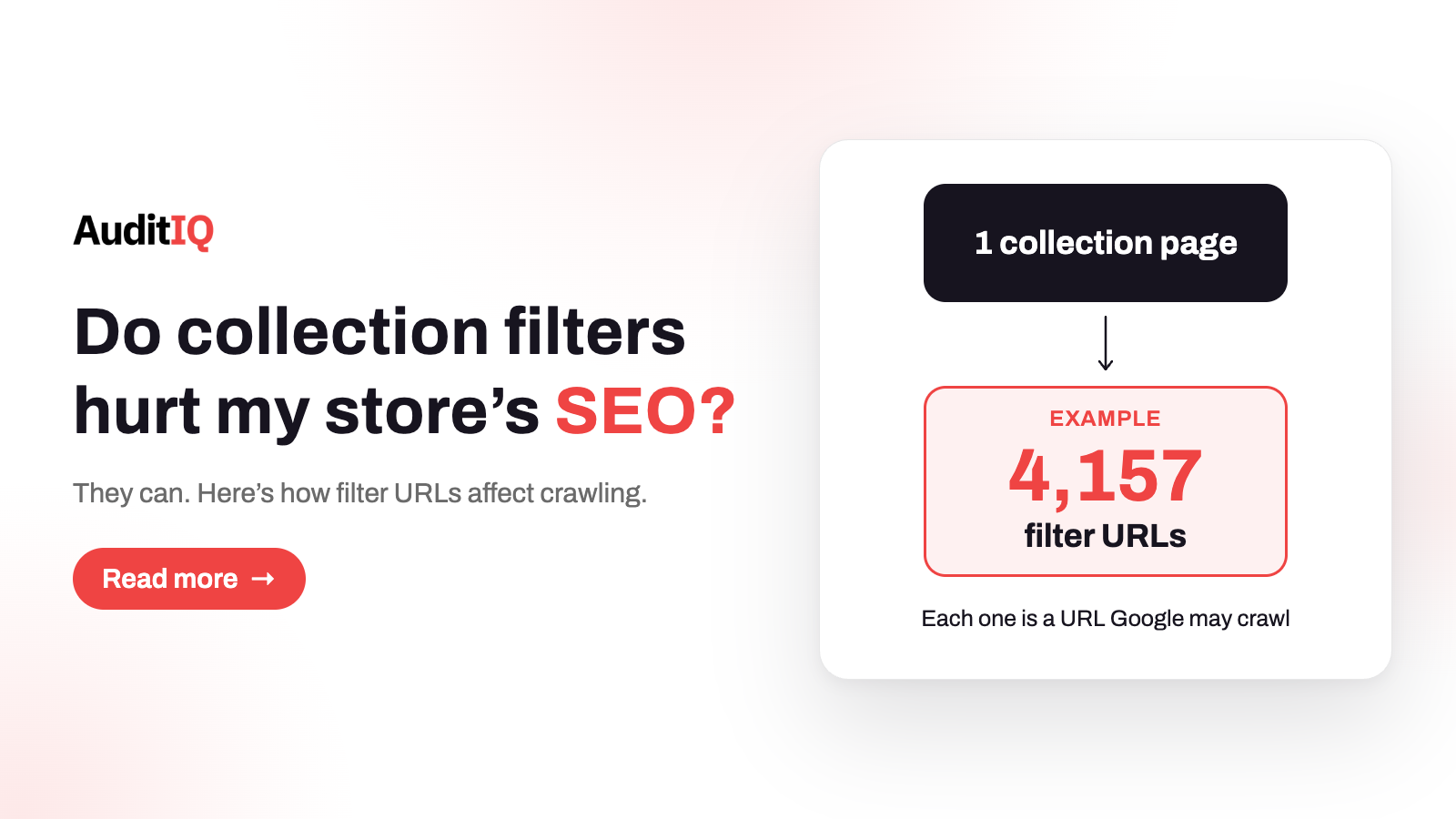
Collection filters can turn one category page into thousands of crawlable URLs, and Google may spend its crawling on those instead of discovering new product pages. That can slow how quickly products are found and indexed, mainly on large or fast-changing catalogues. Check Search Console’s Crawl stats and Not indexed report, then decide per filter pattern: block crawling with robots.txt if a filter does not need to rank, or keep it clean with consistent URLs, canonicals, and 404s for empty results if it does.
A new product goes live and takes far longer to show up in Google than the ones before it. Nothing is broken in the product page, nothing is blocked, and no report raises an alarm. One common explanation is hiding in the part of the store shoppers use every day: the size, colour, price, and brand filters on collection pages. Each filter choice can change the URL, and Google describes faceted navigation as one of the most common sources of overcrawling.
This guide explains what faceted navigation does to your URLs, when crawl budget is actually a concern and when it is not, how to diagnose the problem step by step, and how to choose between robots.txt, canonical tags, nofollow, and noindex. It covers Shopify in detail, since its filter URLs have specific defaults, and gives shorter notes for WooCommerce and Adobe Commerce. The short, plain checks are marked as quick wins, and the decision guidance is where to slow down.
What is faceted navigation, and why does it create so many URLs?
Faceted navigation lets shoppers narrow a product list by colour, size, price, brand, or availability. Google’s guidance on faceted navigation notes that the usual implementation, based on URL parameters, can generate an effectively infinite URL space, because each combination of filters is a different URL that shows a different slice of the same products.
On Shopify, for example, storefront filtering adds parameters to the collection URL such as filter.v.option.color=red, filter.p.product_type=shoes, or filter.v.availability=1, and several can be combined in one URL. Here is how fast that grows, using a hypothetical collection with four filter groups of 8, 6, 5, and 10 options, where a shopper can pick at most one option per group:
(8 + 1) × (6 + 1) × (5 + 1) × (10 + 1) − 1 = 4,157 filtered URLs |
|---|
The extra 1 in each group stands for “no choice in this group”. Allow shoppers to select several options in one group, add sort orders and pagination, and the number climbs much higher. All of that comes from a single collection page.
Does faceted navigation really hurt crawl budget on an eCommerce store?
Google names two costs. The first is overcrawling: crawlers cannot tell whether a filter URL is useful without fetching it, so they typically request a very large number before deciding they are not. The second is slower discovery: crawling spent on useless URLs is crawling not spent on new, useful ones, such as the product you launched this morning.
Whether that matters for your store depends on its size. Google’s crawl budget guide is written for sites with about a million or more unique pages that change weekly, sites with about 10,000 or more unique pages that change daily, and sites with a large share of URLs in Search Console’s “Discovered – currently not indexed” status. Google calls these figures a rough guide, and says that if your pages seem to be crawled the same day they are published, you do not need to worry about crawl budget. For a small store that is fully crawled within a day, filter URLs are still clutter, but they are not the reason a product is missing.
One more caution before you blame filters: product pages can lose visibility for many reasons, including a core update, a theme or app change, or thin content. Faceted navigation is a candidate to check, not a conclusion to assume.
What are the signs that filter URLs are eating your crawling?
- New products take noticeably longer to appear in Google than older products did, with no change to the pages themselves.
- A large share of your URLs sit in “Discovered – currently not indexed”, and the sample URLs include filter parameters. Search Console’s help describes this status as Google wanting to crawl the URL but expecting that to overload the site, so it rescheduled.
- Server logs show Googlebot requesting parameter URLs far more often than product pages. Logs are the most direct evidence, because Search Console’s Crawl stats give totals and examples rather than a breakdown by URL pattern.
- Filter URLs appear in the Pages report, the sitemap, or search results when you did not intend them to.
Note that “Crawled – currently not indexed” is a different situation. It means Google fetched the page and chose not to index it, which usually points to duplication or quality rather than crawl budget. No single report names faceted navigation as the cause, so build the case from several signals.
How do you diagnose it, step by step?
Step 1: List your filter URL patterns
Click through a few collections and write down the URL each filter produces: parameter names, separators, and whether combinations appear in the path or the query string. Your theme and any filtering app decide this, so do not assume.
Step 2: Look at Not indexed in Search Console
In Pages, open the Not indexed reasons and filter the example URLs for your filter patterns. Pay attention to “Discovered – currently not indexed” and to filter URLs that Google indexed even though you did not mean it to.
Step 3: Check Crawl stats, and your logs if you can
Under Settings, Crawl stats, look at the trend in total requests and the response codes. To learn what share of requests goes to filter URLs, count Googlebot requests by URL pattern in your server logs.
Step 4: Read your robots.txt
Open /robots.txt on the live store and see which filter or parameter patterns are already blocked, and whether a past edit removed rules you assumed were there.
Step 5: Inspect the canonical on sample filter URLs
View the source of two or three filtered URLs and look at the canonical link. Then use URL Inspection to compare the canonical you declared with the one Google selected. A filter URL that declares itself as canonical, or one Google selected over the clean collection, is a sign the consolidation is not working.
Step 6: Check your sitemaps and internal links
Search your XML sitemaps for filter parameters, and search your page source for links to filter URLs in breadcrumbs, “shop by” widgets, and promotional banners. Each is an invitation to crawl.
Step 7: Test an empty combination
Choose a filter combination that returns no products and check the HTTP status. Google recommends a 404 for these, not a 200 with an empty page and not a redirect to a shared error page.
Robots.txt, canonical, noindex, or nofollow: Which fix should you use?
This is the decision that most guides get wrong, because each tool does a different job. Start from what you want each filter URL to do:
| If the goal is… | Use | What to know |
|---|---|---|
| Filter URLs never need to appear in Search | robots.txt disallow, with the unfiltered listing left crawlable | Google’s first recommendation. It stops the request, which is the only option here that directly saves crawling |
| A custom build where filters need no indexing | URL fragments (#) instead of parameters | Google generally does not support fragments for crawling and indexing, so they have no effect on crawling |
| A filter combination people actually search for | A clean, crawlable URL that follows Google’s best practices | Use “&” as the separator, keep filter order consistent, return 404 for empty results, and give it its own canonical |
| Near-duplicate filter URLs that must stay crawlable | rel=“canonical” to the preferred URL | Can reduce crawling of the variants over time, but Google says it is generally less effective in the long term than blocking |
| Links to low-value filter URLs | rel=“nofollow” on those links | Only works if every link to that URL carries it |
| Keeping a crawled page out of the index | noindex | Controls indexing, not crawling. Google still requests the page, then drops it, so its crawl budget guide advises against using it to save crawling |
Why robots.txt and noindex do not work together
A page blocked by robots.txt is not requested, so Googlebot never sees a noindex tag or a canonical link on it. If you disallow a pattern and also rely on those tags to clean up URLs that are already indexed, the tags will not be read. Decide which job you need first: stopping crawling, or removing indexed URLs. For URLs you want removed, they generally need to remain crawlable until Google has seen the noindex.
A note on Google’s own priorities
Many SEO articles put canonical tags first. Google’s faceted navigation page lists robots.txt and fragments first and describes canonical and nofollow as generally less effective in the long term. Treat canonicals as a way to consolidate and reduce crawl volume over time, not as a switch that stops crawling.
How do you fix filter URLs on Shopify, WooCommerce, and Adobe Commerce?
Shopify
Check before you change anything, because Shopify already handles part of this. Its Help Center describes a default robots.txt that disallows filtered collection pages with combined tags (/collections/*+*) and sorted collection pages (/collections/*sort_by*). Newer default files are also reported to disallow collection URLs carrying two or more filter parameters. Open /robots.txt on your store to see exactly what yours says.
- Single-filter URLs and parameters added by filtering apps can remain crawlable. That is where the gap usually is. Look at the parameters your theme and any filtering app actually produce.
- Check the canonical in your theme’s output. Many themes point filtered pages back to the base collection, but confirm it in the page source, especially after a theme or app change.
- If you add rules in the robots.txt.liquid template, keep Shopify’s default rules and target specific parameters. Confirm the pattern first, and avoid broad patterns that could also block collection pages or pagination.
- If a filter combination has real search demand, give it a proper collection page with its own title and content instead of relying on a parameter URL.
WooCommerce
URL patterns depend on the filtering plugin, and many plugins create crawlable URLs without any canonical or noindex handling. Identify the pattern your plugin produces, check what your SEO plugin does with parameterised URLs, and follow the same decision table above, using robots.txt for filters that should not be crawled at all.
Adobe Commerce
Layered navigation can produce a very large URL space, especially with multi-select filters. Check which parameters it generates on your store, what your canonical and robots settings do for them, and decide per filter whether it should be blocked, consolidated, or kept as a clean indexable page.
How do you confirm the fix is working?
- Test your new robots.txt rules against sample filter URLs and against a few collection and product URLs that must stay crawlable.
- Use URL Inspection on a sample filter URL and a clean collection URL to confirm what Google sees and which canonical it selects.
- Watch the Not indexed counts and Crawl stats trend over several weeks. Timing varies by site, so compare against your own baseline rather than expecting a fixed number of days.
- Track how quickly newly launched products get indexed, since that is the outcome you wanted to improve.
How do you stop filter URLs from coming back?
The problem returns whenever something creates new crawlable URLs. Re-check your filter URL patterns, robots.txt, canonicals, and sitemaps whenever you:
- add a filter group or a new collection with filters
- install or update a filtering app or plugin
- change your theme or your URL structure
- add a “shop by” widget or a promotional link to a pre-filtered collection
Where monitoring fits when you’re watching filter URLs
AuditIQ's monitoring tool does not read Search Console’s Crawl stats or your server logs, and it does not measure crawl budget, so keep those for the diagnosis above. It helps you notice when the signals around the problem change:
- SEO Audit crawls your store weekly, up to 20,000 pages, applying 100+ checks per page, including canonicals and internal links. Issues are ranked by severity and each links to the pages it affects, so a theme or app change that alters canonicals shows up as a finding.
- Analytics brings unsampled Google Analytics data into one place, so a shift in organic traffic to product pages while collection pages hold steady is easier to spot.
- Configuration Tracking logs every Magento and Adobe Commerce configuration change with before and after values, so a settings change can be tied to the date a problem began.
Filters are only one of the many things in a catalogue that can drift quietly. AuditIQ is a 360° eCommerce monitoring platform purpose-built for Magento, Adobe Commerce, and Shopify stores, watching performance, infrastructure, SEO, security, user experience, configuration, and code quality from a single, unified dashboard.
Curious what a weekly crawl of your store would turn up? Start your free AuditIQ trial and see the SEO findings for yourself.
Others also read
- Why did my eCommerce organic traffic drop after a theme or app update?
- How to recover organic traffic after migrating to Shopify: A redirect mapping and monitoring guide
- eCommerce product pages returning 404? How to find and fix broken URLs silently losing you traffic and revenue
Frequently asked questions
1. Will blocking filter URLs in robots.txt remove the ones already in Google?
Not by itself. Robots.txt stops Googlebot from requesting a URL, so it cannot see a noindex tag or a canonical link on that page, and a blocked URL can stay in the index. If indexed filter URLs need to disappear, let them be crawled with noindex first, and block the pattern afterwards if you also want to stop the crawling.
2. Should I use noindex or canonical tags on filter pages?
Pick by purpose. Use a canonical to consolidate near-duplicates onto a preferred URL, which may reduce crawling of the variants over time. Use noindex only for crawled pages that should stay out of Search. Neither stops crawling, and Google advises against using noindex to save crawl budget. If you want crawling to stop, use robots.txt.
3. How do I know if crawl budget is really a problem for my store?
Compare your store with Google’s own guidance: very large catalogues, roughly 10,000 or more pages that change daily, or many URLs stuck in “Discovered – currently not indexed”. If new pages are usually crawled the same day they are published, it is probably not your constraint.
4. Why are my product pages “Crawled – currently not indexed”?
That status means Google fetched the page and decided not to index it. It usually points to duplicate or thin content, weak internal linking, or conflicting canonicals rather than crawl budget. Check those before changing your filters.
5. Is it safe to block filter parameters on Shopify?
It can be, if you check first. Shopify’s default robots.txt already disallows some filtered and sorted collection URLs, and edits go in the robots.txt.liquid template. Keep the default rules, target specific parameters, and test that collection pages and pagination stay crawlable.
6. Should I turn popular filter combinations into real collection pages?
If people search for them, yes. A page such as red running shoes can earn its own traffic when it has its own URL, title, and content, and Google’s best practices for URLs you do want crawled (consistent order, “&” separators, 404 for empty results) keep it tidy. Keep blocking the combinations nobody searches for.
About the author
Ginny Ngo writes from AuditIQ's experience monitoring eCommerce performance, SEO, security, and reliability issues across Magento, Shopify, WooCommerce, and Adobe Commerce stores.