Email shows “delivered” but revenue has dropped? How to diagnose deliverability before Black Friday
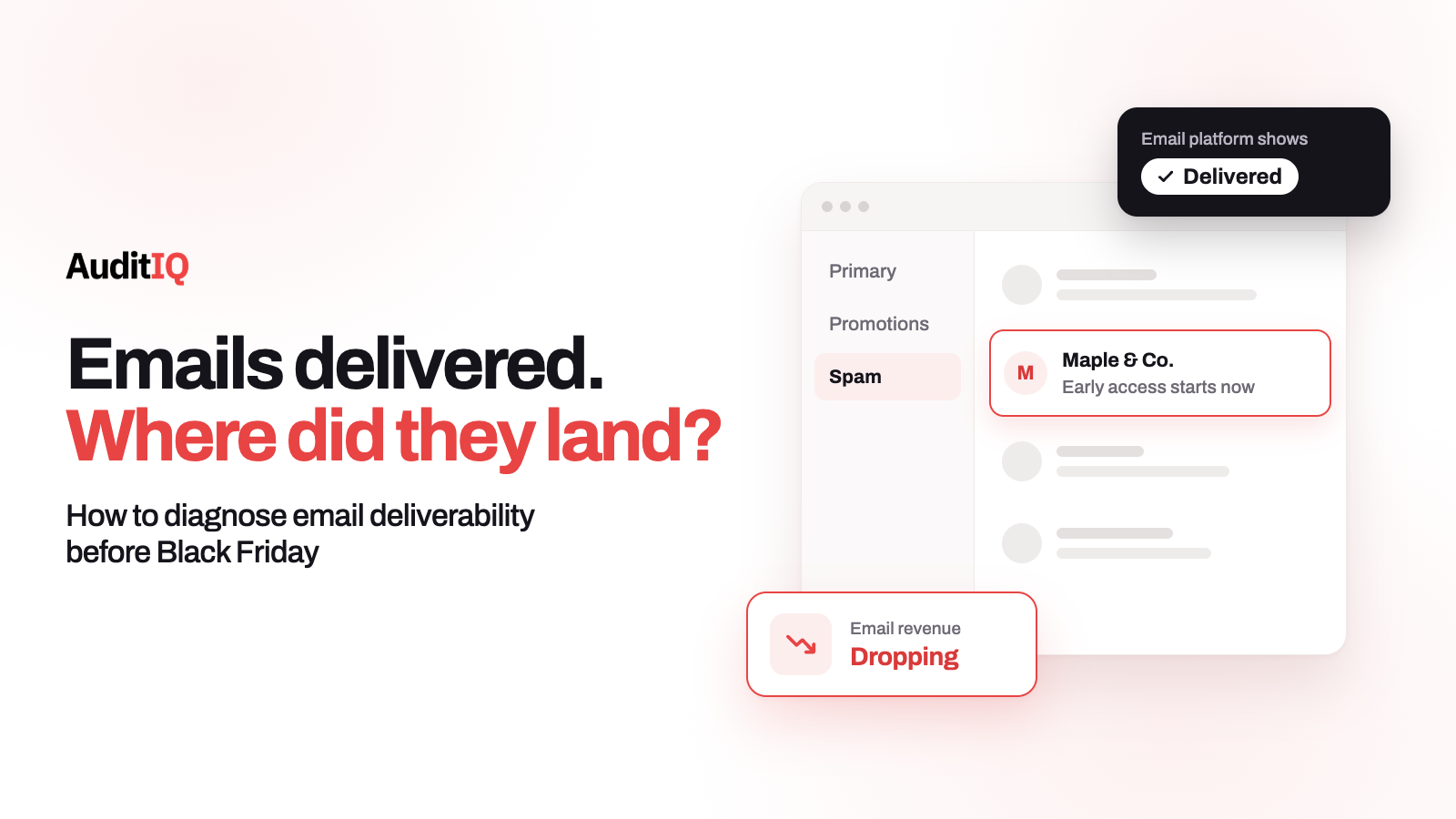
Marketing emails can show as delivered while landing in spam, so opens, clicks, and revenue fall without any error. The usual causes are failing authentication, a rising spam rate, a list full of unengaged contacts, sudden volume spikes, and shared-IP or sending-setup problems. Check authentication, Gmail’s Postmaster Tools compliance and spam rate, and your list, raise volume gradually, and rule out onsite problems before you rewrite subject lines.
When an eCommerce email campaign stops producing revenue, most teams start with the subject line, the offer, or the audience segment. Often the problem sits earlier. Your email service provider reports the messages as delivered, which means the receiving mail server accepted them. It does not mean they reached the inbox, and a message filtered to spam produces no opens, no clicks, and no revenue while the campaign report looks healthy.
This guide explains what “delivered” does and does not tell you, what Gmail and Yahoo require from senders, how to read Google Postmaster Tools, and how to warm up holiday volume without damaging your reputation. It also shows how to tell a deliverability problem from a problem on your own site, which matters most in the run-up to Black Friday on 27 November and Cyber Monday on 30 November.
What does “delivered” actually mean for marketing email?
Each number your tools report answers a different question, and none of them alone proves inbox placement:
| Signal | What it tells you | What it does not tell you |
|---|---|---|
| Delivered (your ESP) | The receiving server accepted the message | Whether it went to the inbox, spam, or another folder |
| Open rate | Some recipients or mail apps loaded the message | Anything reliable on its own: Google does not track open rates, cannot verify third-party figures, and says low opens are not necessarily a sign of deliverability problems |
| Spam rate (Postmaster Tools) | The share of messages delivered to the inbox that recipients then marked as spam | How much mail Gmail filtered to spam on its own. If Gmail sends many messages to spam, the rate can look low because fewer reach the inbox |
| Domain and IP reputation | How Gmail rates your sending behaviour: Bad, Low, Medium, or High | Which campaign caused a change |
| Delivery errors | The share of authenticated messages that were rejected or temporarily failed | Messages accepted and then filtered |
| Revenue per email sent | The end result of the whole chain | Which link in the chain failed |
The practical lesson is to read these signals together. A stable open rate with a falling click rate, a reputation that has slipped, or a compliance warning in Postmaster Tools each points to a different layer.
Why does holiday email get harder to deliver?
Deliverability rarely fails in one step. It degrades as reputation shifts, authentication drifts, and sending patterns change, and the holiday season pushes on all three at once:
- Volume jumps. Promotions, flash-sale announcements, abandoned-cart flows, and gift guides all add sends. Google tracks volume, feedback, and limits per domain and IP address, and warns that suddenly doubling previous volume can lead to rate limiting or reputation drops.
- Lists widen. Teams add dormant subscribers and less engaged segments to extend reach. Recipients who have stopped engaging are the most likely to mark a message as spam or ignore it.
- Inboxes get busier. Recipients see more promotional email in these weeks, so engagement per message can fall, and lower engagement is a signal mailbox providers can use.
- Subject lines and sender names get louder. Google’s display-name guidelines list names such as “TIME IS RUNNING OUT (SALE)” and “Last Chance” as examples to avoid, because display names should identify the sender, not carry the message.
The result is that your highest-stakes campaigns of the year are the most exposed to a quiet failure.
What do Gmail and Yahoo require from senders?
Gmail’s email sender guidelines apply to everyone sending to personal Gmail accounts, with extra requirements for bulk senders, defined as senders that send close to 5,000 messages or more to personal Gmail accounts in 24 hours. Messages from the same primary domain are counted together, so a subdomain used for promotions adds to the total, and once a sender is classified as bulk the status is permanent. Yahoo’s sender requirements follow the same pattern with their own list for bulk senders. The two are similar but not identical:
| Requirement | Gmail | Yahoo |
|---|---|---|
| Authentication | All senders: SPF or DKIM. Bulk senders: SPF, DKIM, and DMARC, with p=none acceptable. The From domain must align with the SPF or DKIM domain, and only one needs to align |
All senders: SPF or DKIM. Bulk senders: both, plus a valid DMARC policy of at least p=none that passes, with relaxed alignment acceptable |
| Spam rate | Keep it below 0.10% and avoid ever reaching 0.30% | Keep it below 0.3%, calculated on mail delivered to the inbox |
| Unsubscribe | Marketing and promotional mail needs one-click unsubscribe through List-Unsubscribe headers (RFC 8058) with an HTTPS URL. Transactional mail is excluded. Honour requests within 48 hours |
A working list-unsubscribe header with one-click for marketing and subscribed mail. The POST method is highly recommended and mailto is acceptable. Also a visible unsubscribe link in the body, and honour requests within 2 days |
| DNS and transport | Valid forward and reverse DNS (PTR), TLS, and RFC 5322 formatting | Valid forward and reverse DNS and RFC 5321 and 5322 compliance |
| Message streams | Use a separate IP for each message type where you can, and keep the same From address within a category | Do not send marketing from the IPs you use for transactional mail, and segregate mail by IP or DKIM domain |
| Monitoring | Postmaster Tools, including a Compliance status dashboard | Complaint Feedback Loop and Sender Hub |
What happens when a requirement is missed differs by requirement. Gmail’s sender guidelines FAQ says that since November 2025 Gmail has been ramping up enforcement on non-compliant traffic, including temporary and permanent rejections, and lists the following:
| Requirement missed | Gmail enforcement |
|---|---|
| From header and authentication do not align, SPF or DKIM missing, no valid forward and reverse DNS, no TLS, or messages not in RFC 5322 format | Temporary or permanent failure codes, or spam foldering |
| Spam rate above 0.3%, DMARC record missing, no one-click unsubscribe on marketing mail, or unsubscribes not honoured within 48 hours | Delivery support and mitigations unavailable |
Google also says a bulk sender whose spam rate is above 0.3% becomes eligible for mitigation again only after it stays below 0.3% for seven consecutive days. Treat the 0.10% figure as your working limit and 0.3% as a line you must never cross.
Which stores are most exposed before the holidays?
Every store sending to Gmail and Yahoo has baseline requirements, even well below 5,000 messages a day. The risk of a quiet failure is highest if your store:
- Plans a large step up in volume for Black Friday, Cyber Monday, and gift-guide weeks
- Sends through several tools, such as a marketing platform, an ecommerce platform, and a support desk, each with its own sending domain
- Shares IP addresses with other senders through its email service provider
- Recently changed email provider, moved DNS, or added a sending subdomain
- Mails dormant or purchased contacts to extend holiday reach
- Sends promotions and order confirmations from the same address and IP
Signs your emails may be landing in spam
No single sign proves a deliverability problem, but several together point to one:
- Clicks and sessions from email decline across campaigns, especially for Gmail and Yahoo recipients
- Revenue per email sent drops while list size stays stable
- Performance differs sharply by mailbox provider, for example steady engagement on Outlook and very little on Gmail
- Your ESP shows no bounces or errors while engagement keeps falling
- Revenue falls soon after you raise volume or add new segments
- Postmaster Tools shows domain reputation as Low or Bad, or the Compliance status dashboard shows “Needs work”, which many merchants have never checked
- Delivery errors rise in Postmaster Tools, including rate-limit or authentication failures
The six most common causes of deliverability problems
1. Authentication failures and drift
Gmail says messages that are not authenticated might be marked as spam or rejected, and that you should set up authentication for each of your sending domains. Many merchants authenticate the main domain but not the subdomains or third-party tools that actually send their email.
Check: Confirm the SPF record includes every service that sends for your domain, and that each third-party sender signs with DKIM. Google recommends a separate DKIM key and configuration for each third-party sending service, and a key of at least 1024 bits, with 2048 bits preferred. Publish DMARC with at least p=none and reporting enabled, and confirm the visible From domain aligns with SPF or DKIM.
2. Rising spam complaints and weakening reputation
Google says user spam reports can lower a domain’s reputation over time, and that its impact on delivery is graduated: rates above 0.1% already hurt inbox delivery for bulk senders, and 0.3% or higher hurts more. Reputation is rated Bad, Low, Medium, or High, and Google notes it can take time for improvements in spam rate to show up in classification.
Check: Review domain reputation, spam rate, and compliance status in Postmaster Tools over the last 30 days, and set up the Feedback Loop so you can see which campaigns draw complaints.
3. List and subscription practices
Both providers ask you to send only to people who want your email. Gmail recommends that recipients opt in, that you confirm each address, that you periodically confirm people want to stay subscribed, and that you consider unsubscribing recipients who do not open or read your messages. Yahoo recommends double opt-in, removal of invalid recipients, and a reconfirmation email to inactive subscribers. Both advise against buying lists and against pre-ticked opt-in boxes.
Check: Segment by last engagement. Choose a recency window that suits how often you send, for example 90 days, which is our suggestion rather than a Google or Yahoo rule, and keep older contacts out of peak sends until they have re-engaged.
4. Volume spikes without warm-up
Gmail tracks volume per domain and per IP address, and the IP quota is shared by every sender that uses that IP. Google recommends sending at a consistent rate, avoiding bursts, and avoiding sudden spikes if you have no history of sending large volumes.
Check: Compare your planned holiday volume with the highest volume you have actually sent in the past few months. A big gap is the risk, and the next section covers how to close it.
5. Shared IPs, provider changes, and mixed message streams
Google notes that on a shared IP the activity of every sender affects the reputation of all of them, and a negative reputation can hurt your delivery. Both Gmail and Yahoo also recommend keeping promotional and transactional mail apart, by IP, DKIM domain, or From address, so a marketing problem does not spill onto order confirmations.
Check: Ask your provider whether you are on a shared IP, check that IP’s reputation in Postmaster Tools where possible, and review their status page and changelog for infrastructure changes. Confirm receipts and promotions use separate From addresses.
6. Message and display name practices
Gmail’s guidelines say not to hide content with HTML or CSS, to keep links visible and easy to understand, and to keep display names to the sender’s identity, without the subject, emojis made to imitate graphics, or fake reply markers. Gmail’s Delivery errors dashboard also lists possibly spammy content as a cause of rejection.
Check: Review your holiday templates and sender names against these rules before the first big send, not after the first dip.
How do you read Google Postmaster Tools?
Google’s Postmaster Tools dashboards show data for email sent to personal Gmail accounts. The data is not real time: it typically updates within 24 hours but can take longer, and dashboards might not include all data on days when your outgoing volume is low, so a small sender may see gaps. The dashboards to use first:
| Dashboard | What it shows | What to look for |
|---|---|---|
| Compliance status | Whether you meet the sender requirements, with each marked Compliant, Needs work, or No data found | Any Needs work item, and allow up to 7 days for fixes to show. It reports the primary domain, using subdomain data |
| Spam rate | The share of messages delivered to the inbox that recipients marked as spam | A rising trend, and a rate that looks low next to a poor reputation, which can mean Gmail is already filtering to spam |
| Domain and IP reputation | A Bad, Low, Medium, or High rating | Any slide toward Low or Bad. The domain view covers only the exact domain used for DKIM and SPF |
| Authentication | The percentage of mail passing SPF, DKIM, and DMARC | Google says DKIM and DMARC typically reach 95% or higher when set up correctly, and SPF is often lower when third parties send for you |
| Delivery errors | Rejected and temporarily failed messages, with reasons | Rate-limit and authentication errors. Temporary failures are a throttling signal, so slow down and retry with increasing delays |
| Feedback Loop | Spam rate for campaigns that carry a feedback ID | Which campaign types draw the most complaints |
Postmaster Tools also has a Deliverability analysis diagnostic under the Compliance status dashboard, which gives recommendations when your messages fail to deliver, exceed the spam threshold, or show low engagement.
How do you diagnose where the problem is?
Work from the cheapest check to the most involved, and change one thing at a time.
Step 1: Check authentication on a real message
Send a test email to a Gmail address, open the message, and choose Show original. Look for spf=pass, dkim=pass, and dmarc=pass. Any failure is a configuration gap to fix before anything else.
Step 2: Open Postmaster Tools and read compliance status
Add and verify your sending domain, then start with the Compliance status dashboard. It tells you which requirements are met and which need work, and it is the quickest way to find an authentication, unsubscribe, or DNS gap.
Step 3: Check spam rate and reputation together
Read the spam rate and the domain reputation side by side. A high spam rate with good reputation suggests reputation is starting to drop. A low spam rate with poor reputation can mean Gmail is filtering much of your mail to spam, so fewer recipients see it to report it.
Step 4: Look at your list
Segment by last engagement, remove invalid addresses, suppress hard bounces, and check that each sign-up was confirmed. Compare how engaged and disengaged segments perform, because holiday sends to the disengaged group are the usual source of complaints.
Step 5: Compare sending volume with your history
Chart daily volume for the past few months and place your holiday plan on the same chart. Look for single-day jumps, new sending domains, and new templates, each of which Google says to ramp separately.
Step 6: Test across providers
Send a small test to engaged contacts at Gmail, Yahoo, and Outlook, and see where it lands. Treat the result as a signal, not proof, since a handful of messages cannot represent your list.
Step 7: Rule out the site
If clicks and sessions from email hold steady but orders fall, deliverability is probably not the problem. The section below covers how to confirm that.
How do you warm up holiday sending volume?
Neither Google nor Yahoo publishes a fixed warm-up formula, so treat any schedule you see quoted as one provider’s practice, not a rule. Google’s guidance gives the principles:
- Start with a low volume to your most engaged recipients and increase it slowly, because the more you send, the more slowly you should ramp up
- Send at a consistent rate and avoid bursts. Daily sending lets you ramp faster than weekly sending
- Avoid sudden spikes if you have no history at that volume. Immediately doubling previous volume can lead to rate limiting or reputation drops
- If you change the format of your bulk emails, or your sending infrastructure or header structure, ramp up the changed traffic separately
- Monitor server responses, spam rate, and domain reputation as you scale, and be ready to reduce volume if bounces or deferrals start.
If Gmail starts rejecting or deferring, pause, wait, and resume slowly
Google adds that the unsubscribe button Gmail shows at the top of a message appears only for messages that pass its automated checks, including increasing volume gradually. A careful ramp therefore helps both deliverability and unsubscribe handling. Start ramping now rather than the week of the sale.
When is deliverability not the problem?
Low revenue does not always mean mail is going to spam. Separate three questions before you change anything:
| Question | Where to look | If the answer is no |
|---|---|---|
| Is the email reaching the inbox? | Postmaster Tools, delivery errors, and test sends | Fix authentication, reputation, list, and volume |
| Are recipients clicking? | Clicks and sessions from the email channel in your analytics, not opens alone | Revisit the offer, timing, and segment |
| Do the clicks convert on your site? | Landing page behaviour, product data, and checkout funnel | Audit the storefront, since email only brought the visit |
Deliverability is probably not your problem if clicks and sessions from email are stable, Postmaster Tools shows a healthy reputation and a spam rate below 0.10%, the compliance status is clean, and the revenue drop lines up with checkout errors, slow pages, broken product pages, or payment failures. Optimising subject lines will not fix any of those.
How do you verify the fix?
- Send a test campaign to a small, engaged segment and confirm placement in Gmail, Yahoo, and Outlook.
- Re-check the headers for
spf=pass,dkim=pass, anddmarc=passon a real message. - Check Postmaster Tools after at least 24 hours for spam rate, reputation, and delivery errors, and allow up to 7 days for compliance changes to appear.
- Compare clicks, sessions, and revenue per email sent with a recent baseline, using clicks rather than opens as your main measure of engagement.
- Expand to the full list in stages, and watch the spam rate after each one.
Common mistakes when fixing email deliverability
- Judging deliverability by open rate. Google does not track opens and says low opens are not necessarily a deliverability signal.
- Treating a low spam rate as proof that all is well. It counts only mail that reached the inbox, so heavy spam filtering can hide behind a low figure.
- Stopping at
p=nonewithout checking alignment. The message must still pass DMARC through SPF or DKIM alignment, so check real message headers, not just the DNS record. - Sending the whole list at full volume on day one. Ramp from engaged recipients first.
- Mixing promotions and receipts. Keep separate From addresses and, where you can, separate IPs or DKIM domains.
- Letting unsubscribe requests fail quietly. Google says that if a service such as Cloudflare blocks unsubscribe requests before they reach your servers, you are still responsible for processing them, and unsubscribe requests not honoured within 48 hours count against compliance.
What to do before Black Friday
- Open Postmaster Tools and fix every item marked Needs work in the Compliance status dashboard.
- Chart your planned holiday volume against your recent history, and decide the ramp, starting with engaged recipients.
- Separate promotional and transactional mail, and confirm one-click unsubscribe works end to end.
- Set a weekly check of spam rate, reputation, and email-channel sessions, and add a landing page and checkout test before each big send. 5
Telling a deliverability problem from a site problem with AuditIQ
The first question after a revenue dip is whether the email clicks are arriving at all. That decides which side to investigate: upstream, in the inbox, or downstream, on your store. AuditIQ helps with the downstream half:
- Analytics: unsampled Google Analytics data, including channel performance and conversion funnel analysis, in the same platform as your technical monitoring, so you can see whether sessions from email have fallen (look upstream) or held steady while conversion dropped (look at the site).
- User Experience Monitoring: tracks drop-off at each step of the checkout flow, with device, browser, and session context, so email traffic that reaches checkout but does not complete shows where it stalls.
- Uptime Monitoring: instant downtime alerts, so you do not send a large campaign to a store that is down.
AuditIQ does not measure inbox placement, domain reputation, spam rate, or email authentication. Use Postmaster Tools, Yahoo’s Sender Hub, and your ESP’s reports for those, and use AuditIQ to confirm that the traffic your emails do bring can convert.
Beyond email traffic, AuditIQ is a 360° eCommerce monitoring platform purpose-built for Magento, Adobe Commerce, and Shopify stores. It continuously monitors every critical layer of a store — performance, infrastructure, SEO, security, user experience, configuration, and code quality — from a single, unified dashboard, so the quiet failures that waste campaign traffic are caught before they compound.
Start monitoring your store for free today so every email click lands on a store that can convert it.
Others also read
- Why did my eCommerce revenue drop when traffic stayed the same?
- eCommerce Holiday Traffic Readiness: How to Find Silent Storefront Failures
- Why your store still slows down on Black Friday even after passing every load test
Frequently asked questions
1. Why do my emails show as delivered but nobody opens them?
“Delivered” means the receiving server accepted the message. The mailbox provider can still place it in spam or another folder. Google also does not track open rates and says low opens are not necessarily a sign of deliverability problems, so check clicks, Postmaster Tools, and delivery errors as well.
2. How do I check my domain reputation?
Add and verify your sending domain in Google Postmaster Tools and open the Domain Reputation dashboard, which rates it Bad, Low, Medium, or High. It shows data for email sent to personal Gmail accounts, the data can lag by 24 hours or more, and it might not include all data on days when your volume is low.
3. Do Gmail’s rules apply if I send fewer than 5,000 emails a day?
Yes, in part. All senders to personal Gmail accounts must authenticate with SPF or DKIM, have valid DNS records, use TLS, keep spam rates below 0.3%, and format messages correctly. Senders of 5,000 or more messages a day must also set up DMARC and one-click unsubscribe, and the count combines mail from the same primary domain.
4. Is a DMARC policy of p=none enough?
It meets the minimum for Gmail and Yahoo bulk senders, but the message must still pass DMARC through SPF or DKIM alignment. Google also recommends aligning with both and says both will likely become a requirement.
5. Will increasing my holiday sending volume hurt deliverability?
It can, if the increase is sudden. Google recommends starting with engaged recipients, sending at a consistent rate, avoiding bursts, and increasing volume gradually while you watch spam rate and reputation.
6. What is the difference between Gmail and Yahoo unsubscribe requirements?
Gmail requires one-click unsubscribe through List-Unsubscribe headers with an HTTPS URL for marketing mail and recommends honouring requests within 48 hours. Yahoo asks for a working list-unsubscribe header, recommends the POST method but accepts mailto, requires a visible unsubscribe link in the body, and expects requests to be honoured within 2 days.
7. How long until Postmaster Tools shows my fixes?
Dashboard data typically updates within 24 hours but can take longer. The Compliance status dashboard uses a rolling average, so Google suggests waiting up to 7 days for changes to show, and spam rate improvements can take up to 7 days to fall within compliance.
About the author
Ginny Ngo writes from AuditIQ's experience monitoring eCommerce performance, SEO, security, and reliability issues across Magento, Shopify, WooCommerce, and Adobe Commerce stores.