Your eCommerce site search may be broken, and you don’t know it: How zero-result pages are silently driving away your highest-intent shoppers
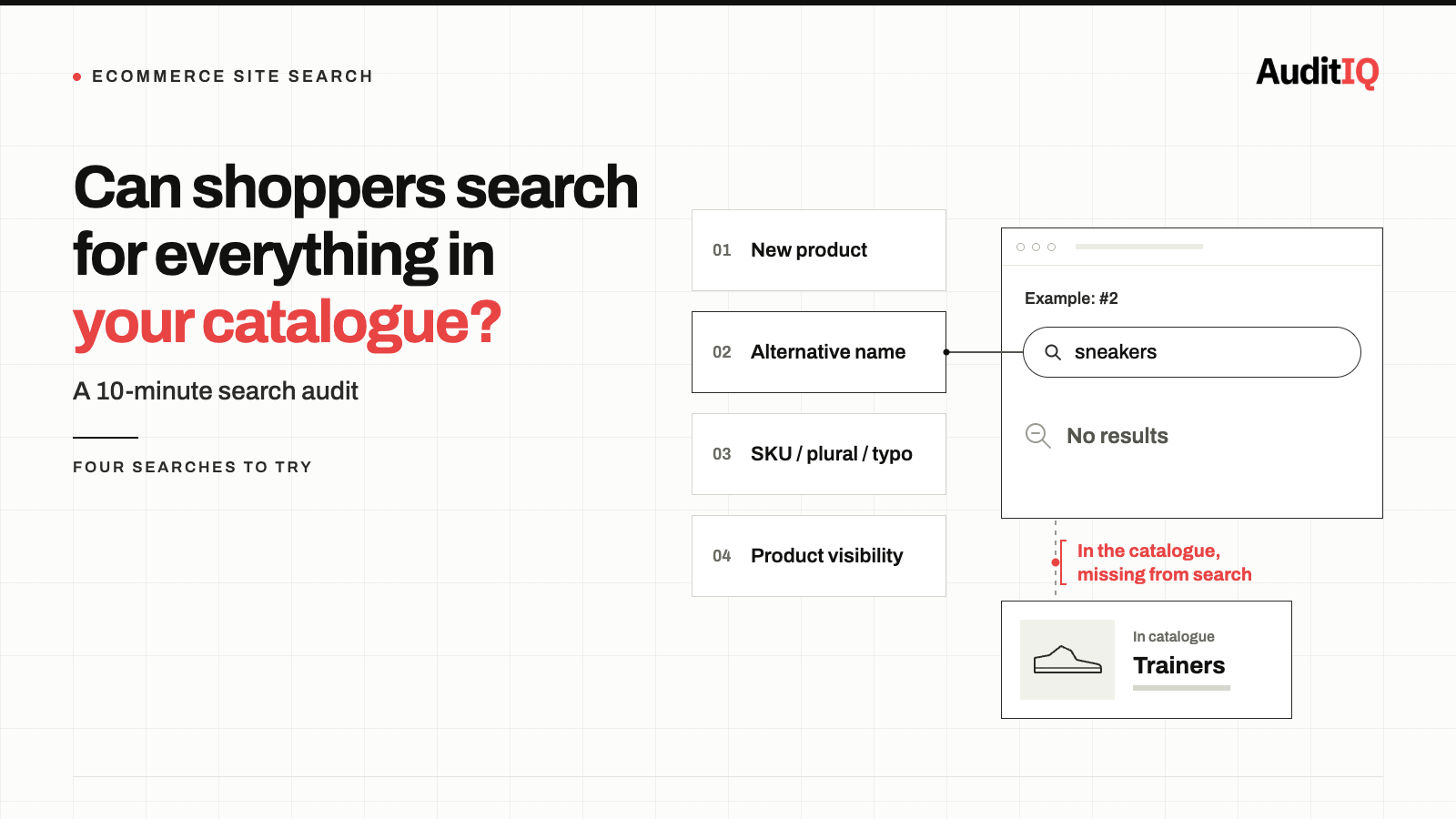
Site search returns “No results found” for products you stock when the search index is stale, synonyms and typos aren’t handled, products are hidden or unpublished, a search app is misconfigured, or product data is thin. Pull your zero-result report, test the top queries, fix visibility settings, add synonyms, close data gaps, and re-check the zero-result rate after every import, theme change, or app update.
Shoppers who use site search are your highest-intent visitors. Econsultancy’s figures, as cited by Hello Retail, show search users converting at 4.63% compared with a 2.77% site average, from an older study of retail sites, and Hello Retail’s compilation puts the typical share of searches that return zero results at 10–15%. When site search fails, those visitors leave immediately with no error, no abandoned cart event, and no analytics signal that tells you what went wrong.
Search can fail in two ways. It can be degraded, with gaps in synonyms, product data, or ranking that build up over time, or it can be broken when an index stops updating, or a search app stops returning results after a change. Shoppers see the same dead end either way. The fix starts with finding which searches are failing and why, and then checking again every time something in your catalogue or stack changes.
Signs your site search is failing shoppers
Site search failures rarely announce themselves. Instead, they create patterns that look like broader performance problems:
- Bounce rate climbs while traffic stays stable. Visitors arrive, search for what they want, see “No results found,” and leave. The visit registers as a bounce, but nothing in your analytics tells you the search itself was the cause.
- Product pages with strong external traffic convert poorly. You’re driving traffic to a brand or category, but visitors searching for specific products within that range find nothing, even though the products exist in your catalogue.
- “No results found” pages accumulate quietly. Most platforms log search queries, but few merchants actively review zero-result reports. The data exists; it’s just never examined.
- Customer support receives “I can’t find [product]” messages for items that are in stock and listed on the store.
- Synonyms and abbreviations return empty pages. A customer searches for “sneakers”, but your catalogue lists them as “trainers.” A search for “TV” returns nothing because your products are listed as “television.”
The failure isn’t always a blank page. Irrelevant results waste the shopper’s time and erode their confidence that you stock what they need. Baymard’s 2024 benchmark, as cited by Algolia, found that 41% of ecommerce sites fail to fully support the key search query types shoppers use.
Why site search returns no results when the product exists
Site search failures have specific operational causes that tend to accumulate over time:
1. Products hidden or excluded from search
A product can be live on the store and still be excluded from search. On Shopify, check whether the product is set to Draft instead of Active, whether it is published to the Online Store sales channel, whether it carries a seo.hidden metafield, and whether your Search & Discovery settings hide out-of-stock products or return Pages instead of Products. On Adobe Commerce, the product’s Visibility setting must include Search. On WooCommerce, check the product’s Catalog visibility.
2. Catalogue changes that outpace the search index
When you add, rename, or reclassify products, the search index has to catch up. On Shopify, collection pages update immediately while the search index can take a few hours to process new or bulk-imported products. On Adobe Commerce, the catalogsearch_fulltext indexer depends on cron and on whether indexers run on save or on a schedule. Third-party search apps may need a manual sync or re-index.
3. Missing synonyms, typos, and attribute gaps
Customers don’t search the way your catalogue is structured. They use abbreviations, brand nicknames, colour names, plurals, misspellings, and colloquial terms that your product titles and descriptions don’t contain. Without a synonym dictionary and typo tolerance, these searches return zero results even when the product exists. It also matters which fields are searchable: if SKUs or custom attributes aren’t indexed, searches for them will fail.
4. Search app or theme conflicts
Third-party search apps (Algolia, Searchspring, Klevu) replace the default search experience, while Shopify’s Search & Discovery app configures its native search with synonyms, boosts, and filters. When either has configuration errors, indexing failures, or compatibility issues with a recent theme or platform update, search silently degrades or stops returning results entirely.
5. Product data quality issues
Products with missing titles, empty description fields, or incorrect categorisation won’t appear in search results even though they’re visible in collections and navigation. This is especially common after bulk imports, CSV uploads, or ERP synchronisation updates.
6. Filter and facet misconfiguration
Filtered search can return zero results when a facet offers a combination that no product variant matches. A product may come in Blue (size S only) and in Size M (red only), so “Blue” plus “M” correctly returns nothing, but the shopper was invited to choose it. Facets that don’t reflect variant availability turn valid searches into dead ends.
7. Changes on the platform’s side
Occasionally the cause is not in your setup at all: platforms change how they index and rank products. If results degrade without any change on your side, check platform notices and ask support before spending hours debugging your own configuration.
Where to look first
These checks are ordered by how quickly you can run them, not by how often each cause occurs:
- Visibility and publication settings for a product that should appear
- Search index freshness after your last import or catalogue update
- Synonyms and typo handling for your top zero-result queries
- Search app and theme compatibility after any recent update
- Product data completeness for the products that don’t appear
- Filter and facet combinations that return empty sets
What zero-result searches cost you
Site search users are your highest-intent visitors. They have already decided to look for something specific, so when search fails them, the lost opportunity is larger than in a standard browsing session. Some points on the economics:
- A zero-result page has little to offer. A visitor who sees “No results found” has almost no recovery path unless the page gives them one. Unlike a browsing visitor who might keep exploring categories, a search visitor who doesn’t find what they queried is likely to leave.
- The failure compounds daily. As an illustration, if 10% of searches return nothing and a third of your visitors use search, roughly 3% of sessions run into a dead-end search every day, with no alert. Not every one of those shoppers would have bought, so treat it as exposure rather than lost revenue.
- Peaks make it worse. During promotions and seasonal peaks, search volume rises while catalogue changes, such as new products, sale pricing, and limited editions, may not be fully indexed.
What a good zero-result rate looks like
Averages are commonly reported at 10–15%, with well-optimised engines closer to 5% and weak setups above 20%. Treat these as a calibration point, because your own trend matters more than any benchmark: a rate that suddenly jumps after an import or a theme update is the signal to investigate. Not every zero-result search is a fault. Some queries ask for products you don’t sell, which is a merchandising gap rather than a broken search, so classify each query before choosing a fix.
How to diagnose failing site search
Step 1: Pull your zero-result search report
On Shopify, the Search & Discovery app shows “Top online store searches with no results” and “Top online store searches with no clicks,” with fuller reports under Analytics → Reports. These reports don’t include interactions with predictive search, so a search that fails in the dropdown may not appear. To calculate a zero-result rate, query the ShopifyQL searches schema and split searches by search_results_were_returned. In WooCommerce, install a search analytics plugin. In Adobe Commerce, check the Search Terms report under Marketing → SEO & Search. Look at the top 50 queries that return zero results.
Step 2: Classify and test the top zero-result queries
Search for each one on your live store. If the product exists but doesn’t appear, you have a visibility, indexing, or synonym problem. If the product doesn’t exist, you have a merchandising gap, which is a decision rather than a defect.
Step 3: Check visibility settings for products that should appear
For a product that exists but is missing from search, confirm its status, publication, and visibility settings, and any search-specific exclusions, as described above.
Step 4: Check your search index status
If you use a third-party search app, verify its indexing dashboard. Look for indexing errors, incomplete sync warnings, or products that are listed in your catalogue but missing from the search index. On Adobe Commerce, run bin/magento indexer:status to check indexer health, and confirm your search engine service is running.
Step 5: Test searches for recently added products
Add a test product with a unique name and search for it immediately. If it doesn’t appear, note how long it takes to become searchable. This tells you your indexing latency.
Step 6: Audit your synonyms and typo handling
Compare your top search queries against your product titles and descriptions. Any query that uses terminology different from your catalogue needs a synonym mapping, and misspellings and plurals should still return results.
Step 7: Look beyond zero results
Searches that return results but earn no clicks point to relevance problems that a zero-result report never shows. Review the “no clicks” searches too, along with how often shoppers leave straight after searching.
How to fix the most common failures
- For hidden or excluded products: Correct the status, publication, visibility, or search-exclusion setting, then check that the product appears after the index refreshes.
- For indexing delays: Configure your search system to rebuild its index on a schedule that matches your catalogue update frequency. If you update products daily, the index should rebuild at least daily. For real-time search, ensure your search provider’s webhooks or API integrations are connected and functioning.
- For missing synonyms and typos: Create synonym groups for your most common zero-result queries. Map abbreviations to full terms (“TV” → “television”), colloquial terms to catalogue terms (“sneakers” → “trainers”), and brand nicknames to official brand names. Most search tools support both one-way and two-way synonyms. Vocabulary mismatches are often the quickest win because they need no product data changes.
- For search app failures: Check that your search app is compatible with your current theme and platform version. After any theme update, verify that the search app’s JavaScript and API connections are still functioning. Place test searches across device types.
- For product data gaps: Run a catalogue audit to identify products with missing or empty title, description, or category fields. Fix these in your product data before rebuilding the search index. 6.For filters and facets: Hide or disable facet options that would return no results, so shoppers are not invited to choose combinations that don’t exist.
Make the zero-result page useful
Some zero-result searches can’t be avoided, so give the shopper somewhere to go. A useful page suggests a corrected spelling (“did you mean”), related categories, popular products, and a way to contact you, instead of a blank message. It also gives you a second chance to keep a high-intent visitor on the store.
How to verify the fix
After implementing fixes:
- Re-run your zero-result search report and compare the top queries against the previous period
- Test each previously failing query and verify it now returns relevant results
- Monitor the zero-result rate daily for 14 days to confirm the trend is declining. Platform reports can lag, so avoid judging a fix on the same day
- Check that recently added products appear in search within your target indexing window
- Verify that filtered searches (category plus size plus colour) return accurate results for combinations that exist
Keeping site search healthy with continuous monitoring
Site search breaks repeatedly because it depends on a chain of systems that all change independently: your product catalogue, the search index, synonym dictionaries, third-party search apps, and theme integration. A product update, an app upgrade, or a theme deployment can reintroduce failures at any time.
A simple routine catches most of them: keep a short list of your top 10 search queries, test them after every import, theme change, or app update, and review your zero-result rate weekly. Between those checks, AuditIQ can help with what shoppers experience around search:
- User Experience Monitoring: tracks frustration signals such as rage clicks, dead clicks, and rapid back-navigation, with page-level UX scoring and device, browser, and session context, so a page that frustrates shoppers shows up even when no error is raised.
- SEO Audit: a weekly crawl of up to 20,000 pages with 100+ checks per page, including missing titles, descriptions, and headings, so product pages with the thin data that keeps them out of search results are flagged along with the exact pages affected.
AuditIQ does not run searches on your store or read your search analytics, so keep the zero-result checks above in your routine and use monitoring to tell you when it is time to run them.
Beyond shopper experience, AuditIQ is a 360° eCommerce monitoring platform purpose-built for Magento, Adobe Commerce, and Shopify stores. It continuously monitors every critical layer of a store — performance, infrastructure, SEO, security, user experience, configuration, and code quality — from a single, unified dashboard, so the silent failures that cost you your highest-intent shoppers are caught before they compound.
Start monitoring your storefront for free today to catch the next silent failure before your shoppers do.
Others also read
- Why did my eCommerce organic traffic drop after a theme or app update?
- Why did my eCommerce revenue drop when traffic stayed the same?
- The 90% Problem: Why most eCommerce bugs never get reported, and what that costs you
Frequently asked questions
1. How do I know what percentage of my site searches return zero results?
Check your platform’s search analytics: the Shopify Search & Discovery app reports or ShopifyQL, WooCommerce search plugins with analytics, or the Adobe Commerce Search Terms report. A common target is a zero-result rate below 5%, although reported averages are higher, so watch your own trend.
2. Why do some products appear in collections but not in search?
Search and navigation use different systems. Collections are curated or rule-based product groups; search depends on an index built from product data. A product can be in a collection but missing from search if it is hidden from search, hasn’t been indexed yet, has empty fields, or uses terminology that doesn’t match the query.
3. Can a theme update break site search?
Yes. Theme updates can modify the search form’s HTML structure, JavaScript, or API endpoints, breaking the connection to third-party search apps. Always test search after a theme update.
4. What’s the fastest way to reduce zero-result searches?
Start with synonym mapping for your top 20 zero-result queries, because it needs no product data changes. Then fix visibility settings and data gaps for products that exist but don’t appear.
5. Is every zero-result search a problem?
No. Some queries ask for products you don’t sell. Those are merchandising signals and can even point to demand worth meeting. The problems to fix first are zero-result searches for products you do stock.
6. What should a zero-result page show?
Suggest a corrected spelling, related categories, popular products, and a way to contact you, so the shopper has a next step instead of a dead end.
About the author
Ginny Ngo writes from AuditIQ's experience monitoring eCommerce performance, SEO, security, and reliability issues across Magento, Shopify, WooCommerce, and Adobe Commerce stores.