eCommerce product pages returning 404? How to find and fix broken URLs silently losing you traffic and revenue
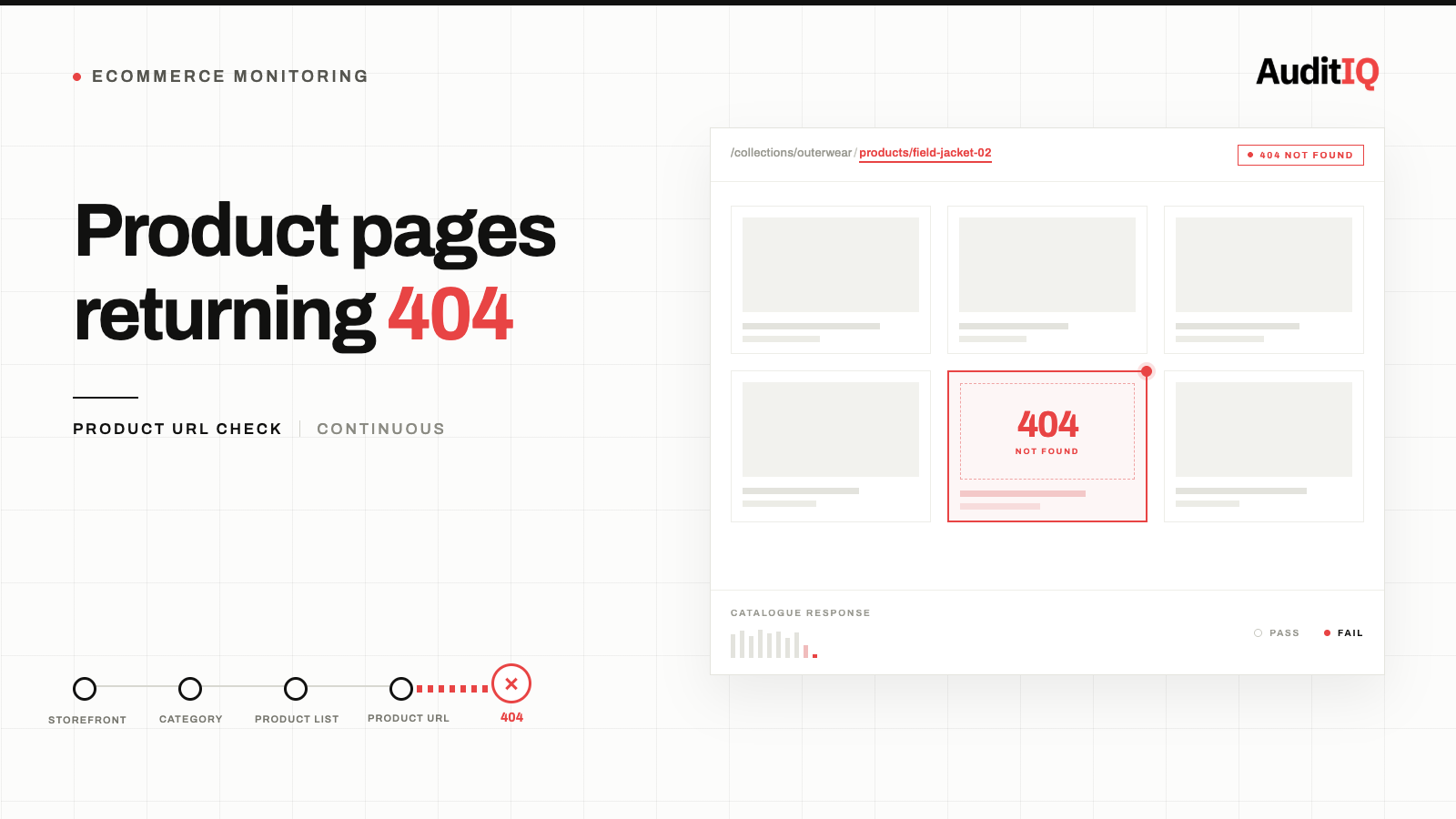
eCommerce product pages return 404 errors mainly because a product was deleted without a redirect, its URL slug changed after an edit, it was removed for the season, or a platform migration or bulk import overwrote the URL. Fixing it means auditing Google Search Console and a full site crawl to find every broken link, then mapping each one to a 301 redirect, a kept-alive out-of-stock page, or a proper 404, depending on whether the product is coming back.
When eCommerce product pages return 404 errors, every visitor who clicks that link, from organic search, paid ads, email campaigns, or external sites, hits a dead end. The page generates no conversion event, no cart addition, and in most cases no analytics signal at all. A large majority of shoppers abandon their shopping journey entirely after encountering a single 404 error. The fix requires identifying every broken product URL, implementing the correct redirect strategy for each case, and establishing monitoring to catch new 404s before they compound.
Common symptoms of eCommerce product page 404 errors
Product page 404 errors present differently depending on how the visitor finds them:
- “This page could not be found” or “404 Not Found” on the storefront when clicking a product link
- Google Search Console showing a rising count of “Not found (404)” errors under the Pages report
- Google Ads disapprovals where landing page URLs return 404, pausing individual product ads with no notification in the ad account
- Broken internal links on category pages, search results, or related product carousels that point to URLs that no longer exist
- Referral traffic dropping from affiliate sites, blogs, or social media posts that linked to products that have since been removed
- Customer complaints about links in old emails, saved wishlists, or bookmarks leading to error pages
The errors rarely appear suddenly. They accumulate gradually as catalog operations create new broken URLs faster than anyone notices.
What causes eCommerce product page 404s (ordered by frequency)
1. Deleted products without redirects
The most common cause. When a product is removed from the catalog, whether it is discontinued, sold out permanently, or consolidated with another listing, the URL stops resolving. Most eCommerce platforms do not automatically create a redirect when a product is deleted.
2. URL slug changes after product edits
Editing a product title often changes the URL slug on platforms like Shopify, WooCommerce, and BigCommerce. The old URL becomes a 404 unless a redirect is explicitly created. Some platforms auto-redirect (Shopify creates URL redirects automatically in many cases), but others do not, and even Shopify’s auto-redirects only fire once the old URL is actually returning a 404, if the old handle is still live and pointing somewhere, the redirect won’t trigger, and both URLs can end up serving conflicting content.
3. Seasonal and temporary product removal
Products removed at the end of a season, promotion, or limited run create 404s for any external links, indexed pages, or saved bookmarks that still point to the old URL. This is especially damaging when the same products return next season under different URLs.
4. Platform migrations and replatforming
Moving between eCommerce platforms almost always changes URL structures. Without a comprehensive redirect map, every product page from the old platform becomes a 404 on the new one. Cases documented in SEO communities show catalog migrations generating millions of 404 errors when redirect mapping is incomplete.
5. Bulk catalog imports overwriting URLs
Importing product data via CSV or API can overwrite URL slugs, creating broken links for previously indexed pages. This is particularly common in WooCommerce and Adobe Commerce where bulk operations can change URL keys without warning.
The compounding cost of unmanaged 404s
Product page 404 errors do not just lose the traffic from the individual broken link. They create cascading damage.
- Organic traffic loss. 404 errors themselves are not a ranking signal, but Google gradually decreases how often it crawls a URL that keeps returning a 404 and eventually drops it from the index, typically over the course of several weeks, though there’s no fixed timeline Google publishes. Any ranking authority, backlink equity, and organic traffic that page earned is permanently lost unless a redirect transfers it to a relevant destination.
- Paid media waste. If a Google Shopping ad, Performance Max campaign, or paid search ad points to a product URL that now returns 404, the ad spend is wasted on clicks that cannot convert. Google Merchant Center may also disapprove the product listing.
- Internal link authority erosion. Category pages, related product widgets, and site search results that link to 404 pages create a poor user experience and waste the internal link equity those pages pass.
- Crawl budget waste. For large catalogues, hundreds or thousands of 404 responses consume Googlebot’s crawl budget that could be spent discovering and indexing active product pages. On a large eCommerce catalogue, 404s pile up faster than most teams realise, silently leaking revenue, indexation, and link equity.
How to diagnose eCommerce product page 404 errors
Step 1: Audit current 404 errors in Search Console
Open Google Search Console > Pages > “Not found (404)”. Sort by discovery date to identify which 404s are new. Cross-reference with your catalog changelog to identify the catalog operation that created each batch of errors.
Step 2: Crawl your storefront for broken internal links
Use a site crawling tool (Screaming Frog, Sitebulb, or equivalent) to identify every internal link that points to a URL returning 404. Prioritise links on high-traffic pages: the homepage, top category pages, and any landing pages used in paid campaigns.
Step 3: Check paid ad landing pages
Review your active Google Shopping, Performance Max, and paid search campaigns for any ads pointing to URLs that now return 404. Check Google Merchant Center diagnostics for landing page disapprovals.
Temporary vs permanent product removal: Which fix applies
Before mapping redirects, sort each broken URL by what actually happened to the product. “Redirect every 404” is a weak policy for a catalog, because products behave differently from static content: they sell out, come back, change SKU, get replaced, or disappear for good. A product that is coming back should almost never be redirected away or left to 404, doing so throws away the exact URL, ranking, and backlink equity you’ll want when it’s back in stock. A product that is genuinely gone for good should point wherever the shopper’s original intent is still best served, or be allowed to return a clean, deliberate error.
Step 4: Map each 404 to the correct redirect destination
For each broken URL, determine the right action:
- Product temporarily out of stock, expected to return: Keep the page live rather than redirecting or letting it 404. Show a clear “out of stock” or “sold out” message, disable the buy button, and keep the content otherwise intact so the URL retains its ranking and backlink value for when the product is back.
- Product replaced by a similar item: 301 redirect to the replacement product page
- Product consolidated into a variant: 301 redirect to the parent product page with the relevant variant pre-selected
- Product category still exists: 301 redirect to the relevant category page
- No relevant destination exists and the product is permanently gone: Let the URL return a proper 404 status code (not a soft 404), or a 410 (Gone) status if you want to signal more explicitly to Google that the page will never come back. Either way, offer useful navigation instead of a dead end.
Step 5: Implement redirects at the platform level
- Shopify: Admin > Online Store > Navigation > URL Redirects. Bulk import via CSV for large catalogs. WooCommerce: Use the Redirection plugin or .htaccess rules. Verify redirects do not create chains (redirect A → B → C).
- Adobe Commerce: Admin > Marketing > SEO & Search > URL Rewrites. Check that custom URL rewrites are not conflicting with auto-generated rewrites.
- BigCommerce: Server Settings > 301 Redirects. Bulk import available.
Step 6: Verify redirect implementation
After implementing redirects, re-crawl the affected URLs to confirm they return 301 status codes pointing to the correct destinations. Check that the destination pages load correctly and contain relevant content.
Prevention and continuous monitoring
The only way to prevent 404 accumulation is to build redirect creation into your catalog operations workflow:
- Before deleting any product, create a redirect from its URL to the most relevant alternative page
- Before changing a product title or URL slug, verify that the platform will auto-redirect from the old URL
- Before seasonal product removal, decide whether to keep the page live as “out of season,” redirect to a category page, or return a proper 404
- After any bulk import or catalog sync, crawl the affected URLs to verify they still resolve
- After any platform migration, run a full-site crawl comparing old URLs against new to identify missing redirects
A checklist like this only works if someone actually runs it on every catalog change, and in practice, catalog operations move faster than manual crawls can keep up with. That gap between “we have a process” and “we actually catch every 404” is where silent traffic loss lives.
AuditIQ closes that gap with two capabilities built for exactly this:
- SEO Audit, a weekly crawl of up to 20,000 pages with 100+ checks per page, so new 404s, broken internal links, and redirect issues surface automatically instead of waiting for the next manual audit or a drop in Search Console weeks later.
- User Experience Monitoring, tracks how real shoppers actually experience a broken product link, including dead clicks and drop-off on the pages that route to it, so you can prioritise fixing the 404s that are actually costing conversions over the ones nobody ever clicks.
Beyond 404 and SEO monitoring, AuditIQ is a 360° eCommerce monitoring platform purpose-built for Magento, Adobe Commerce, and Shopify stores. It continuously monitors every critical layer of a store, performance, infrastructure, SEO, security, user experience, configuration, and code quality, from a single, unified dashboard, so broken product URLs are caught within days of a catalogue change, not months later when the traffic loss finally shows up in a quarterly report.
Try AuditIQ free today to catch the next broken product URL before it costs you a week of lost traffic.
Others also read
- Why did my eCommerce organic traffic drop after a theme or app update?
- The 90% Problem: Why most eCommerce bugs never get reported, and what that costs you
- The 3-5% revenue leak: Why eCommerce teams can’t afford to ignore hidden site errors in 2026
Frequently asked questions
1. Should I redirect all deleted product pages or let them 404?
Redirect to a relevant page whenever possible. Only allow a 404 when no relevant destination exists, and even then, ensure the 404 page offers category navigation to keep the visitor on your site.
2. Do 404 errors directly hurt my SEO rankings?
Google has stated that 404 errors themselves are not a ranking signal. However, 404 pages lose their indexed status and any ranking authority they held. If those pages had backlinks or ranked for keywords, the authority and traffic are lost unless redirected.
3. How quickly does Google remove 404 pages from the index?
There’s no fixed timeline Google publishes. Google gradually decreases how often it crawls a URL that keeps returning a 404, then drops it from the index, typically over several weeks, though it can take considerably longer depending on how often Google would otherwise recrawl that URL.
4. What is the difference between a 404 and a soft 404?
A proper 404 returns HTTP status code 404. A soft 404 returns status code 200 (OK) but shows an error page. Google detects these and treats them as errors, but they waste crawl budget because Google has to re-crawl to confirm the page is genuinely gone.
About the author
Dan Garner writes from AuditIQ's experience monitoring eCommerce performance, SEO, security, and reliability issues across Magento, Shopify, WooCommerce, and Adobe Commerce stores.