Nobody on your team can explain what changed: How missing audit trails turn small eCommerce mistakes into revenue emergencies
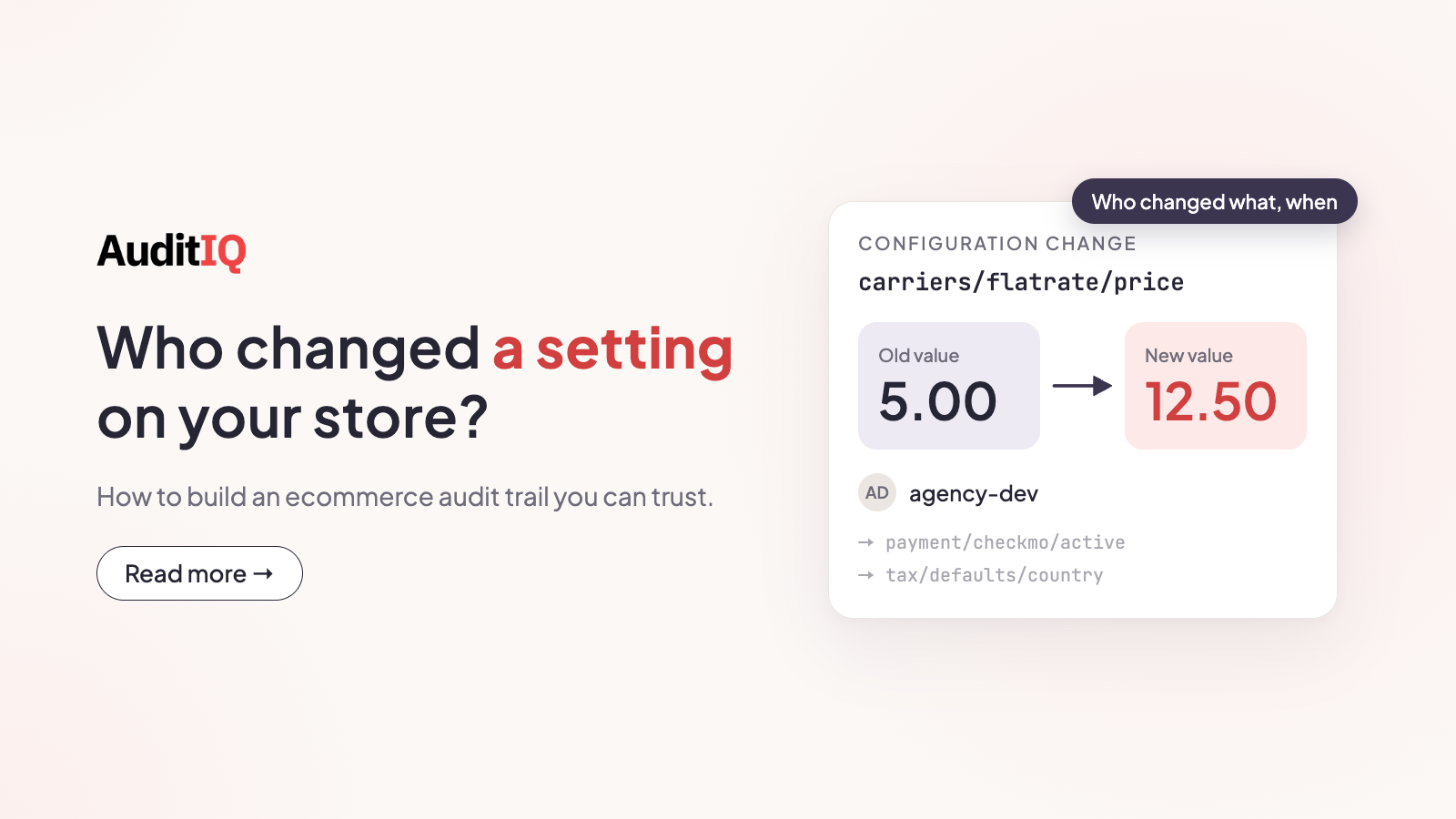
An eCommerce audit trail is a record of who changed what on your store, and when. Without one, a wrong price, a missing payment method, or a broken shipping rate can take hours to trace, because the team must first find the change before it can reverse it. Turn on your platform’s log (Shopify’s store activity log, Adobe Commerce Action Logs, or a WooCommerce activity-log plugin), test what it really records, cover what it misses, and pair it with monitoring that shows the customer-facing symptom.
When a store suddenly shows wrong prices, drops a payment method, offers the wrong shipping rates, or breaks checkout, the fix itself usually takes minutes: a setting toggled back, a rule reverted, a theme section restored. The hours of lost revenue come from somewhere else. Nobody can say which setting changed, who changed it, or what its previous value was, so the team spends the day asking each other questions instead of fixing the store.
Having a log is not the same as having an audit trail you can use. Platform logs differ in what they record, how far back they go, who can read them, and whether they can be exported, and most have blind spots that only show up during an incident. This guide explains what an audit trail is and what it costs to go without one, shows what Shopify, Adobe Commerce, and WooCommerce actually record and miss, and then walks through building a trail you can trust: testing the log, covering its gaps, deciding who may change what, and using it when something breaks. Merchants can use it to set up their own routine, and agencies can use it as a handover checklist.
What is an eCommerce audit trail?
An audit trail is a record of who changed what, when, and sometimes where.
In eCommerce, that means being able to trace a customer-facing problem back to a specific configuration change, app update, or staff action. The test of a useful one is two questions. Can it tell you who or what made a change, and when? And can it tell you what the setting was before, so you can put it back? If the answer to the second is no, you can still find the culprit, but you are restoring from memory.
The term gets mixed up with several other records that sit alongside it, and each answers a different question:
| Record | The question it answers | What it cannot tell you |
|---|---|---|
| Audit trail or activity log | Who changed which setting, and when? | Whether the change broke anything for customers |
| Order or customer timeline | What happened to this one order or customer? | What changed in store-wide settings |
| System or error log | What did the server or code do, and what failed? | Which person or app changed a setting that caused no error |
| Deployment or version history | What code was released, and when? | Changes made in the admin rather than in code |
| Analytics | What did customers do, and where did they drop off? | What changed on the store, or why |
| Monitoring | Is something wrong right now? | What changed to cause it |
Most “nobody knows what changed” incidents happen because a team has the last three rows but not the first. They can see that checkout is failing, but not what moved just before it started.
Why do missing audit trails cost so much?
Because the revenue leaks while the team is working out what changed, not while it is fixing it.
Picture an ordinary Tuesday in the week before Black Friday. This is an illustration, not a case study:
- 09:10, marketing edits a discount rule for the sale.
- 09:40, the agency changes a shipping zone for a new market.
- 10:15, an app that updated itself overnight starts loading a new script.
- 11:30, the first customer in Germany reports that checkout shows no shipping option.
- 11:35, the conversation starts: “Did anyone change anything?” — “Not me.” — “Not me.” — “Maybe it was the agency?” — “Was it an app update? Which app?”
Three plausible causes, four possible actors, and no record to choose between them. The fix, once found, is a two-minute change. Every minute before that, customers keep meeting the problem and leaving. Four features of eCommerce configuration make this the normal case rather than the exception:
- Infrastructure monitoring may not see it. The site responds, no exceptions are logged, and still a tax setting is charging customers in three states the wrong rate. A green uptime check says nothing about it.
- Many changes are live the moment someone clicks Save, with no staging or approval step. Code usually passes through review; admin settings often do not.
- Many people and systems can make them: owners, marketers, support staff, agencies, freelancers, installed apps, and automations. Each extra actor multiplies the suspects.
- The previous value is easily lost, so even after you find the change, restoring the right setting depends on someone remembering it.
Missing audit trails can therefore turn a small configuration mistake into a much longer incident. The difference between a short and a long one is rarely the difficulty of the fix. It is how quickly the team can narrow a long list of suspects down to one change.
How to build an eCommerce audit trail
Building a usable audit trail takes six steps: turn on your platform’s log, prove that it records what you think it does, plan for what it misses, list the settings that matter most, agree the rules for reviewing and changing them, and test after each change. The step-by-step comes first, and the section after it covers what Shopify, Adobe Commerce, and WooCommerce each record, so you can see where your own platform stands.
Step 1: Turn on your platform’s log
Start by finding the log and checking which version of it you have, because that decides how much of the later steps it can support. In short:
- Shopify: Settings, General, Resources, Store activity log. A table with filters means the new log, and a plain list means the current one.
- Adobe Commerce: System, Action Logs, Report. Then check Stores, Configuration, Advanced, Admin, Admin Actions Logging to confirm that no important action type is switched off.
- WooCommerce: there is no built-in record of who changed a setting that we could find, so choose and install an activity-log plugin.
The platform section below explains what each one records and misses. Read it before you rely on the log for anything important.
Step 2: Test your log before you trust it
A log that is switched on is not the same as a log that records what you need. A short test, done once on staging or in a quiet hour, turns that assumption into evidence. Make five harmless changes, one in each of the areas you care most about, and then look for each in the log:
- change a product price and change it back
- edit a coupon’s usage limit and restore it
- adjust a shipping rate and restore it
- toggle a payment method off and on in a test environment
- change a theme setting and revert it
For each one, write down whether it appeared, how quickly, who it named, and whether it showed the old and new values. Any change that does not appear is a blind spot, so note it and decide what covers it. Repeat the test after major platform or plugin updates, because logging behaviour can change. The exercise takes less than an hour and tells you more than any feature comparison.
Step 3: Cover the changes your platform misses
No native log sees everything. The most common blind spots are changes that do not come from a person clicking in the admin, and each needs an owner:
- Bulk and automated changes. Apps, Flow automations, imports, and scheduled jobs may show no named person. Decide who checks what an app changed after each update.
- Changes outside the admin. On Adobe Commerce, command-line changes, deployment scripts, and direct database edits are outside Action Logs. Ask your agency how configuration is changed during a release, and whether those changes are recorded anywhere.
- Changes in other systems. A payment provider’s dashboard, a tax service, a CDN, or a search tool can change what customers see without touching your store’s admin. Each has its own log, and someone should know where.
- Shared logins. If three people use one account, the log can only say that account made the change. Give each person their own login, and remove access for people and agencies who no longer work on the store.
Write the answers into a one-page list: where each kind of change is recorded, who can read it, and how long it is kept. A change log that nobody can find during an incident is only slightly better than none.
Step 4: Define your high-risk settings
Not every setting deserves the same attention. Give audit coverage, a named reviewer, and a test to the ones that change what customers see or pay:
| Area | Example change | What customers may notice | Quick test |
|---|---|---|---|
| Payment gateway | A gateway is switched off or its credentials change | A payment method disappears or fails | A test order with each method |
| Tax | A rate, region, or tax class changes | Wrong totals in some places | An address in each tax region |
| Shipping | A zone, rate, or method changes | Missing or wrong shipping options | An address in each zone |
| Discounts | A condition or stacking rule changes | Wrong totals or a code that stops working | A cart with every active promotion |
| Theme and templates | A section or template is edited | Hidden information or a broken layout | Key pages on desktop and phone |
| Products and prices | A price, availability, or attribute changes | Wrong price shown, or a product vanishes | A product page and its checkout |
| Apps and permissions | An app updates or a role changes | New scripts, or changed behaviour | Checkout and one app-driven feature |
Step 5: Set review and change rules
An audit trail that nobody reads only helps after the damage, and one that nobody respects does not prevent anything. Two short rules close both gaps.
Review on a schedule. During peak periods, such as the days around Black Friday, more people make more changes, so look at the log every day. At other times, a weekly review and a review after each release is a reasonable baseline. Shopify’s own guidance on what to investigate works as a checklist on any platform:
- changes at unusual times, when nobody should be working
- actions from unfamiliar users or apps
- repeated unexpected changes to sensitive settings
- unexpected staff deletions or permission changes
Add one of your own: any change you cannot explain. Record each review in a line or two, with the date, the reviewer, the period, any unexplained entries, and what was done, so the routine leaves evidence that it happened.
Agree who can change what. Write down, in one page, who may change each high-risk area, who must be told before a change, and when changes are not allowed. A common rule is a change freeze in the days around a major sale, with an exception route for urgent fixes. Use roles to limit access to the settings that matter rather than giving everyone full admin, and review the list of people and apps with access each quarter.
Step 6: Test after every change
The cheapest protection is a short check after each change to a high-risk setting. Match the test to what you changed:
- Payment settings: place a test order with each payment method.
- Tax or shipping: check totals for at least one address in each market you sell to.
- Discounts: test a cart with every active promotion, and one with a code and an automatic discount together.
- Theme or template: load the key pages on desktop and phone.
After any test, confirm the order appears correctly in the admin, and note the change and its result where the team can find it.
What do Shopify, Adobe, and WooCommerce actually record?
They record less than most teams assume, and not the same things.
The table summarises where each platform stands, and the three sections below show how to use each log in an incident and where its blind spots are.
| Platform | What it records natively | The main limit |
|---|---|---|
| Shopify | Store activity log: changes by the owner, users, apps, and channels. The new version keeps entries for 18 months | A new version is rolling out in stages, not every action is recorded, and entries cannot be exported |
| Adobe Commerce | Action Logs: changes made by admin users, with user, IP address, and time. The report can be filtered and exported | Adobe Commerce only, not Magento Open Source, and only the action types you leave enabled are logged |
| WooCommerce | Status, Logs holds system logs. As far as we could find, its documentation describes no built-in record of who changed a setting | Needs a plugin, and plugins differ in what they capture, for how long, and whether you can export it |
1. Shopify: Use the store activity log
Shopify’s activity logs record changes made by the store owner, users, apps, and channels. You find the store activity log under Settings, General, Resources, and on some pages, such as a product’s details, a View activity link opens it already filtered to that resource. The first thing to understand is that two versions exist, and which one you see depends on your role and on a rollout that Shopify is doing in stages.
What each version gives you
- The new log is a filterable table showing the date, action, actor, and resource. Clicking an entry shows its details, which include the fields that changed when that information is available. Entries are kept for 18 months, and you can filter by actor, resource type, resource, action, changed field, and date range.
- The current log is a view-only list of up to 250 results that you cannot click or filter. On a busy store that can cover a short stretch of time.
- Who sees which: owners and administrators get the new log once it reaches them, while other users with the Manage settings permission see the current one. Check which you have: a table with filters means the new log, a plain list means the current one.
How to read an entry without being misled
The actor column does not always name a person. A change made through an app may show “Via” and the app’s name, which tells you how the change was made, not necessarily who made it. Some changes, often bulk updates from apps, have no recorded actor at all, and you can find them by filtering for “Actor unavailable”. Changes made in the theme editor can show “Online Store” rather than the person, and in the new log “Shopify” as the actor means Shopify staff made the change, for example through Support. Shopify Flow automations and other scheduled features can also trigger changes with nobody at the keyboard.
In an incident, start with a narrow date range around the first customer report, then narrow by actor or resource type. If the log shows nothing in that window, widen the range before concluding nothing changed, and check the places Shopify records other kinds of change: each order, draft order, customer, and inventory transfer has its own timeline, user and permission changes appear in the user management activity log, and register actions on Shopify POS have their own activity log.
What it will not do
Shopify says not every action in the admin is recorded, that each type of change is recorded only from the date the new log began recording it, that you cannot search entries by keyword, and that entries cannot be exported or downloaded. Because of that last point, take screenshots of relevant entries during an incident, and keep your own change note alongside it. For compliance or record-keeping questions, Shopify recommends a qualified professional in your region.
One related feature is worth switching your team onto: page activity shows when other staff are viewing or editing the same page, such as a discount or a product, and warns you before you edit over them, which prevents some conflicting changes in the first place.
2. Adobe Commerce: Use Action Logs
Adobe describes Action Logs as recording every change made by an admin user who works in your store. Unlike Shopify, the setup has several parts you control, and each of them can quietly limit what you later find.
What it records
By default all admin actions are enabled and logged, and you can switch individual action types off under Stores, Configuration, Advanced, Admin, Admin Actions Logging. For most actions the logged information includes the action, the user name, whether it succeeded or failed, and the ID of the object affected, along with the IP address and date. The report is at System, Action Logs, Report, where each record shows an action group and a View link for the full details.
How to use it in an incident
- Open the report and filter by user and by action group, or by several columns together, to narrow it to the time of the first customer report.
- Open View on candidate entries to read the full logged details, including the related changes.
- Export the report if you need to share it with the agency or keep it with the incident notes.
Setup checks that are easy to miss
- Check that no important action type has been switched off.
- The archive keeps CSV log files on the server, with a lifetime in days and a daily, weekly, or monthly archiving frequency. Archiving requires a cron job, so confirm cron is running.
- Action Logs are an Adobe Commerce feature and are not part of Magento Open Source. On Adobe Commerce as a Cloud Service you can read the report but not configure it.
Adobe describes Action Logs as covering changes made by admin users, so changes made another way, such as from a command line, a deployment script, or a direct database edit, fall outside what the feature is described to cover. Adobe also lists auditing the Action Logs report, and preserving logs, among the first steps when you respond to a suspected security incident, so know where the report lives before you need it.
3. WooCommerce: Add an activity log plugin
WooCommerce’s own Status, Logs screen holds system logs for events such as errors and payment gateway messages. That tells you what the software did, not who changed a setting. As far as we could find, WooCommerce’s documentation describes no built-in record of who changed a setting, a product price, or a coupon, so stores usually add a plugin. Choose on what you need recorded, not on marketing claims. The WordPress.org listings describe three common options this way:
- Simple History: a WooCommerce logger covering orders, refunds, stock changes, product updates, pricing adjustments, settings changes, and coupon usage.
- Activity Log: records order status changes, refunds, and notes, and staff changes to product price, SKU, stock, and coupon settings, and says it stores the old and new value of each changed setting.
- WP Activity Log: logs changes to store settings, orders, products, and coupons, with options to exclude objects and to prune events automatically.
Use these questions to compare any plugin against your own risk list:
- Does it record the high-risk areas you listed, such as tax rates, shipping zones, and payment gateway settings, and not only products and orders?
- Does it keep the old and new values, so that you can revert, or only the fact that something changed?
- How long does it keep entries, and can you export them?
- Can it alert you to a change in a sensitive setting, and who sees the alert?
Step 2 above shows how to answer those questions with a test, rather than trusting the plugin’s feature list.
Keeping evidence. Sometimes you need a record long after the incident: for a dispute with an agency, a chargeback, or a security review. Shopify’s new log keeps 18 months and cannot be exported, so screenshots and your own notes are the evidence. Adobe Commerce lets you set a retention period in days and export the report. A WooCommerce plugin depends on its settings. For legal, tax, or compliance record-keeping requirements, take advice from a qualified professional in your region.
How to respond when something breaks
A fixed order of steps ends the “did anyone change anything?” loop, and it works the same on every platform.
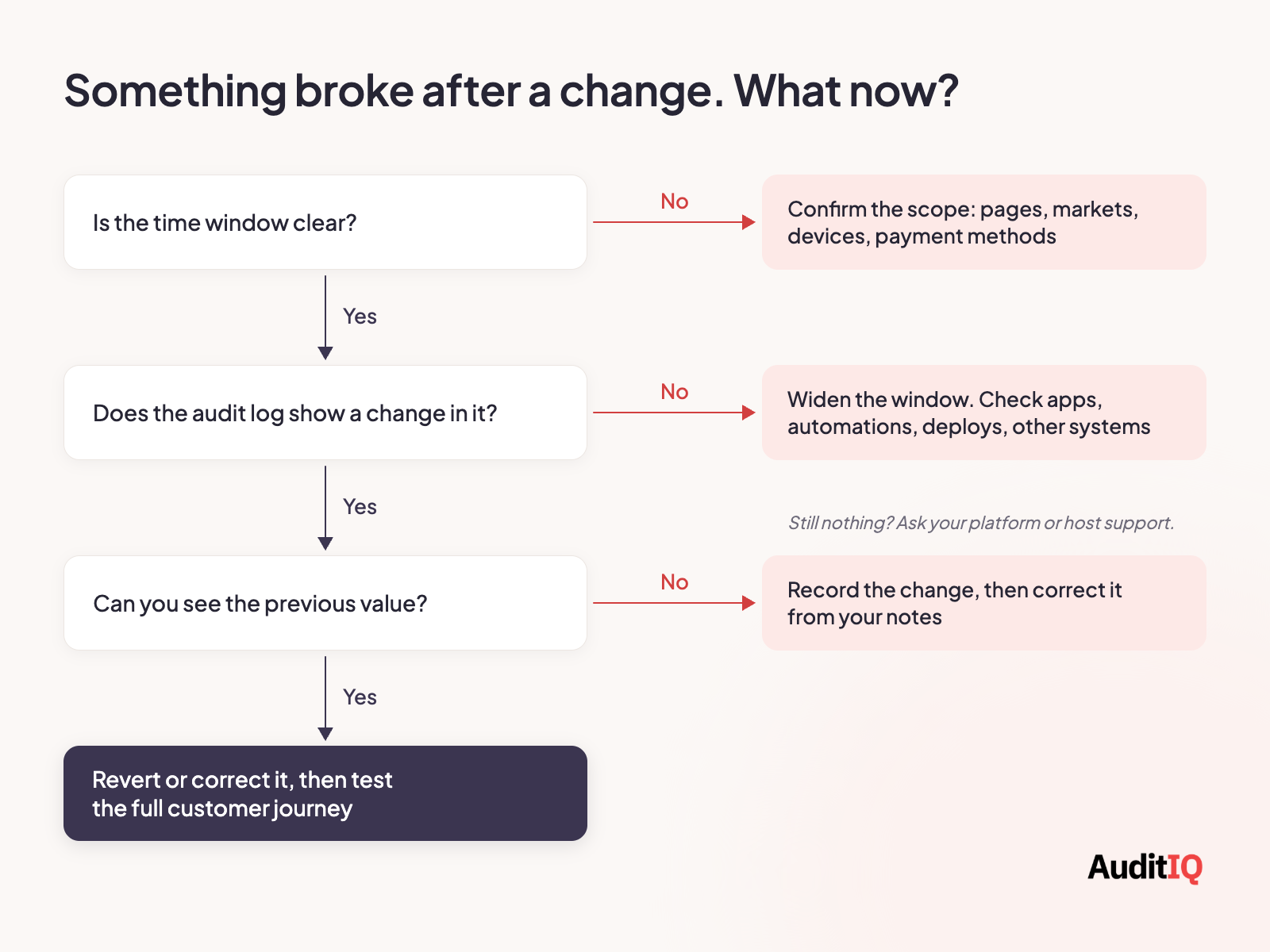
- Confirm the scope. Which pages, markets, devices, or payment methods are affected, and since when? The answer sets your time window.
- Open the audit trail and filter by time, then by actor, resource, or changed field if your log allows it.
- Check the other places a change can hide: app update history, Flow or scheduled jobs, order timelines, and the user management log on Shopify; the command line and deployment history on Adobe Commerce; plugin updates on WooCommerce.
- Identify the most recent relevant change, and note its previous value before touching anything.
- Revert or correct it if appropriate, then test the affected journey end to end, not just the setting.
- If the log shows no cause, gather the exact timestamp, the entry, and what you expected, and ask your platform or hosting support for help. Shopify Support, for example, can often add context within the retention period.
- Write down the cause and the prevention step, so the next incident is shorter.
Apply that to the Tuesday example. On Shopify, you filter the log to the 09:00 to 10:30 window and find the shipping zone edit under the agency’s name, with the changed field visible. On Adobe Commerce, you open the Action Logs report for the same window, find the admin user’s action, and read its full details. On WooCommerce with an activity-log plugin, you search for shipping zone events at that time. In each case the search takes minutes instead of an afternoon, and that is what the audit trail buys you.
How does MTTR apply to eCommerce?
MTTR, mean time to recovery, is the average time it takes to restore service after a failure.
For a configuration incident, it helps to split that time into four parts, because the audit trail and monitoring help with different ones:
- Detection: how long before anyone notices. Monitoring and customer reports shorten this. In the Tuesday example, this is the gap between 09:40 and 11:30.
- Diagnosis: how long to find the change. An audit trail can shorten this when the relevant change was recorded.
- Resolution: how long to revert or correct it. This is often quick once the cause is known.
- Verification: how long to confirm that customers can complete the journey again.
The revenue loss tends to sit in the first two parts, which is why a log alone is not enough. A perfect log that is never read cannot shorten detection, and monitoring that sees the symptom but not the cause leaves you guessing. To use the measure, record each incident’s four timestamps for a few months, and look at which part is longest. That is where the next improvement belongs.
Connect changes to customer-facing symptoms
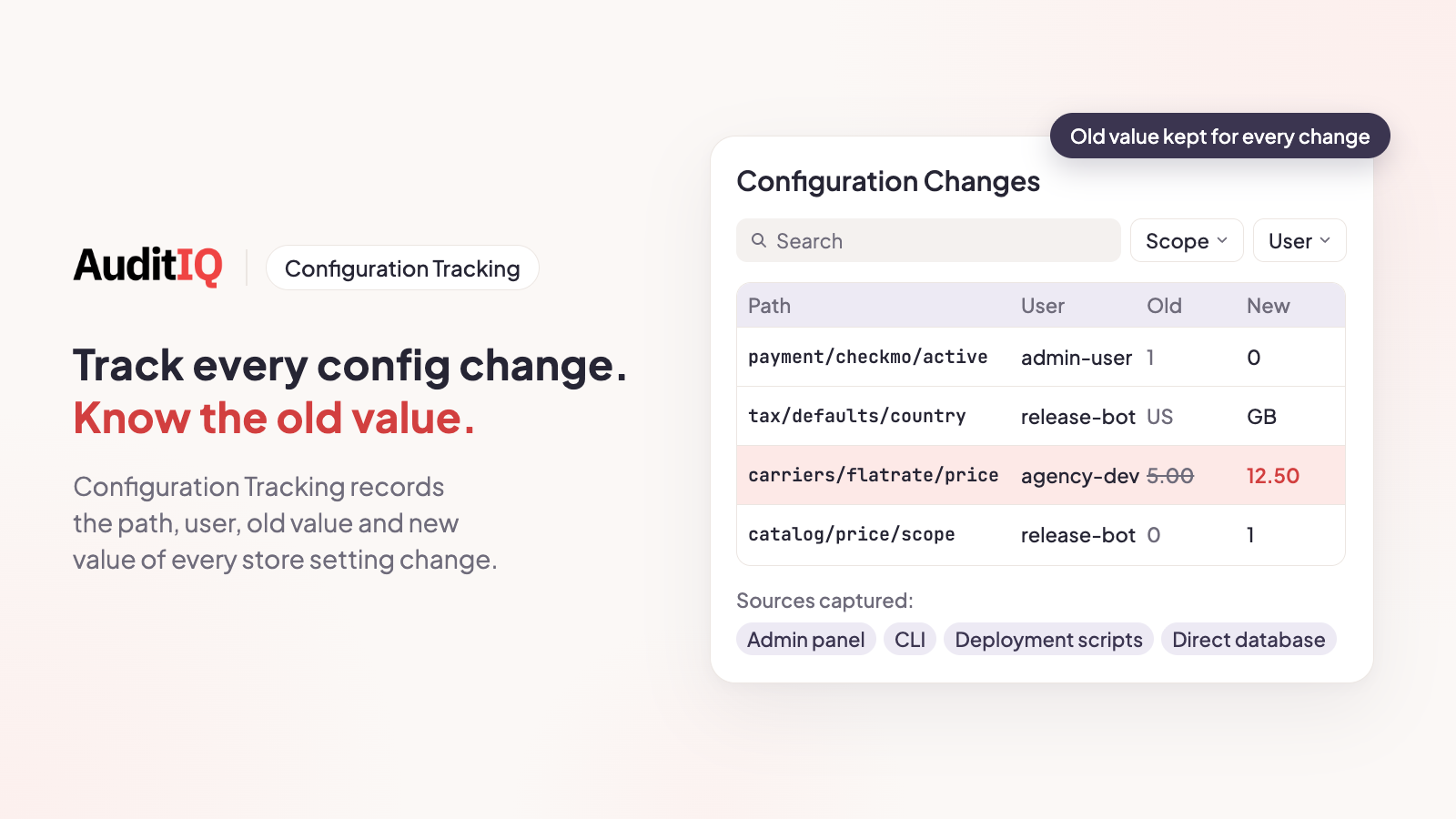
AuditIQ does not replace your platform’s own log, and it does not revert changes or tell you who made a change on every platform. It adds the layers that native logs leave open, and the monitoring that shows a symptom:
- Configuration changes on Magento and Adobe Commerce: Configuration Tracking keeps a history of configuration changes with the path, the value before, and the value after, which is what you need to put a setting back. It includes changes made through the command line, deployment scripts, or directly in the database, and AuditIQ’s documentation notes that Action Logs cover admin-panel changes only. It covers Magento and Adobe Commerce configuration, not Shopify or WooCommerce settings.
- Errors that follow a change: Log Monitoring surfaces PHP errors, payment exceptions, and stack traces with their frequency, and flags spikes and new error types.
- The drop-off a change causes: User Experience Monitoring shows where customers drop off in checkout, with device, browser, and session context, so a change that only affects one market or device becomes visible.
- The revenue dip: Analytics brings unsampled Google Analytics data and funnel analysis into one place.
Configuration is only one layer. AuditIQ is a 360° eCommerce monitoring platform purpose-built for Magento, Adobe Commerce, and Shopify stores, covering performance, infrastructure, SEO, security, user experience, configuration, and code quality from a single, unified dashboard.
Want to know about the next change before your customers do? Start a free AuditIQ trial and see what is changing on your store.
Others also read
- eCommerce configuration changes: The silent cause of storefront failures
- Why is my eCommerce store showing the wrong price? How to find and fix pricing errors before they cost you revenue and trust
- Your eCommerce revenue dropped but traffic stayed the same: Here’s what’s happening in between
Frequently asked questions
1. Which settings changes are most likely to break checkout?
Payment gateway settings, tax configuration, shipping zones and rates, checkout customisations, and discount rules are the highest-risk areas. A single toggle in any of them can affect every order, which is why they deserve a reviewer and a test after each change.
2. How do I find out who changed a setting on my store?
On Shopify, open the store activity log under Settings, General, and filter by actor or changed field. On Adobe Commerce, open System, Action Logs, Report. On WooCommerce, check whether you have an activity-log plugin, because as far as we found there is no built-in record of who changed a setting.
3. Is an audit trail the same as an error log?
No. An error log records what the software did and what failed. An audit trail records who changed which setting. A setting change that breaks checkout often produces no error at all, so you can have a clean error log and still need the audit trail to find the cause.
4. Can I export the Shopify store activity log?
No. Shopify says entries cannot be exported or downloaded from the store activity log, and suggests taking screenshots or documenting entries manually when you need a record. For user-related activity, it points to the user management activity log.
5. Does Magento Open Source have an audit log?
Adobe lists Action Logs as an Adobe Commerce feature, so Magento Open Source does not include it. A store on Open Source needs another way to record configuration changes.
6. Why do configuration changes cost revenue if the store looks fine?
Many changes affect only one market, device, or payment method, so a merchant testing from their own location may never see the problem. Infrastructure monitoring can also stay green while a setting quietly changes what customers pay or see.
7. How long should I keep audit logs?
Long enough to cover the period in which you might need to investigate a change. Shopify’s new log keeps 18 months, and Adobe Commerce lets you set a retention period in days. For legal, tax, or compliance record-keeping requirements, take advice from a qualified professional in your region.
About the author
Ginny Ngo writes from AuditIQ's experience monitoring eCommerce performance, SEO, security, and reliability issues across Magento, Shopify, WooCommerce, and Adobe Commerce stores.