Multiple promotions active at checkout? How discount stacking conflicts silently show customers the wrong price during Black Friday
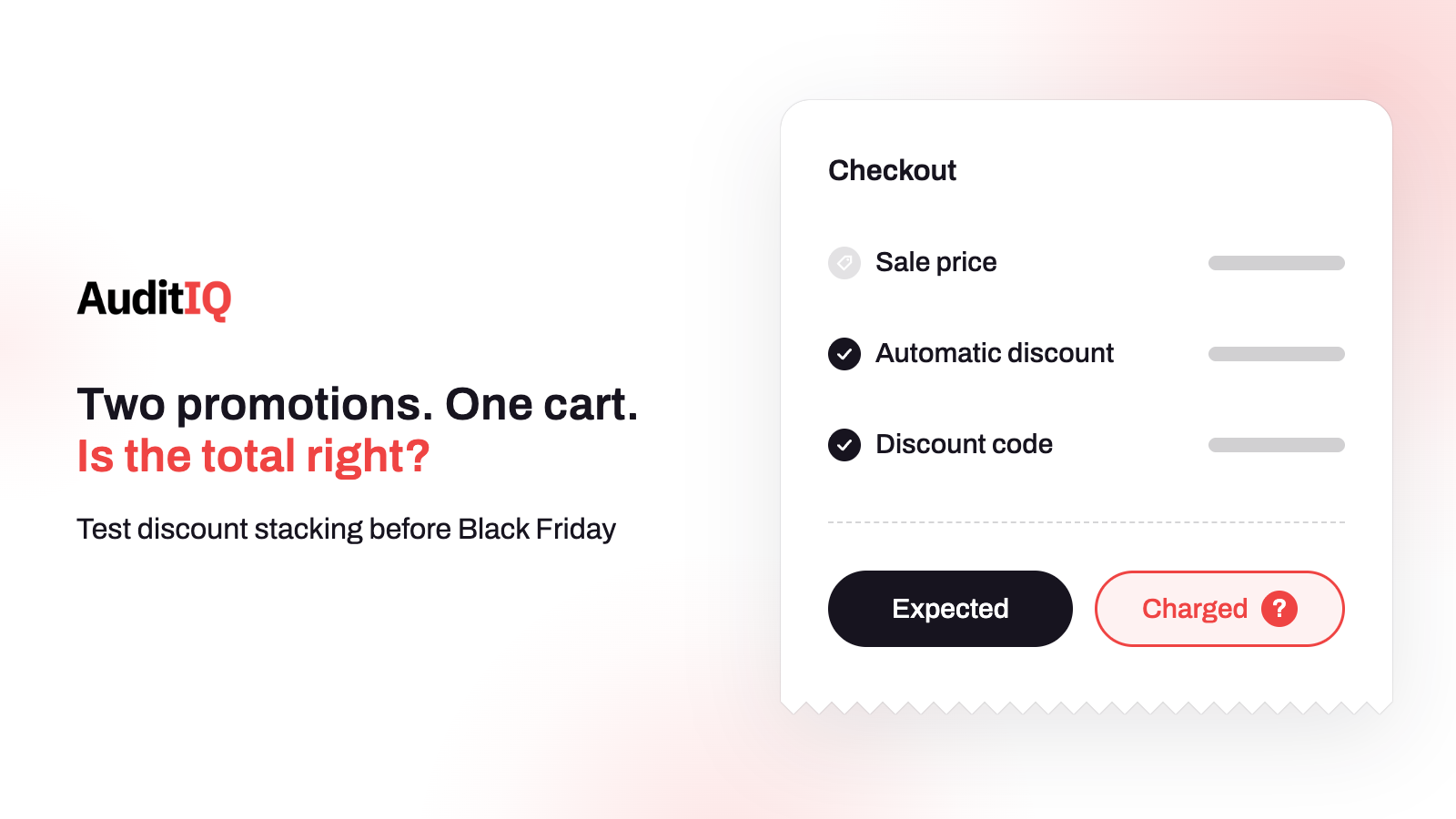
Discount stacking conflicts show customers the wrong price when two or more promotions, such as an automatic discount, a code, a sale price, a bundle, or a shipping offer, combine in ways you did not intend. The order still completes, so no error appears. Check each promotion’s combination settings, build test carts for every realistic combination, verify totals through a full test checkout, and compare completed orders with your intended discount rules during the sale.
With Black Friday on 27 November, most stores will run several promotions at once: an automatic threshold discount, a headline code, items already on sale, a bundle or loyalty offer, and free shipping. Each promotion was probably tested alone. The risk sits in the combinations, because each platform has its own rules for which discounts may combine, in what order they are calculated, and what happens when they cannot.
This guide explains what discount stacking is and why its errors go unnoticed, how Shopify, WooCommerce, and Adobe Commerce handle it, the five conflicts that cause most surprises, and how to audit, test, and monitor your promotions before and during the sale. Merchants can use the checklists to brief their team, and agencies can use the test matrix as a runbook.
What is discount stacking, and why does it show customers the wrong price?
Discount stacking happens when more than one promotion affects the same cart or line item. The risk is not simply that discounts stack. It is that the combination can produce a total that differs from the pricing rule you meant to apply, so customers are either overcharged, which drives abandonment, or undercharged, which erodes margin.
Take a cart with three items, two of them already on sale. An automatic “10% off orders over $100” discount is active, and the customer enters a 20% off code. What should the total be? The answer depends on the platform’s combination rules, which promotions are allowed to combine, and whether an app applies its own discount logic. A promotion that stacked one way last year may calculate differently this year, so the only reliable answer comes from testing the exact cart.
Why do stacking errors go unnoticed during a sale?
Unlike a broken checkout, a stacking error lets the purchase complete, only at the wrong amount:
- No error is thrown. The checkout processes normally, the payment succeeds, and the confirmation shows a total.
- Analytics records a normal order. There is no event for a discount that was calculated unintentionally, only a completed order at whatever amount the system produced.
- Testing happens one promotion at a time. Teams check that the automatic discount works and that the code works, and rarely check both together on products that are already on sale.
- Customers rarely explain. A shopper who sees an unexpected total may simply leave, so a single support message about pricing can stand for many shoppers who said nothing.
How do Shopify, WooCommerce, and Adobe Commerce decide which discounts combine?
Shopify: combinations are opt-in, discount by discount
Shopify’s guidance on combining discounts is explicit that discounts do not combine automatically. Each discount belongs to a class (product, order, or shipping), and in its Combinations section you choose which classes it may combine with. Both discounts must allow the combination, which is why a promotion that was never configured to combine can silently fail to stack. The rules that matter most for a sale:
| Rule | What Shopify documents |
|---|---|
| Order of calculation | Product discounts apply first, order discounts apply to the revised subtotal after them, and shipping discounts apply last |
| Several percentage order discounts | Each percentage is calculated on the original subtotal, so 10% and 20% off a $100 subtotal gives $70 |
| Percentage and fixed order discounts | The percentage applies first, and the fixed amount applies after it |
| Discounts that cannot combine | Shopify applies the best discount, or best combination, for the customer, and a code may be refused with the message “Discount couldn’t be used with your existing discounts” |
| Buy X get Y products | On plans other than Shopify Plus, products in a Buy X get Y discount are not eligible for further product discounts |
| Shipping discounts | Only one shipping discount applies per order, and product and order discounts take priority over a shipping discount that cannot combine |
| Limits | Up to 25 active automatic discounts, including app-based ones, and per order up to 5 product or order codes and 1 shipping code |
| Channels and apps | Combining works on the Online Store, the Storefront API, and Shopify POS, and app-created discounts only combine if the app supports it |
| Manual custom discounts | Custom discounts added by hand, such as on a POS cart or draft order, always apply regardless of combination settings |
Notice what this means for a pricing audit: with several percentage order discounts the order of calculation does not change the total, but a code that quietly fails on Buy X get Y items, or a discount that was never set to combine, changes what the customer pays without any error.
WooCommerce: coupon restrictions rather than combinations
WooCommerce’s coupon settings control stacking through restrictions on each coupon. Individual use only means the coupon cannot be used with other coupons. Exclude sale items keeps sale-priced products out of the discount, although a fixed cart discount can still apply when the cart holds eligible non-sale items. Coupons are applied to product prices before tax is calculated, and they do not reduce shipping unless it is a free-shipping coupon. A “Calculate coupon discounts sequentially” setting exists in the general settings, so check whether it is on, because it changes how several coupons interact.
Adobe Commerce: priority and Discard Subsequent Rules
In cart price rules, the Priority field decides the order: when several rules apply to the same product, the rule with the lowest number applies first, and rules with the same priority do not combine but apply separately by rule ID. Adobe recommends unique priorities. Setting Discard Subsequent Rules to Yes stops other rules from applying to the same product, and setting it to No can result in multiple discounts stacking on the listing price. Two more details matter for a sale. A Subtotal condition is evaluated against the base cart subtotal before any discounts when several promotions run in parallel, and Adobe notes that price rules are processed each night, so a rule created at the last minute should be allowed time to take effect and then tested.
What are the five most common stacking conflicts?
1. An automatic discount stacking with a code
An automatic threshold discount and a headline code can combine into a deeper discount than you meant, or fail to combine when you wanted them to. On Shopify, check the Combinations section of every active discount. On WooCommerce, check whether the coupon is individual use only. On Adobe Commerce, check priorities and Discard Subsequent Rules.
What to test: a cart that qualifies for the automatic discount, plus the code, and compare the total with your intended rule.
2. A sale price plus a discount code
Items with a compare-at or sale price already show a reduced price, and the code then applies according to the platform’s rules and your exclusions. WooCommerce has an Exclude sale items option for this. Check whether your code is meant to apply to sale items, and what base price it uses.
What to test: one sale item and one full-price item with the code, and read the line-item discounts rather than only the total.
3. App promotions that run outside the platform’s logic
Bundle builders, loyalty redemptions, tiered pricing tools, and discount apps can apply their own logic. On Shopify, an app-created discount only combines with others if the app developer supports combinations, and some checkout-modifying apps can reject codes. List every app that touches pricing and test each with a native code.
What to test: an app discount and a native code on the same cart, with each active and with both active.
4. Buy X get Y combined with a percentage code
A Buy X get Y promotion combined with a percentage code can produce a deeper or a shallower discount than you intended, depending on whether the code applies to the free item and how the platform treats those products. On Shopify, products in a Buy X get Y discount are not eligible for further product discounts on plans other than Plus, so a code can seem not to apply. On Adobe Commerce, Buy X get Y refers to the same product.
What to test: the qualifying items plus the free item, with the code applied, and confirm the total matches your intent.
5. Free shipping thresholds interacting with product discounts
A free shipping threshold may be judged before or after product discounts, so a customer can qualify at the pre-discount total and lose free shipping once a discount lowers it. Adobe, for example, evaluates a Subtotal condition against the base subtotal before discounts. Check how your platform and any shipping app decide.
What to test: a cart that is above the threshold before the discount and below it after, and check whether free shipping stays.
How do you audit your promotions before Black Friday?
- List every active promotion: automatic discounts, codes, sale prices, bundles, loyalty rewards, app offers, and shipping offers.
- Record the products, customer groups, dates, usage limits, and exclusions of each one.
- Map which promotions can be active on the same cart, and check each one’s combination setting, priority, or coupon restriction.
- Check platform limits, such as Shopify’s 25 automatic discounts and its per-order code limits, and look for scheduled promotions that will activate mid-sale.
- Give each promotion a clear name that shows what it is allowed to combine with.
- Test every realistic combination, then repeat after any change.
How do you build a promotion test matrix?
Build one cart for each combination you expect customers to reach, state the result you expect, and check it against what checkout produces:
| Test cart | Promotions active | Expected result | What to verify |
|---|---|---|---|
| A | Automatic 10% off orders over $100 | Discount applies | Threshold, eligible items, subtotal |
| B | BLACKFRIDAY20 code only | 20% applies | Base price, exclusions, usage limits |
| C | Automatic 10% plus BLACKFRIDAY20 | Only if set to combine | Final total, line-item discounts |
| D | Sale price plus code | Code applies to the intended base | Sale price against original price |
| E | Buy X get Y plus a percentage code | Code applies as you intend | Free item, percentage base |
| F | Free-shipping threshold plus a product discount | Shipping rule behaves as intended | Pre-discount against post-discount subtotal |
| G | Loyalty redemption plus code | Rules interact as intended | Points, code, exclusions |
Test through the real checkout. Shopify suggests placing a test order, or adding products, entering codes, and stopping before payment to see whether the discounts display correctly. Include products excluded from the discount and addresses affected by regional restrictions. WooCommerce advises applying the code to an eligible cart and also testing a cart outside the restrictions to confirm the coupon is rejected there. On Adobe Commerce, test the rule after it has had time to be processed.
How do you check that prices are right after the sale starts?
Even after careful testing, new combinations appear mid-sale: a scheduled discount activates, a customer redeems a reward you did not plan for, or an app update changes how it prices. Three checks catch most of it:
- Reconcile orders against your rules. Compare completed orders with the totals your rules should produce, and review any order whose discount or margin falls outside the limit you set for the sale.
- Watch order value against your own baseline. A sharp fall in average order value can mean discounts stacking more deeply than intended, and a rise can mean one failing to apply. Use your own recent norm rather than a universal figure.
- Treat one pricing complaint as a lead. Investigate it straight away, and test the cart that produced it.
Retest after every promotion change, and after any app update, theme change, catalogue change, or scheduled promotion activation.
Verify each fix through the full flow: the line-item discounts as well as the total, the tax on the final discounted subtotal, the shipping, the final charge, and how the order and its discounts are recorded in the admin and in any accounting integration.
How do you stop stacking conflicts before they start?
- Decide before creating promotions which can combine and which are mutually exclusive, then configure each one to match.
- Where your platform supports it, add limits such as usage caps, so a mistake cannot repeat unlimited times.
- Use clear names, such as one that states what a discount combines with, so anyone editing a promotion can see the intent.
- Brief the team. Shopify advises educating staff on how discounts interact, because a well-meant edit in the middle of a sale is a common source of conflicts.
- Audit your combination settings regularly, not only before the big sale.
Catching the symptoms of wrong prices with AuditIQ
AuditIQ does not read your promotion rules or calculate the total a cart should produce, so it does not replace a test matrix or order-level reconciliation. It watches the signals that move when prices go wrong:
- Analytics: shows unsampled Google Analytics data, funnel analysis, and real-time traffic, so a drop in funnel completion after a promotion goes live stands out.
- User Experience Monitoring: shows where customers drop off in checkout, with frustration signals and device, browser, and session context, which helps when an overcharge or a rejected code pushes shoppers out at a specific step.
- Google Ads: tracks spend, conversions, CPA, and ROAS, and alerts you when they deviate from normal patterns, which can reveal that a pricing problem is wasting paid traffic. Use these alongside your own checks, because monitoring shows that something moved, and your test matrix and order review show which promotion caused it.
Beyond promotions, AuditIQ is a 360° eCommerce monitoring platform purpose-built for Magento, Adobe Commerce, and Shopify stores. It continuously monitors every critical layer of a store — performance, infrastructure, SEO, security, user experience, configuration, and code quality — from a single, unified dashboard, so quiet problems during a big sale are caught early.
Start monitoring your store for free today and spot checkout and conversion shifts as they begin.
Others also read
- Why is my eCommerce store showing the wrong price? How to find and fix pricing errors before they cost you revenue and trust
- eCommerce configuration changes: The silent cause of storefront failures
- Why did my eCommerce revenue drop when traffic stayed the same?
Frequently asked questions
1. Can discount stacking errors cause chargebacks?
They can. A customer charged more than the price they saw may dispute the payment, and a customer who received a deeper discount than you intended is hard to correct afterwards without creating a service problem. Catching the error before checkout is much cheaper than fixing it after.
2. How do I test discount combinations without placing real orders?
Use your platform’s supported test or sandbox method. On Shopify you can place a test order or go through checkout and stop before payment, and on Adobe Commerce you can test price rules on staging. Always complete the full flow so you see shipping, tax, and the final total.
3. What if an automatic discount and a code should not stack?
On Shopify, open each discount and review its Combinations settings so it cannot combine with the other’s class. On WooCommerce, turn on Individual use only for the coupon. On Adobe Commerce, give the cart price rules unique priorities and use Discard Subsequent Rules where one rule should block the others. Then test the cart.
4. How often should I audit promotions during a multi-day sale?
At least at launch, at each scheduled discount change, and at the end. Also retest after any mid-sale promotion edit, app update, theme change, catalogue change, or scheduled promotion activation.
5. Do Shopify discounts combine automatically?
No. You configure each discount’s Combinations section to choose which discount classes it can combine with, and both discounts must allow the combination. If they cannot combine, Shopify applies the best discount or combination for the customer.
6. What are Shopify’s limits for stacked discounts?
You can have up to 25 active automatic discounts, including app-based ones. Per order, customers can use up to 5 product or order discount codes and 1 shipping discount code.
About the author
Ginny Ngo writes from AuditIQ's experience monitoring eCommerce performance, SEO, security, and reliability issues across Magento, Shopify, WooCommerce, and Adobe Commerce stores.