Adobe Commerce shows “No shipping options available”? How to find and fix the missing rates silently blocking your orders
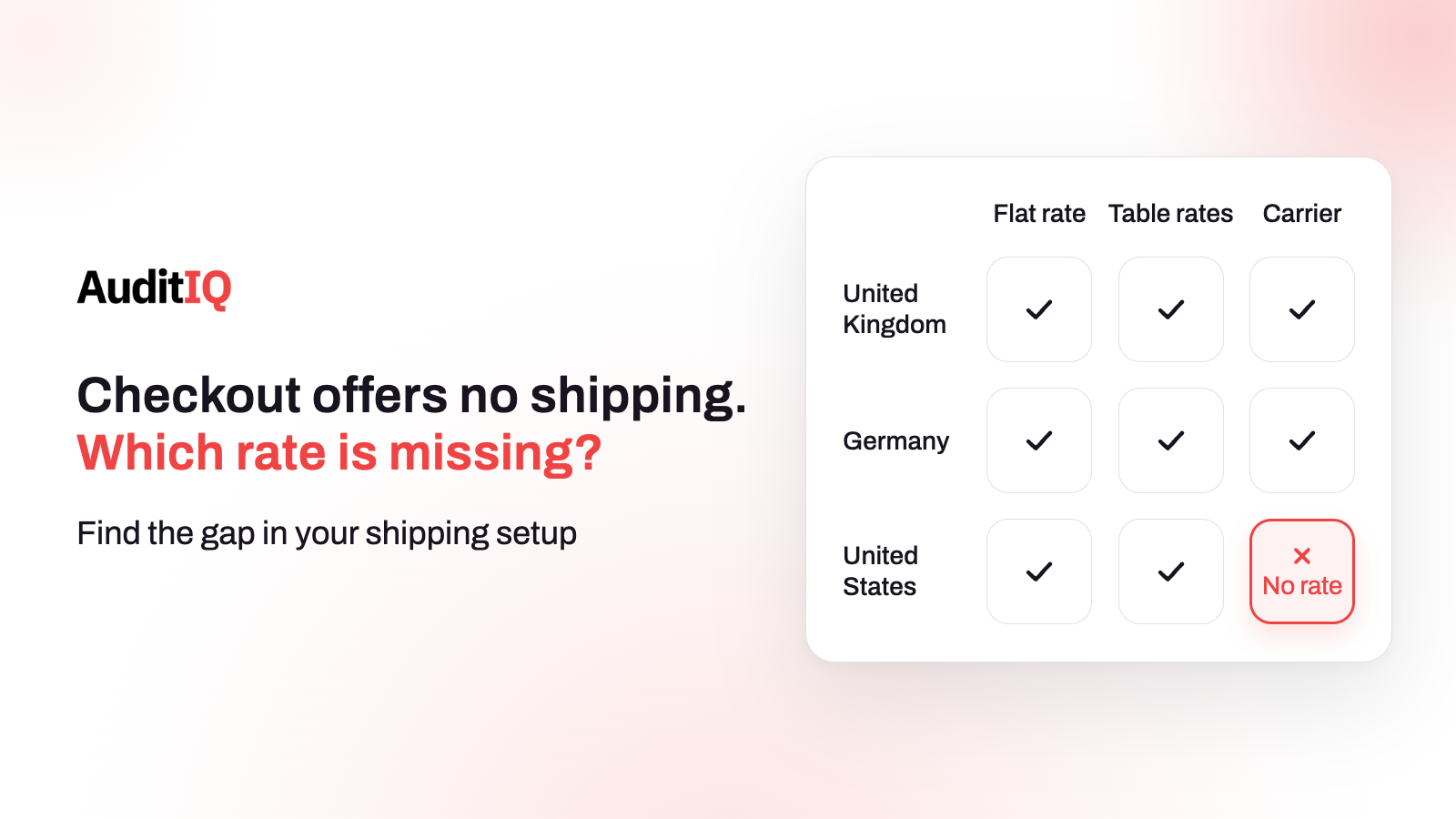
Adobe Commerce and Magento show “no shipping options” when no delivery method can return a rate for the customer’s address, cart, and shipping origin. Common causes are a method disabled in the wrong website scope, a destination country that is not allowed, missing Table Rates rows, a failing carrier connection (USPS retired its legacy API in January 2026), or a shipping extension error. Reproduce it with the exact cart, then check origin, countries, methods, rates, and logs.
When Adobe Commerce or Magento cannot return a valid shipping rate for the customer’s address, the cart contents, and your shipping origin, checkout can show a message such as “Sorry, no quotes are available for this order at this time”, display no delivery methods at all, or stop the customer from continuing. The customer sees a dead end with no explanation. Your admin shows no error, no order, and often no clear sign in analytics, because the customer usually leaves before the purchase conversion fires.
This guide explains what the message means, how the problem looks from the customer’s side, what causes it in Adobe Commerce and Magento, and how to find the cause step by step, including a USPS change that has broken rates for many US stores in 2026. It also covers how to test the fix, what to check before Black Friday on 27 November, and how to stop shipping gaps returning. Merchants can use the symptom tables to brief their agency, and agencies and developers can use the steps as a runbook.
What does “No shipping options available” mean in Adobe Commerce and Magento?
Commerce builds the list of shipping options at checkout from several inputs: the customer’s address, what is in the cart, the shipping origin, which delivery methods are enabled for that website, and any carrier or third-party rate service. Every method has its own conditions. If none of them can return a rate, there is nothing to show.
The exact wording depends on your theme, checkout, and version, and you can change it. Table Rates, for example, has a Displayed Error Message setting that holds the text customers see when that method becomes unavailable. Treat any message list you find online as examples, and describe the behaviour to your team instead: the customer reaches the shipping step and cannot get past it.
How do you recognise the problem? Symptoms and patterns
The pattern tells you which layer to check first:
| What you see | What it suggests | Check first |
|---|---|---|
| Only customers from one country or region are blocked | Destination eligibility, or no matching Table Rates row | Allowed countries and the Table Rates data |
| Only some carts or products are affected | A rate condition (weight, price, item count) or product data | The Table Rates condition and product weights |
| One carrier’s methods disappeared, others work | The carrier connection | Carrier credentials, gateway, and Adobe’s USPS notice |
| All methods vanished after a deployment | Scope, configuration, cache, or an extension | Website scope and the configuration changes around the deployment |
| Methods vanished after a CSV import | Table Rates data or condition mismatch | The imported file and the active condition |
| Only one website or store view is affected | Scope | The scope the method is enabled in |
| Methods fail to load with no clear message | A shipping extension or checkout request error | Browser network tab and the logs |
Two more clues: orders from a specific market quietly stop while other markets stay normal, and checkout drop-off rises at the shipping step. Neither shows up as an alert unless you are watching for it.
What causes missing shipping options in Adobe Commerce?
Work through the layers in order, because a problem at one layer hides everything above it.
The delivery method is not enabled in the right website scope
Delivery method settings, including Table Rates data, are scope-aware. If a method is enabled in the default scope but disabled or misconfigured for the website or store view a customer is shopping on, that customer sees nothing, while your test on another scope works. Adobe’s Table Rates steps tell you to set the Store View to the right website before exporting and importing the data, for exactly this reason.
The shipping origin is missing or wrong
The shipping settings establish the point of origin for all shipments, with a country, region or state, ZIP or postal code, city, and street address. Commerce uses the origin to calculate shipping charges and to determine the tax rate for products sold. An empty or invalid origin can break carrier calculations, and an origin that no longer matches your warehouse can change what customers are quoted.
The destination country is not allowed
Two settings control which countries can order. The Allow Countries list under Stores, Configuration, General, General, Country Options defines the countries you accept orders from. Each delivery method then has its own Ship to Applicable Countries setting, either All Allowed Countries or Specific Countries. A country can be allowed in one place and missing from the other, which leaves customers there with no method. The same page also holds the State Options, where a country can be set to require a state, and the Zip or Postal Code is Optional list, so a missing region or postcode can also stop a rate from being found.
Table rates do not match the cart
The Table Rates method looks up a rate in an imported table using one of three conditions: Weight v. Destination, Price v. Destination, or Number of Items v. Destination. A customer can fail to get a rate because their country, region, or postcode has no row, because the cart’s weight, price, or item count falls outside every row, or because the data was imported under the wrong condition or the wrong website. Adobe notes that only one set of table rate data can be active at a time. If Show Method if Not Applicable is set to No, a method that does not apply is simply hidden, which is correct for a restricted method but looks like a bug when the rows are incomplete.
The carrier connection is failing
Rates from UPS, USPS, FedEx, and DHL are downloaded automatically from your commercial account, which needs a valid account number or user ID and the gateway URL, plus the origin. Credentials, account settings, and API integrations can change or fail, so retest calculated rates after a credential rotation or a platform update. There is also a specific 2026 problem for US stores: Adobe states that Commerce 2.4.6, 2.4.7, and 2.4.8 use the Legacy Web Tools APIs for the built-in USPS integration, and that USPS retired those APIs on January 25, 2026, after which all requests to them fail. Adobe’s fix is to upgrade to the latest Commerce version or apply the USPS REST API Migration quality patch and update the USPS configuration. A US store on an older version that never made the change can have lost every USPS rate without any other symptom.
Product data does not support the rate
Weight-based Table Rates and carrier calculations depend on valid weights and, for carriers, dimensions. Adobe also notes that dimensional weight, which bases the price on a mix of weight and package volume, is common across major carriers. Virtual products have no weight, so they cannot change the result of a Weight v. Destination calculation, though they can affect Price and Number of Items conditions when you include them in the calculation. A catalogue with missing or wrong weights can match no rate for some carts and a wrong rate for others.
A shipping extension or the checkout frontend fails
Third-party carriers and rate services run their own code at checkout. If the extension throws an error, times out, or returns no rate, the customer sees the same empty shipping step. A JavaScript error in a checkout customisation can have the same effect. The browser console and network tab show the failing request, and the extension’s own logs usually say why.
Configuration or deployment drift
A deployment can change configuration values, restore an older database, or leave a scope in a different state from staging. After any deployment, treat shipping as something to retest, not something to assume.
Why does the problem keep coming back?
Shipping is a living configuration, and routine work can open a gap without anyone touching shipping settings:
| Operational change | Shipping failure it can create |
|---|---|
| Launching a new country or market | The country is not allowed, has no Table Rates row, or is not enabled for the carrier |
| Adding products or categories | Missing or wrong weight, a different product type, or no matching rate condition |
| Importing a Table Rates CSV or updating prices | Condition mismatch, missing destination rows, or data imported under the wrong website |
| Rotating or renewing carrier credentials | The carrier connection fails and its rates disappear |
| Updating a theme or checkout extension | The rate request fails, or a JavaScript error blocks the shipping step |
| Deploying code or configuration | Scope or configuration drift, so a method is enabled in the wrong scope |
| Staying on an older version | A carrier retires its API, as USPS did, and rates stop without any change on your side |
How do you find the cause step by step?
Step 1: Reproduce with the exact cart
Do not test by country alone. Use the customer’s real conditions: the website and store view, the customer group, the currency, the products and quantities, any virtual or downloadable items, any coupon, and the full address down to the postcode. Table Rates depend on the cart’s weight, price, or item count, so a different cart can get a different result.
Step 2: Check the shipping origin
Go to Stores, Configuration, Sales, Shipping Settings, and open the Origin section. Confirm the country, region or state, postcode, city, and street address, and check which scope you are viewing, because a value in the default scope can be overridden further down.
Step 3: Check destination eligibility
Check Allow Countries under Stores, Configuration, General, General, Country Options. Then open Sales, Delivery Methods, and for each method check Ship to Applicable Countries. Compare the failing customer’s country, region, and postcode format against both, and against the State Options for that country.
Step 4: Audit each delivery method
In Sales, Delivery Methods, check for every method that it is enabled in the right scope, that its title and method name are set, that Ship to Applicable Countries is correct, that Show Method if Not Applicable is what you intend, and what its Displayed Error Message says. A method that is enabled in one scope and not another is a common cause of “works on staging, fails live”.
Step 5: Audit the table rates data
- The Condition is the one your data was built for (weight, price, or items).
- The CSV has a row for the customer’s country, region, and postcode, and the Country column uses a valid three-character code.
- Wildcards use
*, specific regions are sorted above wildcard rows, and no postcode ranges are used. Adobe says ranges are not supported. - Weight values have no more than four decimal places, or the import fails.
- The data was imported under the correct website, and no older set is hiding the new one.
- Adobe’s own check: go through the payment process with several different addresses and confirm the rates.
Step 6: Verify the carrier integration
For each carrier check the account number or user ID, the gateway URL, that the carrier is enabled for checkout, that the allowed methods are selected, and that Ship to Applicable Countries includes the destination. If you ship with USPS on Commerce 2.4.6 to 2.4.8, confirm the REST API migration patch is applied and the USPS configuration uses the new API. Then test calculated rates from the address that failed.
Step 7: Check product data
For a cart that fails, open each product and check its weight, its type, and, where your carrier or Table Rates need them, its dimensions. Remove products from the cart one at a time to find the one that changes the result.
Step 8: Read the logs and the request
Check the application logs for errors raised while rates were calculated, for example var/log/exception.log and var/log/system.log, plus your carrier extension’s own log. In the browser, open the network tab at the shipping step and look at the rate request and its response. This separates a configuration gap (an empty but successful response) from a failing integration (an error response).
How do you fix it and confirm the rates are back?
Fix the layer you found: restore the method in the right scope, add the missing countries or Table Rates rows, correct the origin or product weights, repair the carrier connection, or roll back or patch the failing extension. After changing configuration, clear or refresh the relevant caches according to your deployment workflow, then test the exact cart and address that failed. Then run the full check:
- Test the original failing cart and address.
- Test one address in every country and region you sell to, as guest and as a logged-in customer, on desktop and on a phone.
- Complete a real test order with each payment method, and confirm it appears in the admin and that the confirmation email is sent.
- If your purchase tracking is part of the flow, confirm the conversion event fires.
- Watch the logs and the shipping-step drop-off for the next 24 to 48 hours.
What should you check before Black Friday?
Peak traffic multiplies the cost of a shipping dead end, and it is a bad week to discover a gap. Before 27 November:
- If you ship with USPS on Commerce 2.4.6 to 2.4.8, confirm the migration to the REST API is done.
- Build a simple coverage matrix of website by country by product type, and test one cart from each row.
- Keep a copy of the Table Rates CSV you last imported, so you can compare and roll back.
- Avoid changing carriers, credentials, or rates in the middle of a sale unless you can retest straight away.
- Run a shipping-step smoke test after every deployment during the campaign.
How do you stop shipping gaps from coming back?
| Risk | Prevention |
|---|---|
| A new country has no rate | Keep a coverage matrix and update it whenever a market is added |
| Table Rates rows are missing | Validate the CSV before import and keep a test cart for each region |
| Carrier credentials or APIs change | Track renewal dates and retest calculated rates on a schedule; watch carrier notices such as the USPS API retirement |
| Products ship without a weight | Audit the catalogue for shippable products that have no weight |
| An extension update breaks rates | Test on staging and run a checkout smoke test before release |
| Configuration drifts after a deployment | Keep a history of configuration changes and retest shipping after every deployment |
Catching shipping dead ends before customers hit them with AuditIQ
AuditIQ does not call your carriers or test a rate for every address, but it watches several of the layers where shipping failures start or show up:
- User Experience Monitoring: shows where customers drop off in checkout, with frustration signals and device, browser, and session context, so a rise in drop-off at the shipping step stands out.
- Configuration Tracking: logs every Magento and Adobe Commerce configuration change with before and after values, scope, and timestamp, including changes made through deployment scripts or directly in the database, so a disabled method, a changed origin, or a changed country list can be tied to a time.
- Log Monitoring: parses your Magento application logs and surfaces critical errors with the stack trace and frequency, and flags spikes and new error types, which helps when a shipping integration starts failing.
- Module Monitoring: keeps an inventory of installed modules, alerts you to updates, and checks daily code hashes, so a changed carrier or shipping extension is easy to spot.
Imported Table Rates rows are data, not configuration settings, so keep your own copy of the CSV you imported, and keep testing carts from each region. Use monitoring to learn that something changed, and your tests to confirm that rates still return.
Beyond shipping, AuditIQ is a 360° eCommerce monitoring platform purpose-built for Magento, Adobe Commerce, and Shopify stores. It continuously monitors every critical layer of a store — performance, infrastructure, SEO, security, user experience, configuration, and code quality — from a single, unified dashboard, so a quiet checkout dead end is caught before it becomes a pattern of lost orders.
Start monitoring your store for free today and see checkout drop-offs and configuration changes as they happen.
Others also read
- eCommerce configuration changes: The silent cause of storefront failures
- Your eCommerce revenue dropped but traffic stayed the same: Here's what's happening in between
- eCommerce Holiday Traffic Readiness: How to find silent storefront failures
Frequently asked questions
1. Why does Adobe Commerce say “No shipping options available”?
Because no delivery method returned a rate for that customer’s address, cart, and shipping origin. The cause can be scope, an origin or country setting, missing Table Rates rows, a failing carrier connection, product data, or a shipping extension, so check the layers in order rather than starting with the carrier.
2. Is a missing shipping method always a carrier problem?
No. It can come from website scope, the origin, allowed countries, Table Rates data, product weights, or a third-party integration. Diagnose the whole rate-request path before you change carrier credentials.
3. Why did our USPS shipping rates disappear?
If you are on Adobe Commerce 2.4.6, 2.4.7, or 2.4.8, the built-in USPS integration uses the Legacy Web Tools APIs, which USPS retired on January 25, 2026. Upgrade, or apply Adobe’s USPS REST API Migration quality patch and update the USPS configuration.
4. Why do Table Rates work for some carts but not others?
Table Rates match on weight, price, or item count together with the destination. A cart whose weight, price, or item count falls outside every row, or whose destination has no row, gets no rate. Virtual products have no weight, so they behave differently under each condition.
5. Why can customers in one country see no shipping method?
Check that the country is in Allow Countries, that each delivery method’s Ship to Applicable Countries includes it, that Table Rates has a row for it, and that the carrier supports it. Also check whether the country requires a state or postcode.
6. Will customers always see the same message?
No. The wording depends on your theme, checkout, and version, and some methods let you set a Displayed Error Message. Describe the behaviour, a shipping step that offers nothing, rather than relying on one exact text.
7. How do I test shipping rates safely?
Use staging first, with the same configuration and data as production. Go through checkout with several different addresses and the exact carts that matter, as Adobe recommends for Table Rates, and complete a test order. Then repeat on production after the change.
8. How can I tell if customers are hitting this problem right now?
There is usually no admin alert. Signs are a rise in drop-off at the shipping step, orders from one region quietly stopping, and errors in the logs. Testing from each market regularly, and monitoring checkout drop-off and configuration changes, are the practical ways to catch it early.
About the author
Ginny Ngo writes from AuditIQ's experience monitoring eCommerce performance, SEO, security, and reliability issues across Magento, Shopify, WooCommerce, and Adobe Commerce stores.