Adobe Commerce cron jobs not running? Here’s how to find and fix the silent failures breaking your store
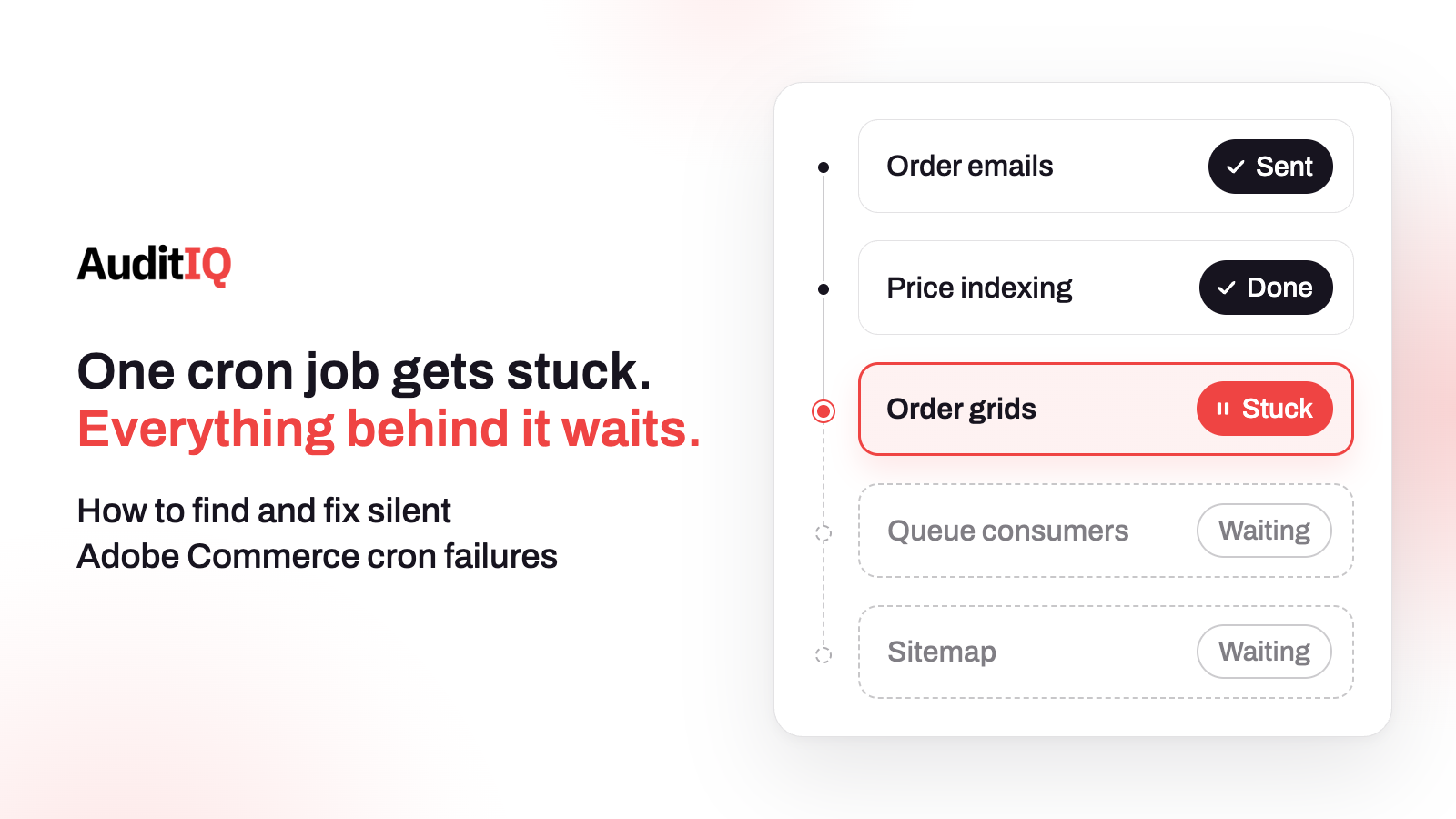
Adobe Commerce cron jobs usually stop because the crontab is missing, cron was disabled after a deployment, a job is stuck in “running”, or the job history has grown unchecked. When cron stops, order emails, scheduled indexers, order grids, and message-queue consumers all stall. Check the crontab, find jobs stuck in running, run cron twice to confirm, then review indexer and queue status.
Adobe Commerce hands a surprising amount of everyday work to cron. Adobe’s list of features that need at least one cron job includes reindexing, catalog price rules, newsletters, sitemap generation, currency rate updates, and all Commerce emails, order confirmations among them. When cron stops, none of those announce it. Customers see no error, the admin shows no warning, and the store keeps taking orders while prices go stale, emails queue up, and background work falls behind.
This guide explains what cron does and why its failures stay silent, how to recognise them from the symptoms, what usually causes them, and how to diagnose and restore cron step by step, including how to unlock stuck jobs safely, which is where a quick fix can do harm. It also covers indexers, the cron_schedule history, message-queue consumers, what changes when order volume spikes on Black Friday, and how to monitor cron health continuously. Merchants can use the symptom tables to brief their agency, and agencies and developers can use the steps as a runbook.
What does cron do in Adobe Commerce, and why does it fail silently?
Cron is the Linux scheduler that Adobe Commerce relies on for its asynchronous work. It runs a command every minute, and Commerce then discovers and runs whatever is due. Several customer-facing things depend on it:
- Emails. Adobe lists all Commerce emails, including order confirmation and transactional emails, among the features that need cron. If Asynchronous sending is on for sales emails, they are sent at regular intervals by cron.
- Indexes. In Update on Schedule mode, a cron job processes index changes in the background, so prices, stock, categories, and search results update through cron.
- Order screens and expiry. With scheduled grid updates turned on, the Orders, Invoices, Shipments, and Credit Memos grids update only when the cron job runs, and the lifetime of orders awaiting payment is set by an orders cron setting that defaults to 480 minutes.
- Message-queue consumers. Cron is the default mechanism that restarts the consumers that process queued work.
When cron stalls, the effects compound:
| What stops | What stalls | What you notice |
|---|---|---|
| The cron runner itself | Everything scheduled below | Nothing at first |
| Email sending (asynchronous mode) | Order confirmations and shipping emails queue up | “Where’s my order?” tickets |
| Scheduled indexing | Prices, stock, categories, and search results stop updating | Wrong prices and unavailable products shown |
| Scheduled grid updates | Order and invoice grids stop refreshing | Orders missing or out of date in the admin |
| Queue consumers | Asynchronous and bulk operations back up | Imports and bulk actions that never finish |
How do you know cron has stopped? Symptoms and error messages
Use the symptom to decide where to look first:
| Symptom | First check | Likely area |
|---|---|---|
| Customers say they never received order or shipping emails | Whether Asynchronous sending is on, and recent successful entries in the cron history | Cron, email queue |
| Orders missing or out of date in the admin grids | Whether scheduled grid updates are on, and whether cron is running every minute | Cron, grid indexing |
| Prices, stock, categories, or search results are stale | bin/magento indexer:status and the Index Management page |
Indexers |
| Bulk imports or asynchronous actions never complete | Queue consumers and the consumers cron group | Message queues |
| Many jobs queue up in cron_schedule, performance degrades, or jobs miss their schedule | Jobs in running status for longer than usual |
Stuck jobs |
| Many jobs marked missed | The crontab, the server clock, and the Missed if not Run Within setting | Cron installation or scheduling |
Two on-screen clues are worth knowing. On the Index Management page, a status of Reindex Required means a change needs reindexing but the indexers cannot be updated automatically, and Adobe’s advice is to check that cron is available and configured correctly. Commerce also shows a system message when no cron job is available to update indexers that have become invalid. In the logs, Commerce records cron job exceptions through its cron observer, so messages from cron appear in the cron log rather than the main system log.
What causes Adobe Commerce cron jobs to stop running?
There is no reliable ranking of causes across stores, so check each of these rather than assuming the first is the answer.
The crontab is missing or was lost
Cron only runs if the Commerce crontab exists for the file system owner. After a migration, a redeployment, or a container rebuild, that entry can disappear. In a multi-node setup, Adobe notes the crontab can run on only one node, so a change of node can leave the new one without it.
Cron is disabled in the configuration
On Adobe Commerce on cloud infrastructure, cron can be left switched off after a failed deployment or a configuration problem. Adobe documents a case where cron stopped because it was disabled in the environment configuration, with a message that cron is disabled when running the command by hand, and a command to re-enable it.
A job is stuck in running status
A job that crashes or loses its connection can stay in running and prevent other jobs from running. Adobe’s knowledge base article lists network issues, application crashes, and redeployment problems as possible causes, and describes the symptoms: a large quantity of jobs in the cron_schedule queue, degrading site performance, and jobs that fail to run on schedule.
The cron history has grown unchecked
Every scheduled run is recorded in the cron_schedule table. Adobe provides settings for how often history is cleared and how long successful and failed entries are kept, so a growing table usually means those settings need review, or that jobs are piling up for another reason. There is no universal row-count threshold to treat as healthy or dangerous, so compare the table with your own baseline.
Message-queue consumers are not being restarted
Consumers started by cron process a set number of messages and then terminate, and the next cron run starts them again. If cron stops, consumers are not restarted, and the queues behind them back up.
Jobs fail on memory, permissions, or timeouts
An individual job can fail because of a PHP memory limit, an execution time limit, or a file permission change after a deployment. Adobe requires Commerce commands to run as the file system owner, so a deployment that changes ownership can stop cron from running or writing its logs. Failed jobs leave records in the cron log and the exception log, which most teams do not check until something breaks.
How do you diagnose and restore cron step by step?
Step 1: Check the crontab for the file system owner
Log in as the file system owner and run crontab -l. The Commerce entries sit between #~ MAGENTO START and #~ MAGENTO END comments and run bin/magento cron:run every minute. If they are missing, run bin/magento cron:install. Adding --force rewrites an existing Commerce crontab but leaves other cron jobs outside those comments untouched.
Step 2: Check whether cron is disabled
Run bin/magento cron:run by hand. If it reports that cron is disabled, check the environment configuration. On cloud infrastructure, vendor/bin/ece-tools cron:enable re-enables it.
Step 3: Read the cron logs
Cron activity is written to var/log/cron.log by default. Jobs that ended in error or were missed are also written to var/log/support_report.log, and jobs in error are logged as critical in var/log/exception.log.
Step 4: Look at the cron_schedule table
Start with the pattern of statuses:
SELECT status, COUNT(*) FROM cron_schedule GROUP BY status;
You are looking for recent successful runs and for unusual counts of running or missed jobs. Then list jobs stuck in running:
SELECT * FROM cron_schedule WHERE status = 'running';
Note the job code of any job that has been running for longer than usual.
Step 5: Unlock only what is stuck
On cloud infrastructure, Adobe documents resetting specific jobs with ./vendor/bin/ece-tools cron:unlock --job-code=<job_code>. Adobe warns that running the command without the job code resets all cron jobs, including ones that are running right now, so use it only in exceptional cases, and avoid it while indexers are running. A redeployment already runs this reset by default. For on-premises stores, the Adobe documentation I reviewed does not describe an equivalent core command, so involve your developer or host rather than editing the table in bulk, and take a database backup first.
Step 6: Run cron twice to confirm
Cron must run twice for scheduled work to execute: the first run discovers what to do and queues it, and the second run, on or after the scheduled time, performs it. Run bin/magento cron:run two or three times, then check that new entries reach success in the cron history. You can target a group with --group index or --group default.
Step 7: Check indexers
Run bin/magento indexer:status. An indexer that stays invalid, or keeps processing for longer than expected, needs attention. bin/magento indexer:reindex rebuilds an index by hand, but if the cause was a stopped cron, restore cron first or the same indexer will fall behind again.
Step 8: Check message queue consumers
Run bin/magento queue:consumers:list to see the consumers, check whether the queues behind them are growing, and start a consumer by hand with bin/magento queue:consumers:start <consumer_name> if needed. Then fix why cron was not restarting them.
Step 9: Check emails and order grids
Confirm whether order and shipping emails are being sent, and whether new orders appear in the admin grids. If Asynchronous sending is on, a backlog of unsent emails points back to cron. Place a test order once cron is healthy and confirm the confirmation arrives.
How do indexers depend on cron, and how do you fix stale prices and search results?
Adobe’s indexer best practices describe two modes. The main difference is who triggers the work, and what happens when that trigger disappears:
| Mode | What happens | Trade-off |
|---|---|---|
| Update on Save | Indexes update immediately when data changes | Frequent reindexing can degrade database performance on large stores with many admins or imports, and Adobe lists high CPU use and MySQL errors as symptoms of deadlocks |
| Update on Schedule | Changes are recorded, and a cron job reindexes in the background. It reindexes only when there are new entries in the change logs | Better performance, but if cron stops, indexes go stale and storefront data stops updating |
Adobe recommends Update on Schedule for large sites, sites with frequent updates, and sites with heavy traffic. One detail changed in 2.4.8: the Customer Grid indexer supports both modes and defaults to Update on Schedule, while before 2.4.8 it supported only Update on Save. Adobe’s Index Management guide explains the Reindex Required status and the system message that appears when cron cannot update invalid indexers.
How do you keep the cron_schedule table under control?
Prefer Adobe’s own cleanup settings over ad hoc deletes. In Stores, Configuration, Advanced, System, the Cron section has settings for the Index and Default groups:
| Setting | What it controls |
|---|---|
| Generate Schedules Every | How often the schedule is generated, in minutes |
| Schedule Ahead for | How far in advance jobs are scheduled, in minutes |
| Missed if not Run Within | How long after its scheduled time a job is still allowed to run before it is marked missed |
| History Cleanup Every | How often the history of ended tasks is cleared from the database |
| Success History Lifetime | How long successful job history is kept |
| Failure History Lifetime | How long failed job history is kept |
| Use Separate Process | Whether all jobs in the group run in a separate system process |
Choose retention values that suit your job volume and how far back you need to investigate. If you ever clear the table by hand, take a database backup first and confirm that the records are no longer needed for troubleshooting.
Should message-queue consumers run from cron or from a process manager?
Adobe’s guidance on managing message queues says you can use cron jobs or an external process manager to make sure consumers keep retrieving messages. Cron is the default: the consumers_runner job runs every minute, and each consumer processes 10,000 messages by default before it terminates and is restarted. Three settings matter when you diagnose a backlog:
max_messagessets how many messages each consumer handles before terminating. Adobe does not recommend setting it to 0 to stop consumers from ever terminating.consumers_wait_for_messagescontrols whether a consumer waits for new messages. With a value of 0, consumers process the available messages and then terminate. With 1, they keep waiting if the queue empties early, and Adobe says to set 1 if you run consumers with workers instead of cron. It is a global option, not set per consumer.- Adobe advises against running multiple consumers on a queue operated by MySQL, and suggests an external broker such as RabbitMQ for that.
What changes on Black Friday when order volume spikes?
Peak sales put pressure on exactly the work that cron handles: order emails, grid updates, price and stock indexing, and queued operations. A cron problem that was tolerable on a quiet Tuesday can leave a backlog of unsent confirmations by the end of a sale day. Before 27 November:
- Check that cron runs every minute and that recent runs succeed. Adobe recommends a one-minute schedule for scheduled grid updates.
- Confirm that Update on Schedule is on for the indexers that need it, and that the backlog is near zero.
- Check consumers and queue depth, and decide whether consumers should move to a process manager.
- Treat deployments as a risk to cron. A redeployment can reset or leave cron disabled, so verify cron after every deploy, and avoid deploying in the middle of a sale.
How do you confirm cron has recovered?
- Run
bin/magento cron:runmore than once and confirm that new entries reachsuccessin the cron history. - No job stays in
runningfor longer than usual, and the backlog of missed jobs is not growing. - Indexers show as ready, and a price change in the admin reaches the storefront.
- A test order sends its confirmation email and appears in the admin grids.
- Queue backlogs are shrinking, and bulk operations complete.
- The cron_schedule table is cleaning itself according to your retention settings.
How do you monitor cron health before it costs you orders?
Cron failure is a recurring risk, not a one-time fix. It returns with every extension that adds a job, every deployment, and every server change. Check these regularly, or automate them:
- The crontab for the right user, and no disabled cron setting
- Recent
successentries in the cron history - Jobs in
runninglonger than their usual duration - A growing backlog of
missedjobs - Indexers that stay invalid or processing
- Queue depth and whether consumers are running
- Whether order and shipping emails are being sent
- cron_schedule size against your own baseline
Catching the symptoms of failing cron jobs with AuditIQ
AuditIQ does not have a dedicated cron monitor and does not replace job-level monitoring of the cron history or the queues. It watches several layers where a cron failure, or the change that caused it, becomes visible:
- Log Monitoring: parses your Magento application logs in real time and surfaces critical errors with the full error message, stack trace, and frequency, and flags unusual error spikes and new error types.
- Configuration Tracking: logs every Magento and Adobe Commerce configuration change with before and after values, including changes made through the CLI, deployment scripts, or directly in the database, so a changed cron, email, or indexer setting can be tied to a time.
- Server Monitoring: tracks CPU and disk every 5 minutes with trend graphs, so a server that is struggling with piled-up jobs or growing logs shows up on the graphs before it fails outright.
Use these alongside your own checks of the cron history, the indexers, and the queues, which remain the source of truth for whether cron is running.
Beyond cron, AuditIQ is a 360° eCommerce monitoring platform purpose-built for Magento, Adobe Commerce, and Shopify stores. It continuously monitors every critical layer of a store — performance, infrastructure, SEO, security, user experience, configuration, and code quality — from a single, unified dashboard, so the quiet failures behind stale prices and unsent emails are caught early.
Start monitoring your store for free today and spot background failures before they reach your customers.
Others also read
- Why is my eCommerce store showing the wrong price? How to find and fix pricing errors before they cost you revenue and trust
- eCommerce configuration changes: The silent cause of storefront failures
- Adobe Commerce checkout slow for logged-in customers? How customer segments silently degrade performance
Frequently asked questions
1. How do I know if my Adobe Commerce cron jobs are running?
Log in as the file system owner and run crontab -l to confirm the Commerce entries exist, then check the cron_schedule table for recent successful runs. Remember that cron must run twice for scheduled work to execute, so a fresh install may need a few runs before entries appear.
2. Why did cron stop working after a deployment?
A deployment can remove the crontab, change file ownership, or leave cron disabled in the configuration. Adobe notes that a redeployment on cloud infrastructure also runs the cron reset by default. Verify the crontab, run cron by hand, and check the cron history after every deployment.
3. Can a stuck cron job bring down my store?
A stuck job can prevent other scheduled jobs from running, and Adobe lists a large quantity of jobs in cron_schedule, degrading site performance, and jobs that miss their schedule as the symptoms. Find the jobs that have been running unusually long and reset those specific jobs rather than all of them.
4. How large should the cron_schedule table be?
There is no universal row count to aim for. Review the History Cleanup Every, Success History Lifetime, and Failure History Lifetime settings, compare the table with your own baseline, and investigate sudden growth, which can point to stuck jobs or a misconfigured job.
5. What is the difference between Update on Save and Update on Schedule?
Update on Save reindexes immediately when data changes, which can slow the admin and the database on busy stores. Update on Schedule records changes and lets a cron job reindex in the background, which performs better but depends on healthy cron. Adobe recommends it for large sites, sites with frequent updates, and heavy traffic.
6. Why are my order confirmation emails delayed on Adobe Commerce?
If Asynchronous sending is on, sales emails are sent at regular intervals by cron, so a stopped or backlogged cron delays them. Check that cron is running, then review the sales email settings and your mail transport.
7. Is it safe to run cron:unlock?
On cloud infrastructure, use it with the job code of the specific stuck job. Adobe warns that running it without a job code resets all cron jobs, including those running right now, and says to avoid it while indexers are running. For on-premises stores, involve your developer or host before changing job statuses by hand.
8. Do message queue consumers need cron?
By default, yes: cron restarts consumers every minute, and each one processes up to 10,000 messages before it terminates. You can instead use an external process manager. If you do, set consumers_wait_for_messages to 1 so consumers keep waiting for new messages.
About the author
Ginny Ngo writes from AuditIQ's experience monitoring eCommerce performance, SEO, security, and reliability issues across Magento, Shopify, WooCommerce, and Adobe Commerce stores.